From This article, We are starting new series of article on MECM server where you will be guided step by step installation, configuration and troubleshooting MECM server. where you will understand why and how all prerequisites are required and how to install for MECM server.
System Center is one of the complex solution provided from Microsoft have extensive capability to manage endpoints via single console. it requires bunch of prerequisites to be installed before start the installation of SCM tool.
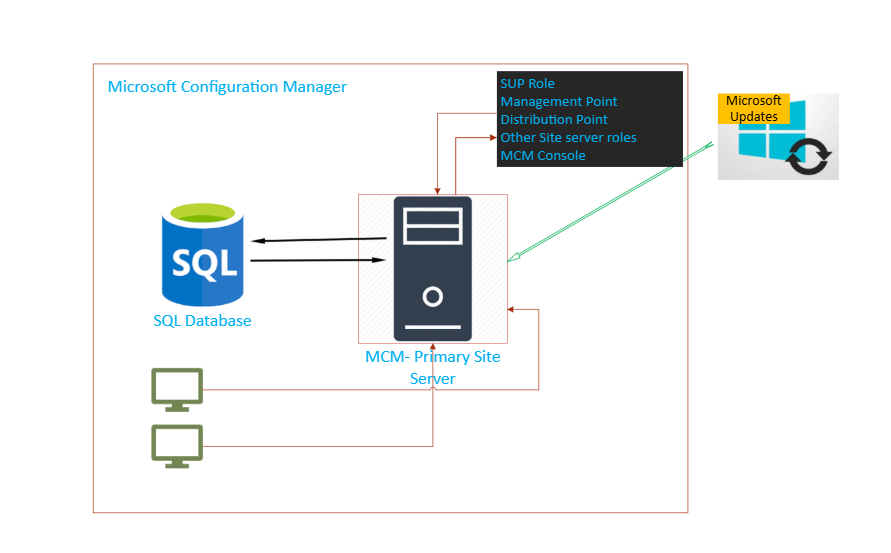
Design & Architecture of MCM server
to manage computer and devices across the organization this is very powerful tool which manages computer by patching, application deployment, compliance management. MECM (Microsoft Configuration Manager) formerly known as SCCM(System Center Configuration Manager). MECM has multiple roles which acts independently.
Software Update Point: this is responsible synchronizing update from Microsoft, which interacts with WSUS and downloads updates. its manages, enables software update compliance assessment and deployment to client.
Management Point: This role is responsible communication between clients and the site server. this provides client policies, service location including packages location, receives configuration data, reports of inventory, information of software metering.
Distribution Point: is a server location which stores contents such as software packages, applications, updates groups, files for the clients devices. in short it acts as local repository server for delivery packages.
MCM Console: This is the console location from where administrator manage and control the environment.
AD schema Upgrade
In this step i will show you how to create System Management container in Active Directory MECM and steps to extend Active Directory Schema. will also understand to assign permission to the computer in that container created for MECM server. the first step to install MECM server to prepare active directory for MECM server which provides full permission to the MECM in that specific container. This step need to perform before start the installation of MECM server. this includes multiple step, which will be covered in this article.
system management container is will always stayed in system folder or container in the active directory which used for management to store data which are published like certificates & boundaries. download ExtendSchma
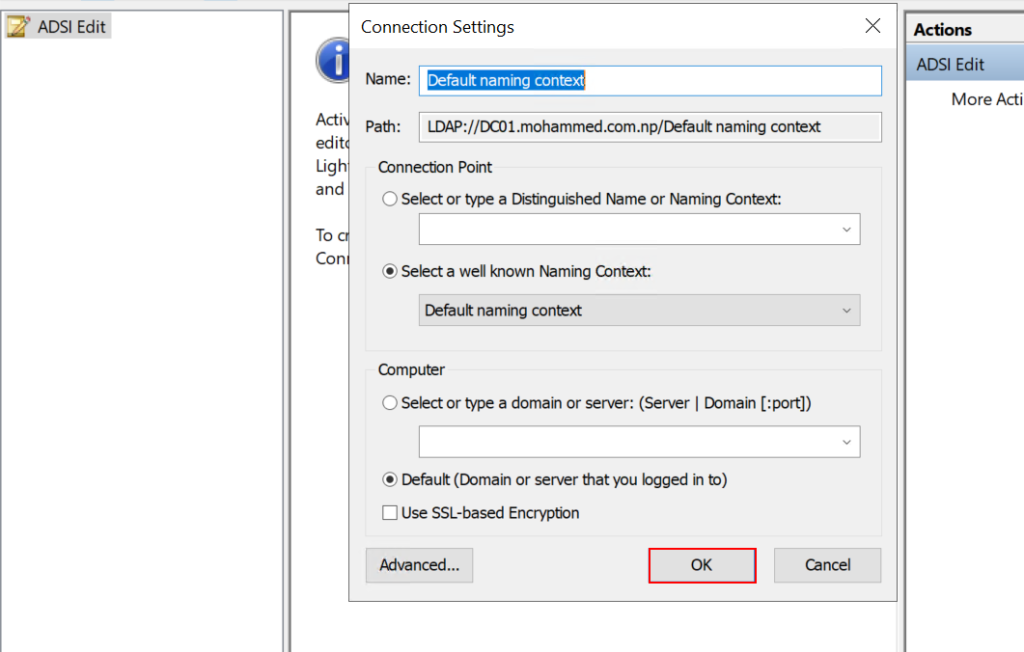
Login to Active Directory domain controller, launch server manager, click on Tools and select ADSI which is backend of Active Directory. Right click on ADSI Edit and select Connect to
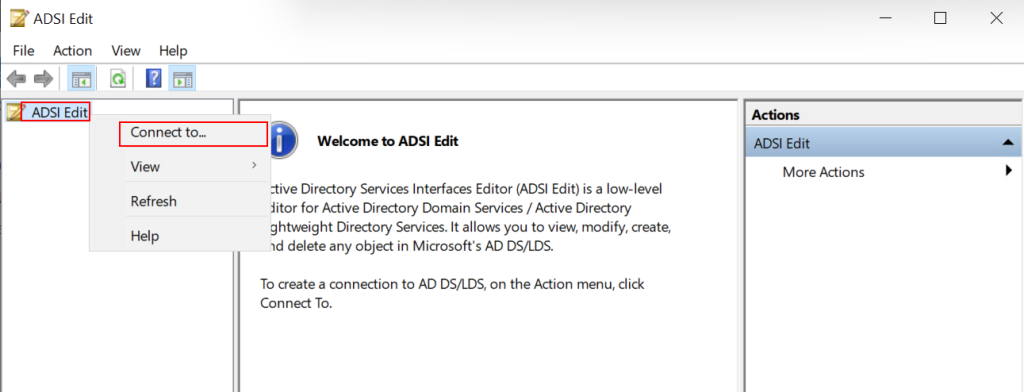
On the ADSI Connect Settings, keep the naming context Default Naming context and click OK
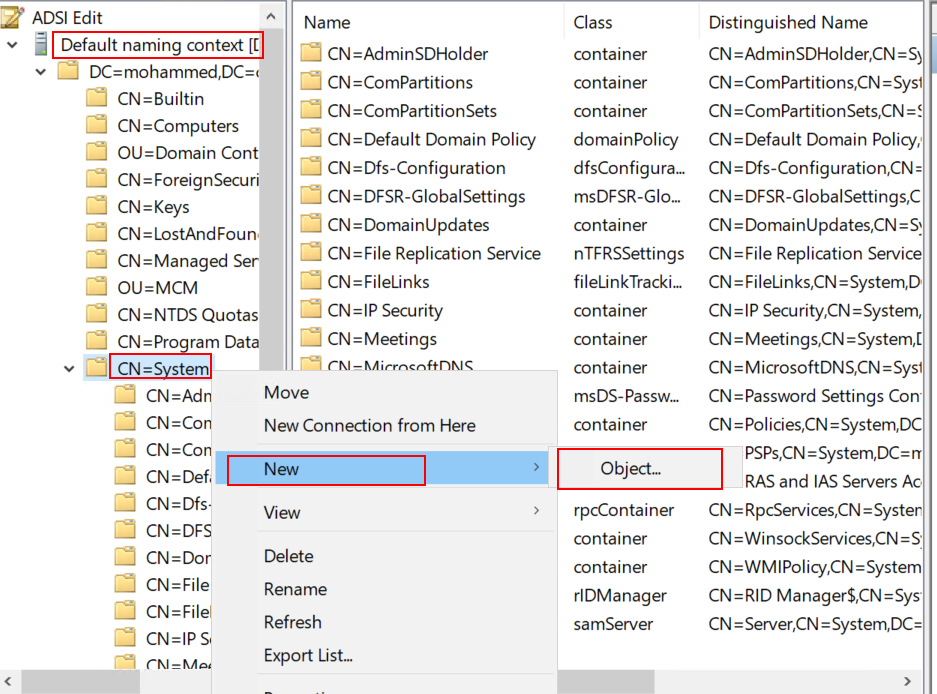
In the console, expand the default naming context, right click on CN=System and select New-> Object.
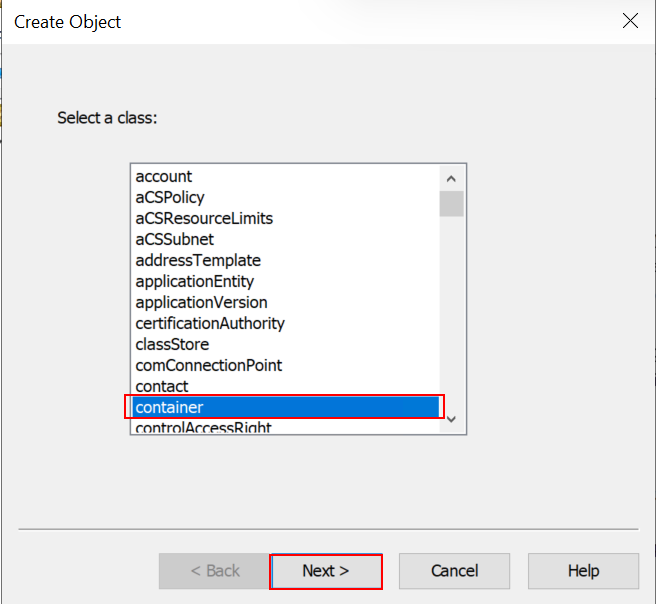
Choose container as class and next.
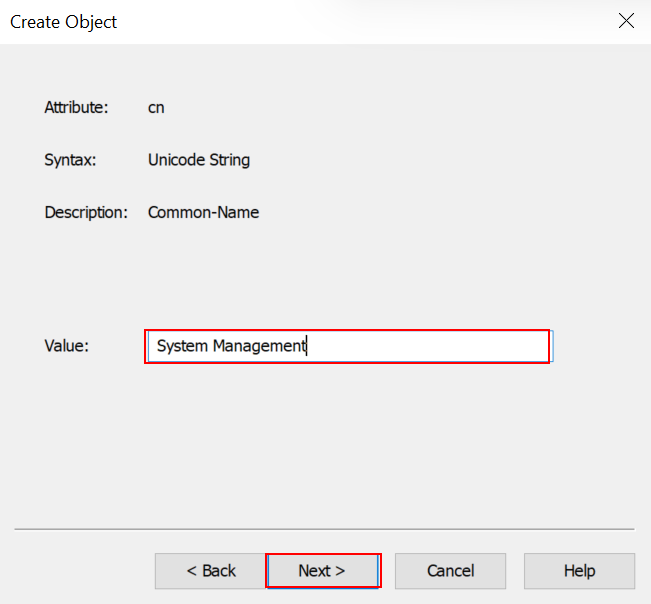
Enter the value name System Management (Without any spelling mistake) and Next. This is the exact location MECM server will use to publish information keys and from where client computer can detect MECM services automatically.
Finish.
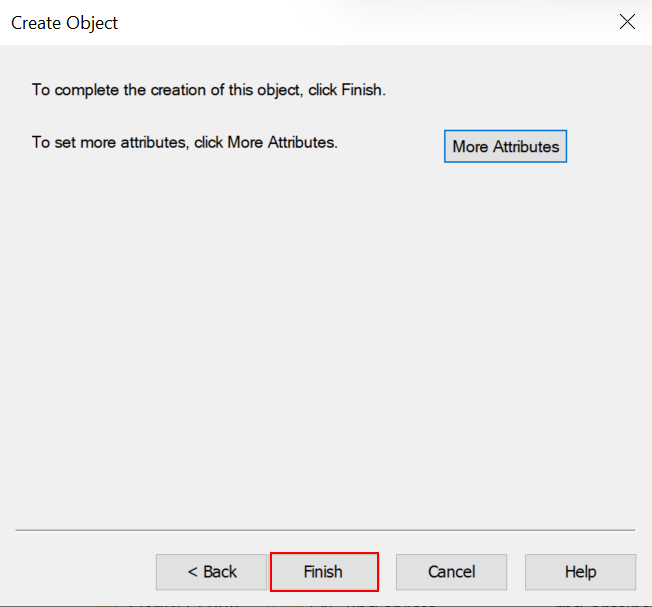
Container for MCM server has been created, now it is required to assign full permission to MCM server in that Container (System Management). In the next step you will learn step by step process to assign permission to a container for MCM server. To Delegate permission in the container please follow the steps.
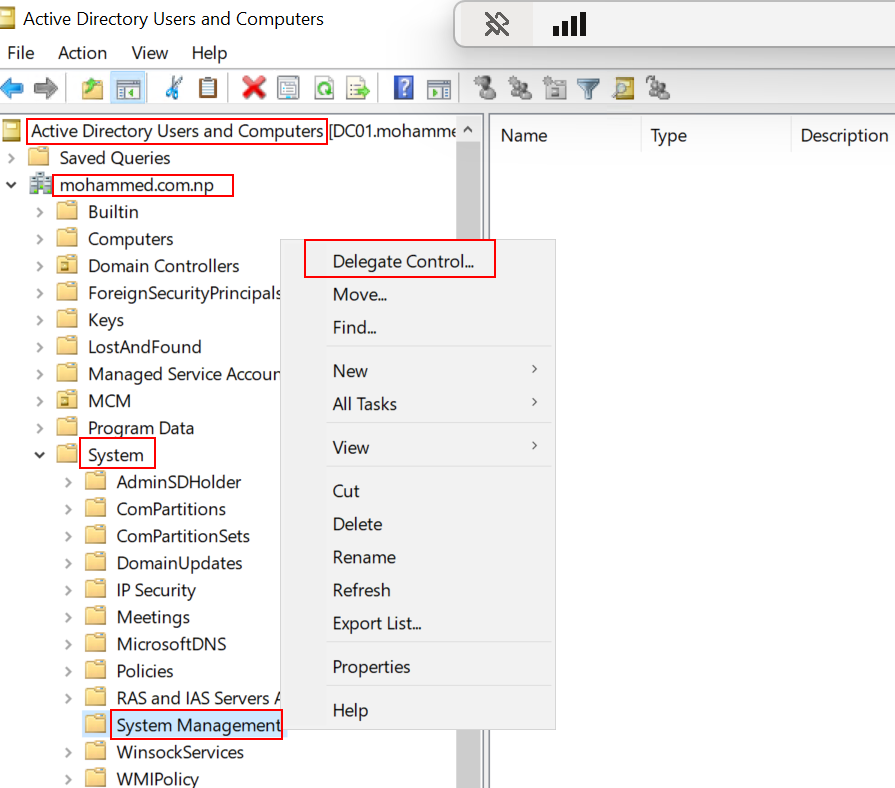
Launch Active Directory Users and Computers, Click View and go to Advance Features, Right click on System Management container and select Delegate Control.
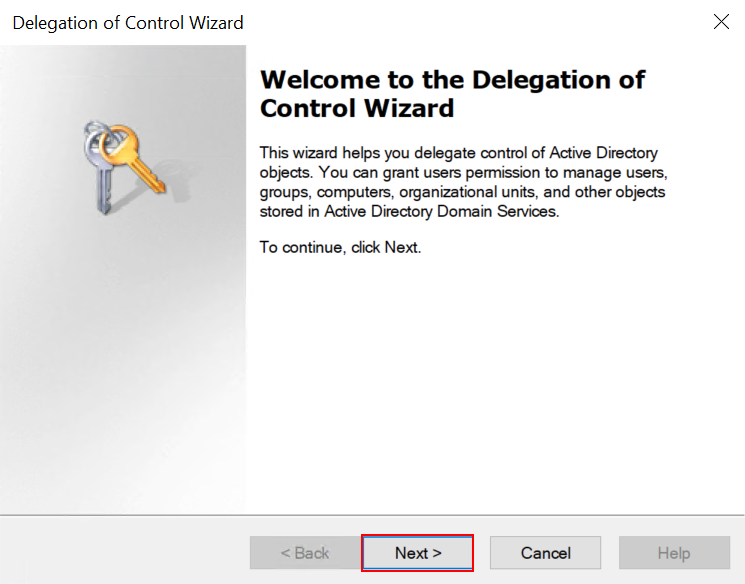
Click On Next.
On the delegation control Page, Click Add button.
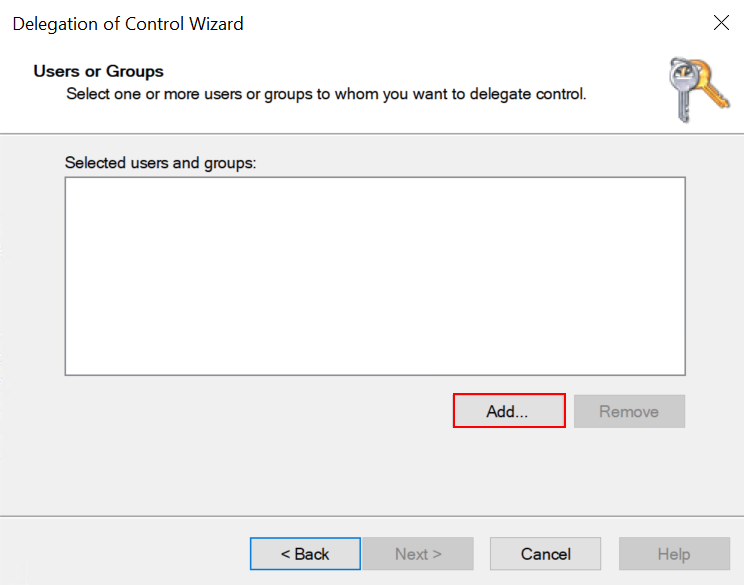
Select the MCM Computer account and add for the permission delegation.
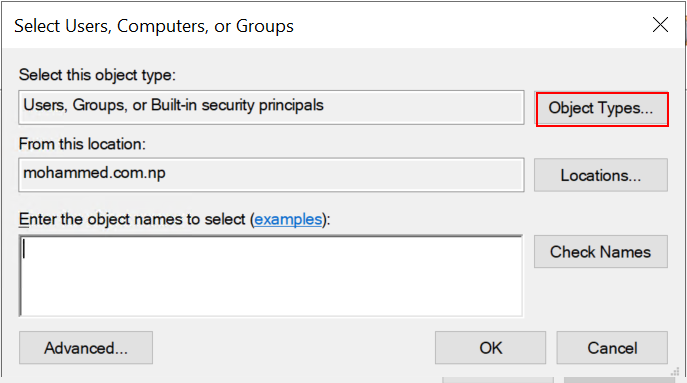
Here, MECM computer server need full control over the System Container in stead of users. here Check on Computers and OK.
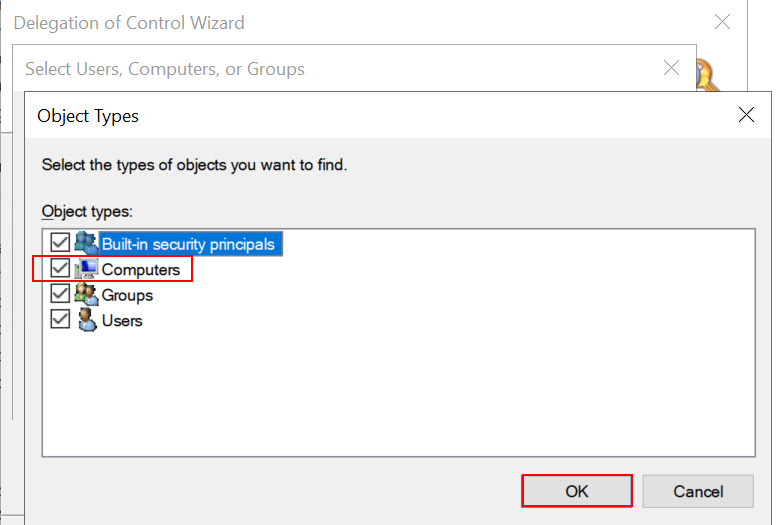
search and select the computer account from your Active Directory . my computer name is MCM which is selected and click on OK.
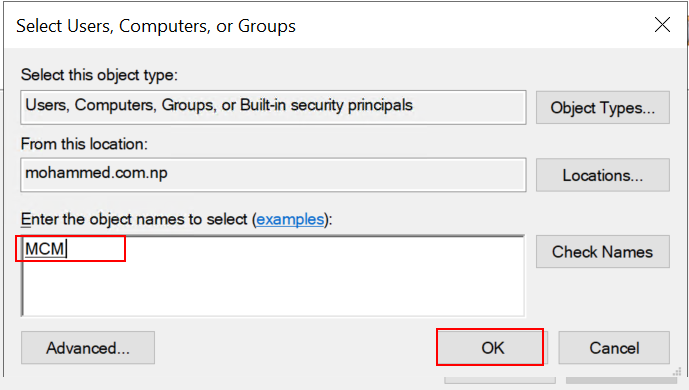
As you can see computer account has been selected, now click on Next.
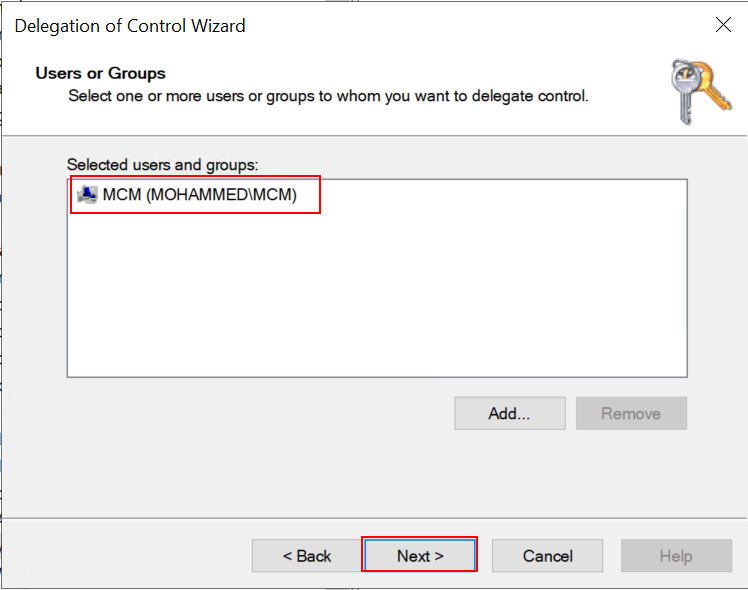
As already mentioned computer account need a full permission, custom delegation is required to be created in this case.
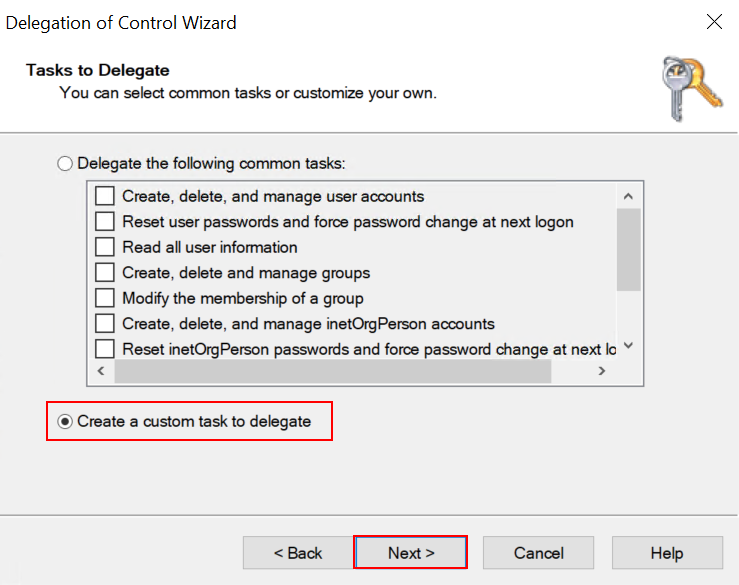
On Task to delegate page, Create custom task to delegate. Click Next.
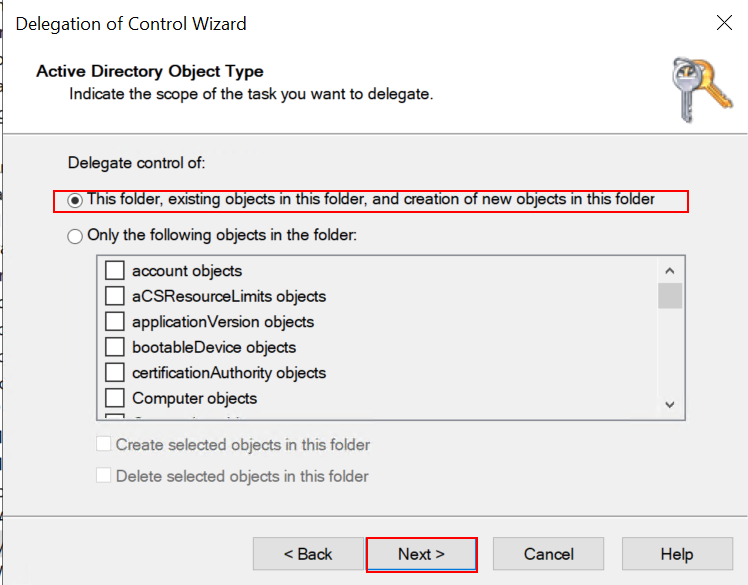
In this step, use This folder, This folder, existing objects in this folder, and creation of new objects in this folder. Click Next.
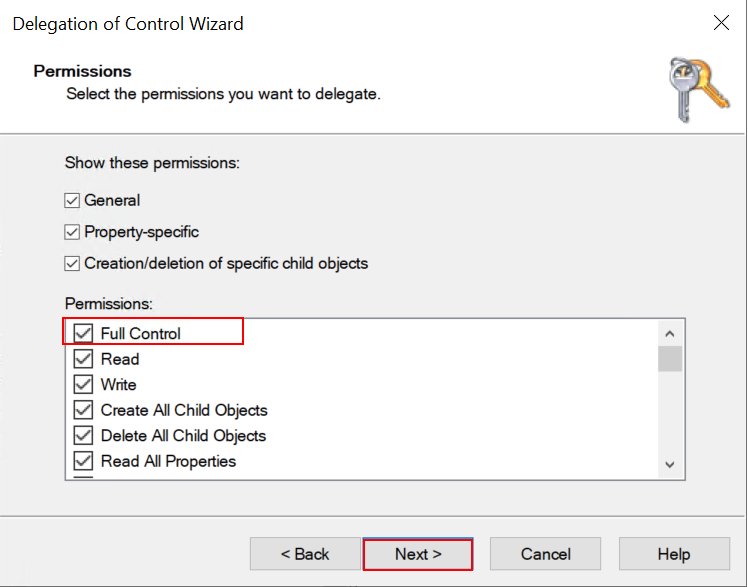
On the permission page you will assign full permission to the computer in that select Container. Under the Permission section select Full Control. and Next.
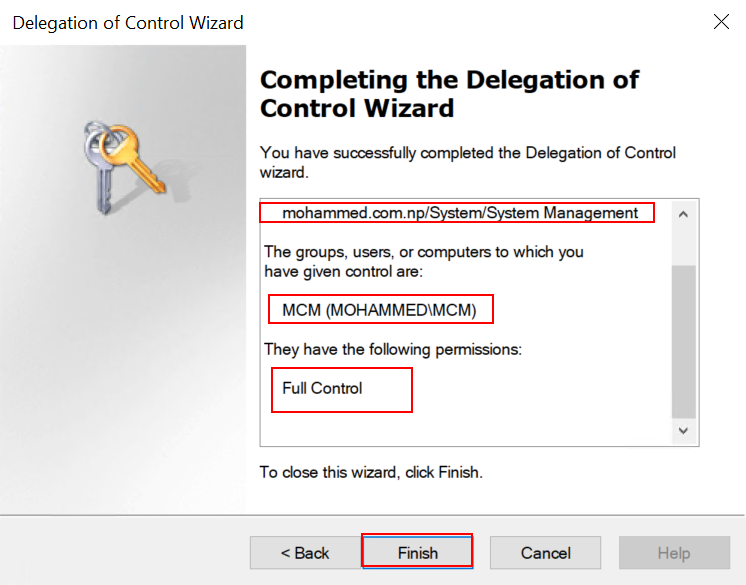
In review section check full control is assigned. and Finish. in this page you will get full overview before finishing the task. if anything is missing got back and correct accordingly and proceed to finish.
Once You configured the control delegation in your active directory, We are ready to upgrade AD Schema. Furthermore, you require to extend the Active Directory Schema for Configuration manager(MCM). you need to follow the below steps to extend using an account who is member of Schema Admin group. i have downloaded MCM_Configmgr for trial. before starting everything i will verify if i am logged in MCM server with right user having appropriate permission to extend Schema. Here i am mcm@mohammed.com.np having membership of Schema Admins.
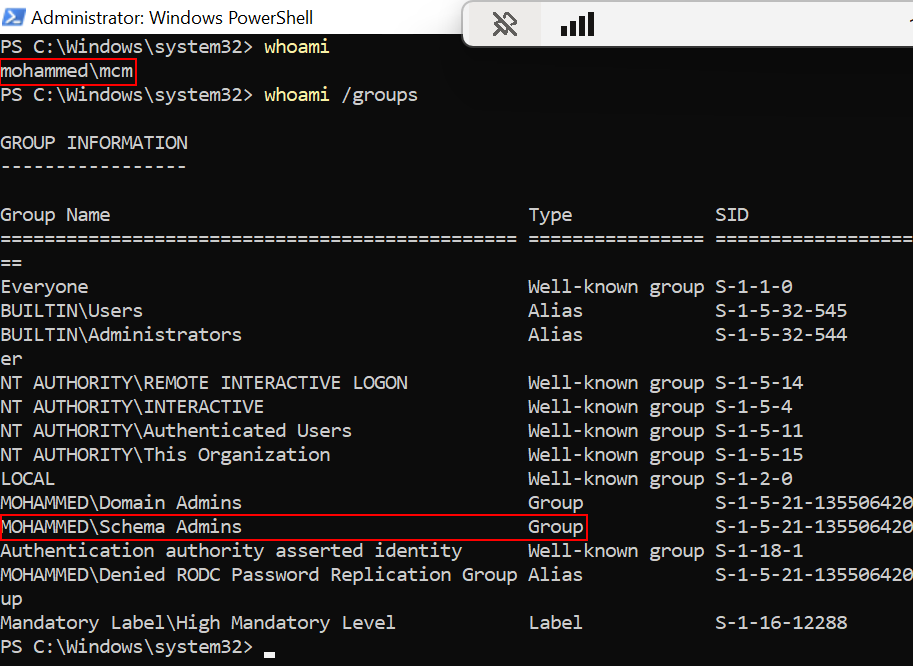
Extract MCM file and go to the location MCM\cd.retail.LN\SMSSETUP\BIN\X64 copy the exe file named as extadsch.exe and paste in to domain controller and run it. User do not require to do anything just lick on run and review the logs in OS drive in your Active directory and txt file name ExtADSch.txt
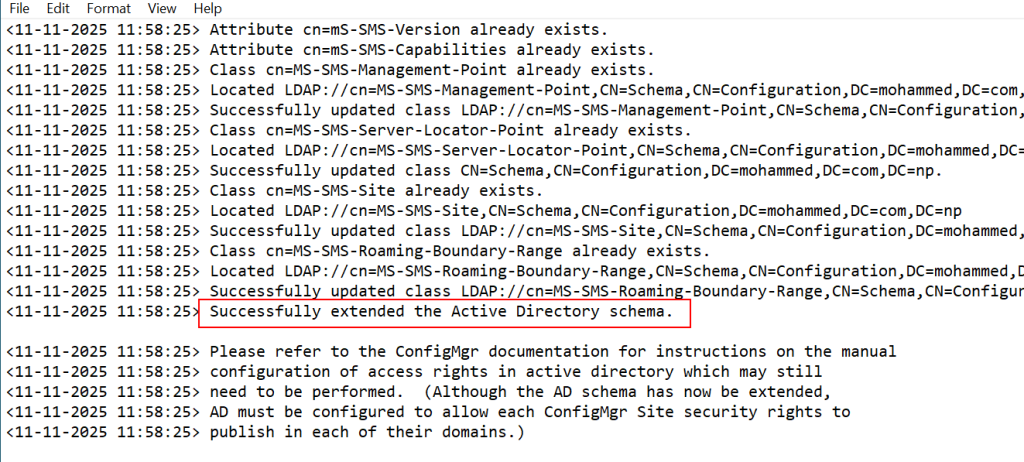
Here you passed all the AD pre-requisites for SCCM server successfully which mean Extending Active Directory Schema is done and further there are nothing to do in Domain controller server.
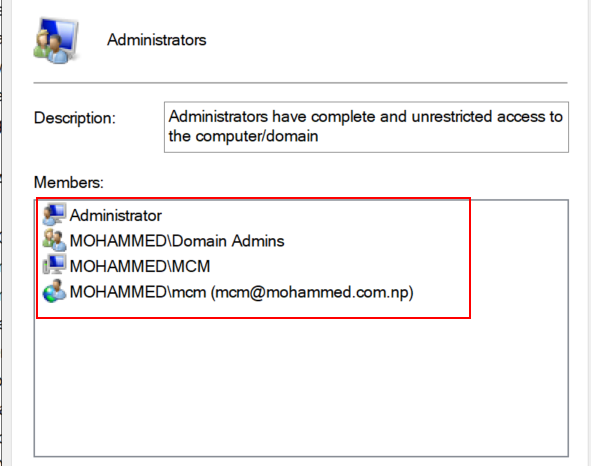
In permission assignment process the same computer is need to add as local administrator in the MECM server which will have full control over the drives and other components. Make sure that if you are working in the right computer which MECM server.
Open Local User and Group Management console using lusrmgr.msc in the MECM server. Select on Groups -> Select Administrators group, Right click on it and Open Properties.
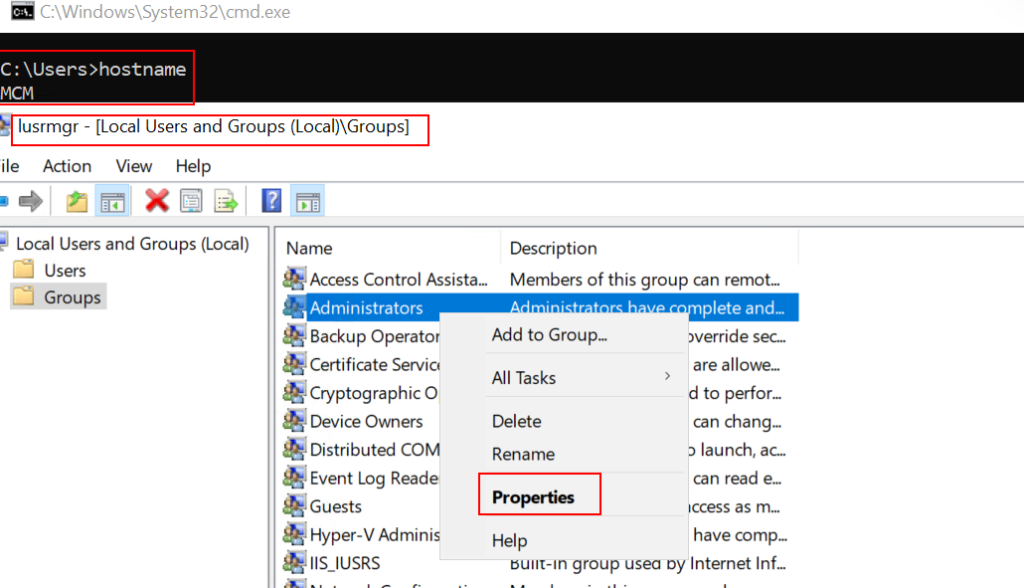
As you can see there are two memberships currently, which MECM server computer account will be added. click on Add.
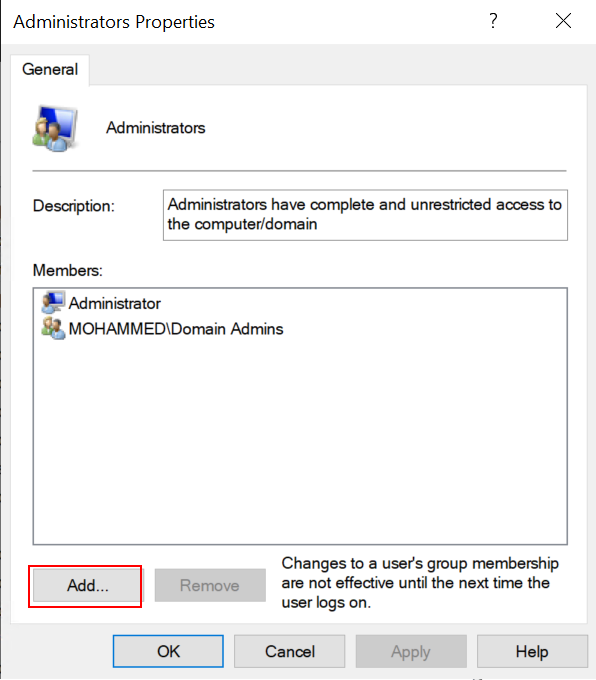
Select the computer account (Not User Account) from active directory and Apply OK.
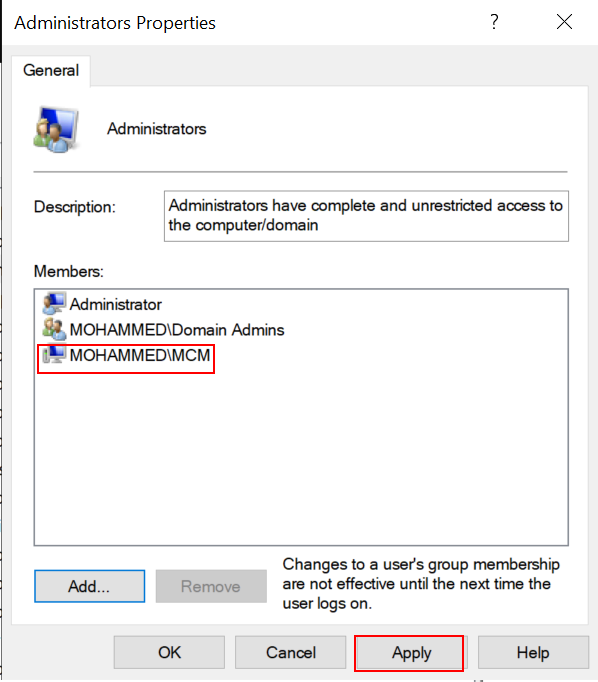
Permission configuration for MECM server is done. lets jump to check software configuration.
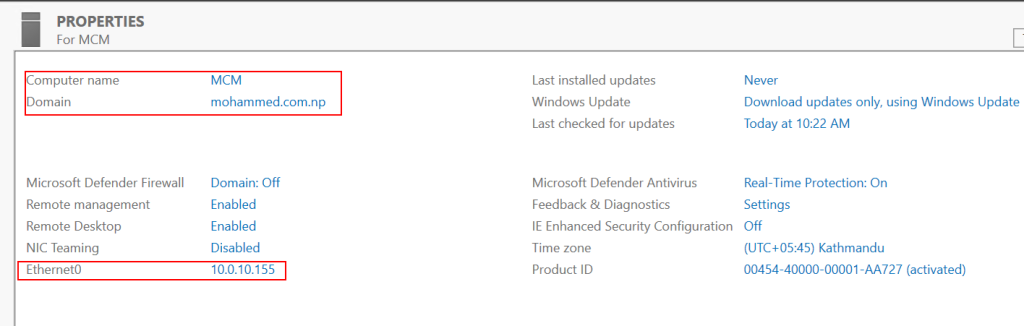
Server Name: MCM (you can put any as per your requirement or naming context)|
Domain : Joined (mohammed.com.np)
Ethernet: IPv4 configured and IPv6 is disabled
IE Enhanced Security Configuration: Off
Disk layout: This is important to understand, why there are 4 Drives in the disk layout, Local Disk(C:) is for OS drive where all the windows installation files will be stored (Default). In the production environment this is best practice of disk layout.
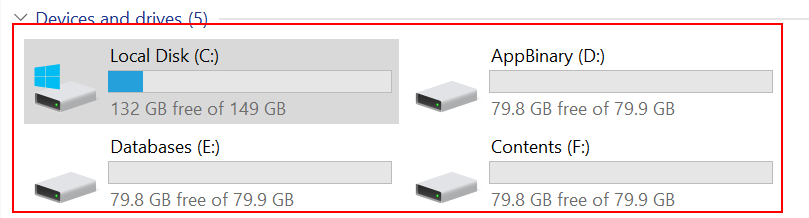
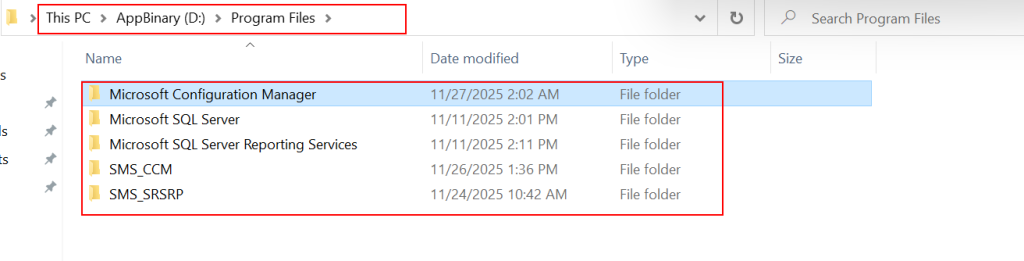
App Binary(D:): This is the location where Installation files will be installed for configuration Mangaer, SQL Server, Reporting service and other files.
Databases(E:): As name suggest here databases will be stored at this location

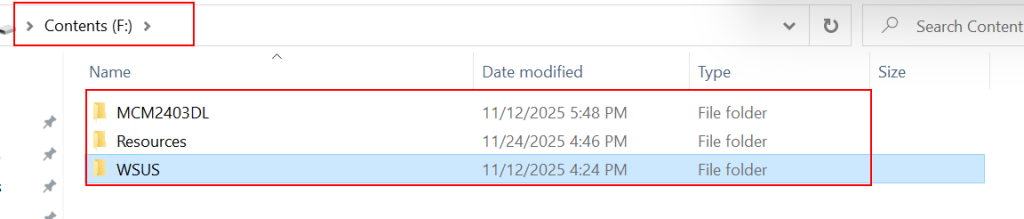
Contents(F:): MCM definition languages files, resources file and WSUS contents will be stores here.
MECM Local Administrator Members
In this article, you have learned Create container in Active directory, Assign permission to this directory, Configure disk layout, add users and computer to MECM local administrator group.
If you enjoyed it, you may also like to read further on Installing Prerequisites on MECM Server.