
Install Office LTSC 2024 using SCCM
It is a one-time purchase version. You buy it once and use it for many years. You do not need monthly subscription.
Difference Between LTSC and Microsoft 365 Apps
| Office LTSC 2024 | Microsoft 365 Apps |
| One-time purchase | Monthly or yearly subscription |
| No new features | Gets new features regularly |
| Best for stable environment | Best for modern cloud environment |
| Fixed version | Always latest version |
Why Deploy Using SCCM / MECM?
Microsoft Endpoint Configuration Manager (SCCM / MECM) is tool used by IT admins to install software in many computers at same time. Instead of going computer by computer and installing Office manually, SCCM can:
- Install Office in 100 or 1000 computers automatically
- Uninstall old Office version
- Control who gets Office
- Schedule installation time
- Monitor installation status
- Saves Time, Manual work, Human mistakes
Download Office Deployment Tool(ODT)
You can download ODT from official Microsoft website: Office Deployment Tool
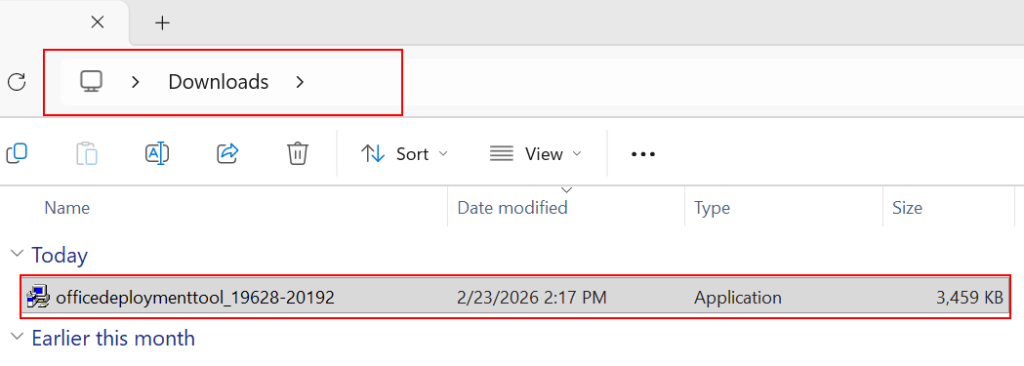
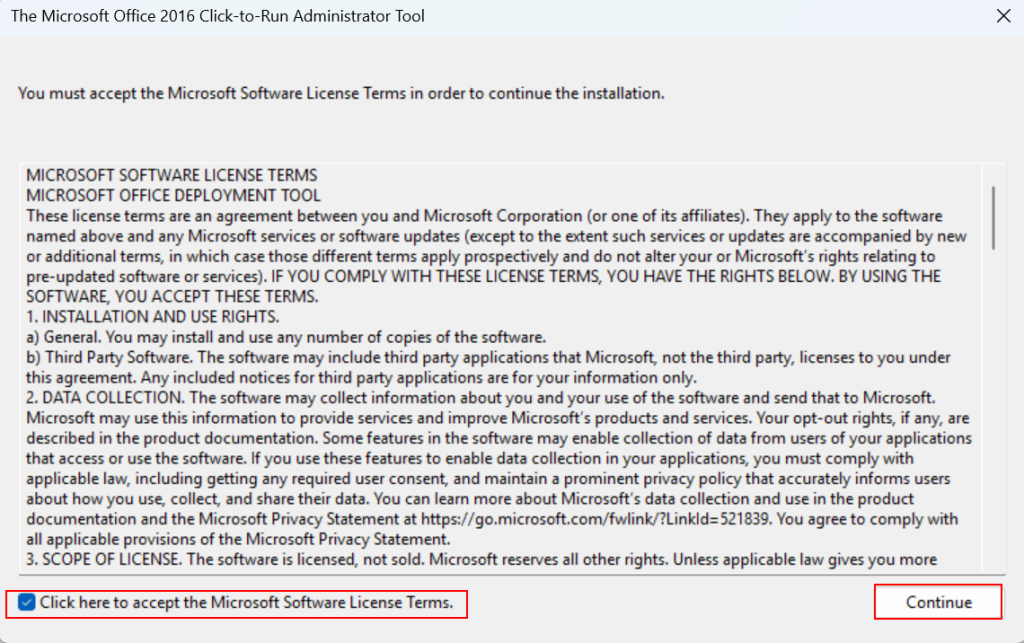
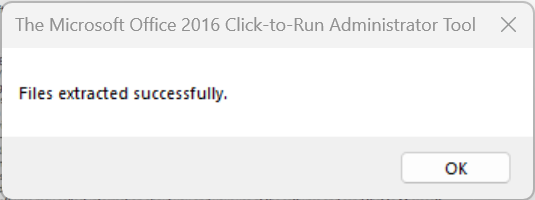
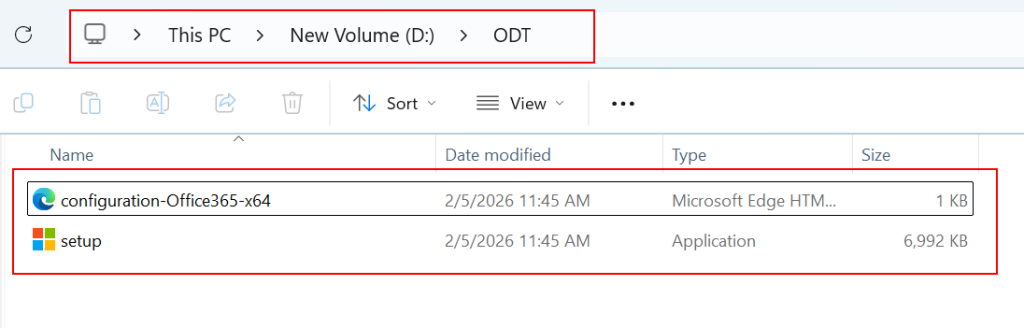
Rename configuration-office365-x64.xml to configuration.xml
<Configuration>
  <Add OfficeClientEdition="64" Channel="PerpetualVL2024">
    <Product ID="ProPlus2024Volume">
      <Language ID="en-us" />
    </Product>
  </Add>
  <Display Level="None" AcceptEULA="TRUE" />
</Configuration>
Save these details as configuration.xml
What does these means
- 64 = Install 64-bit Office
- PerpetualVL2024 = LTSC version
- ProPlus2024Volume = Office LTSC Professional Plus
- en-us = English language
- Display None = Silent install
- AcceptEULA TRUE = Auto accept license
This XML file is used with this command.
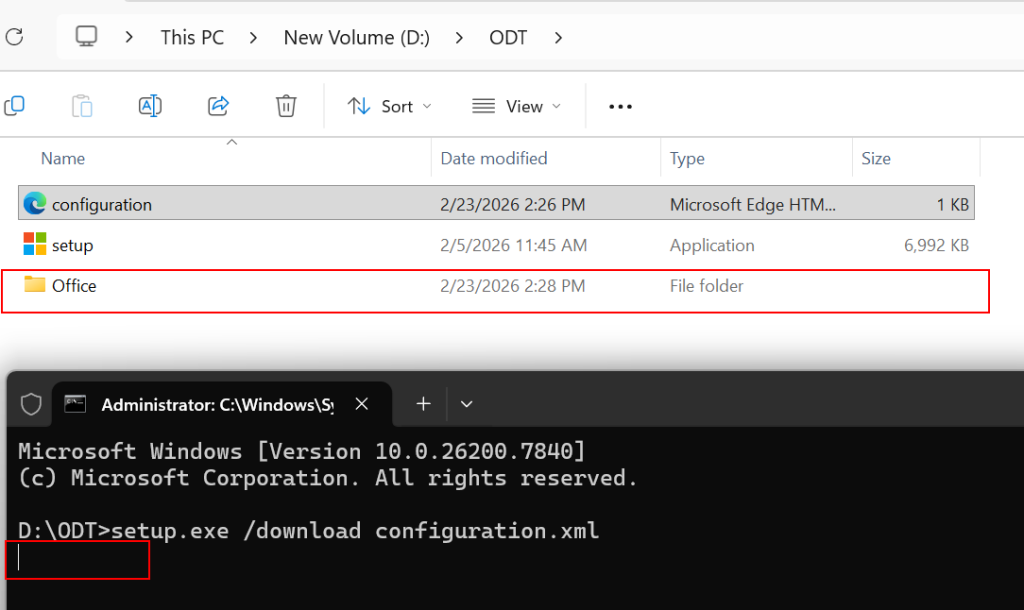
setup.exe /configure configuration.xml to download the LTSC package from the microsoft.
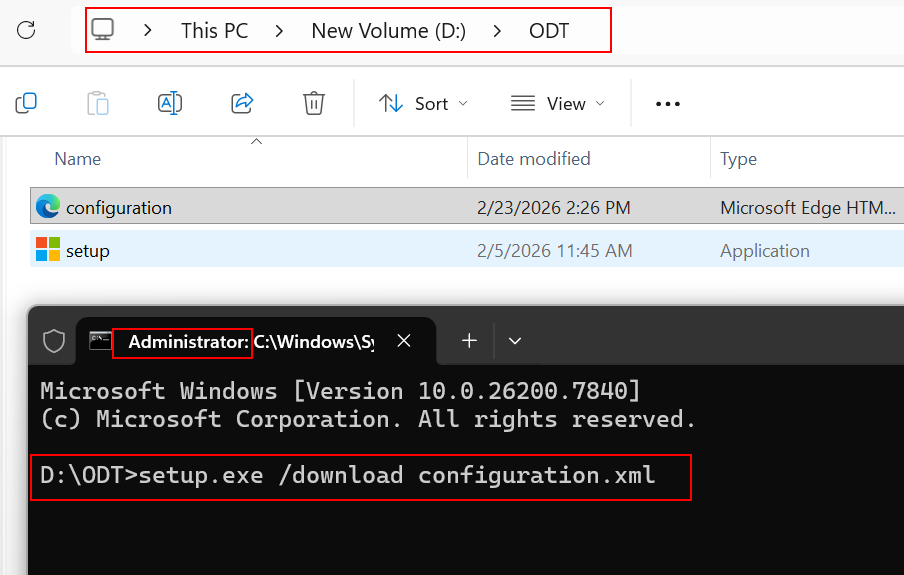
Download started and downing the full package may takes time to complete. wait until its completes the download.
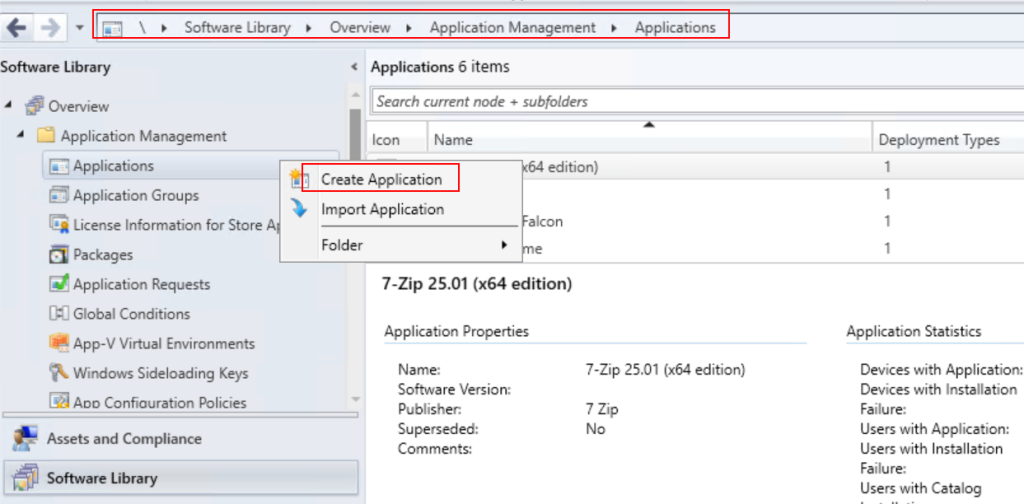
Now we will create Office LTSC 2024 Application in Microsoft Endpoint Configuration Manager (SCCM / MECM).
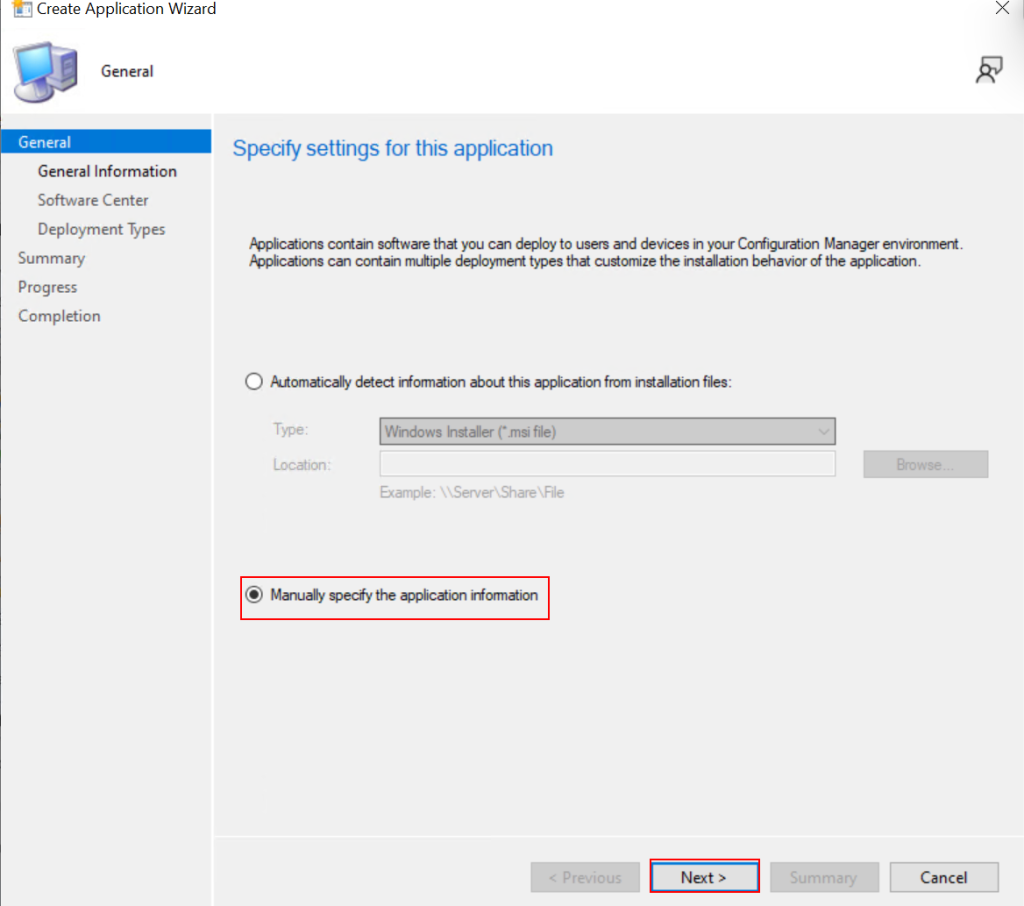
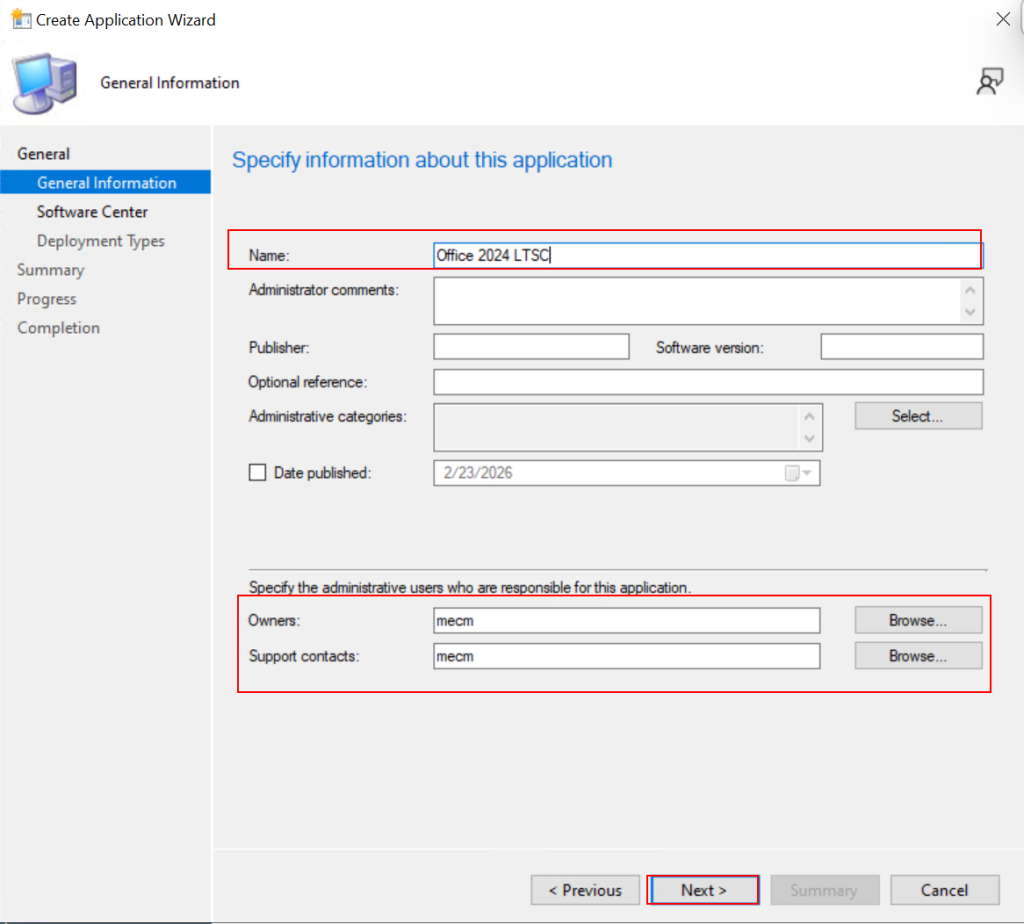
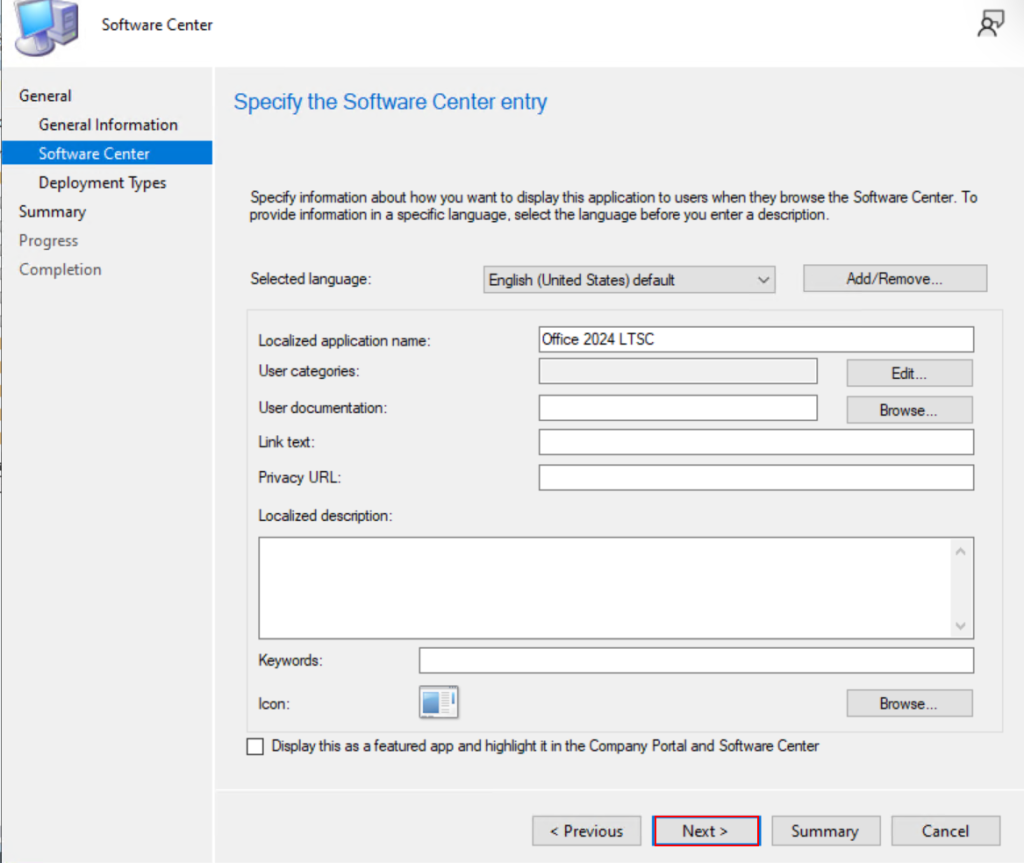
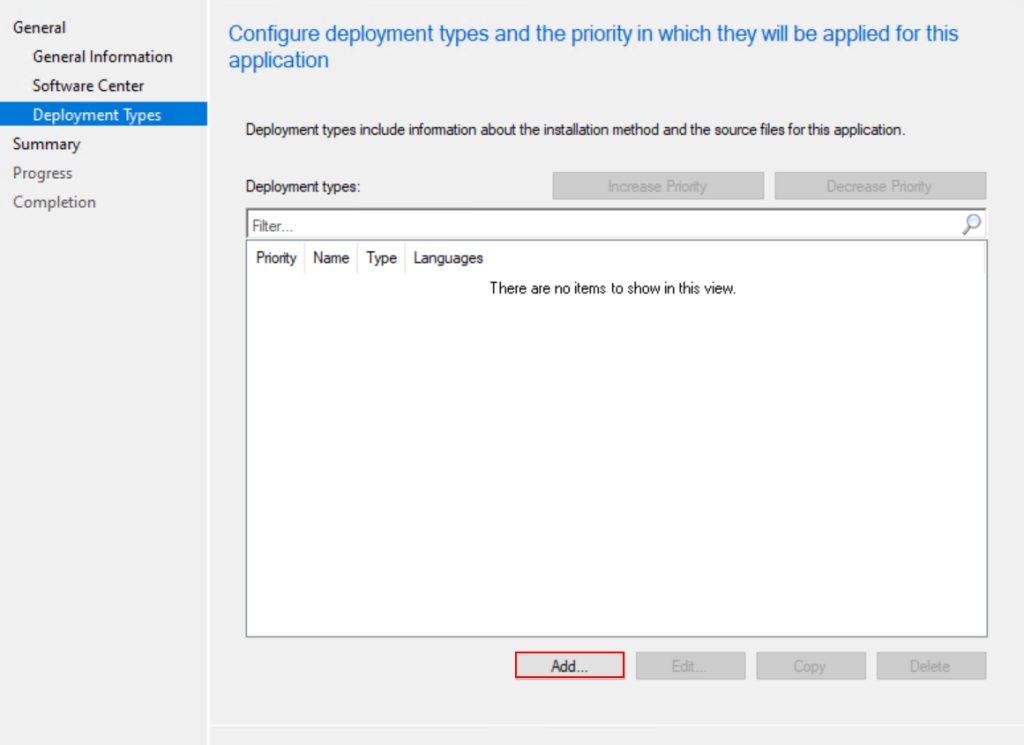
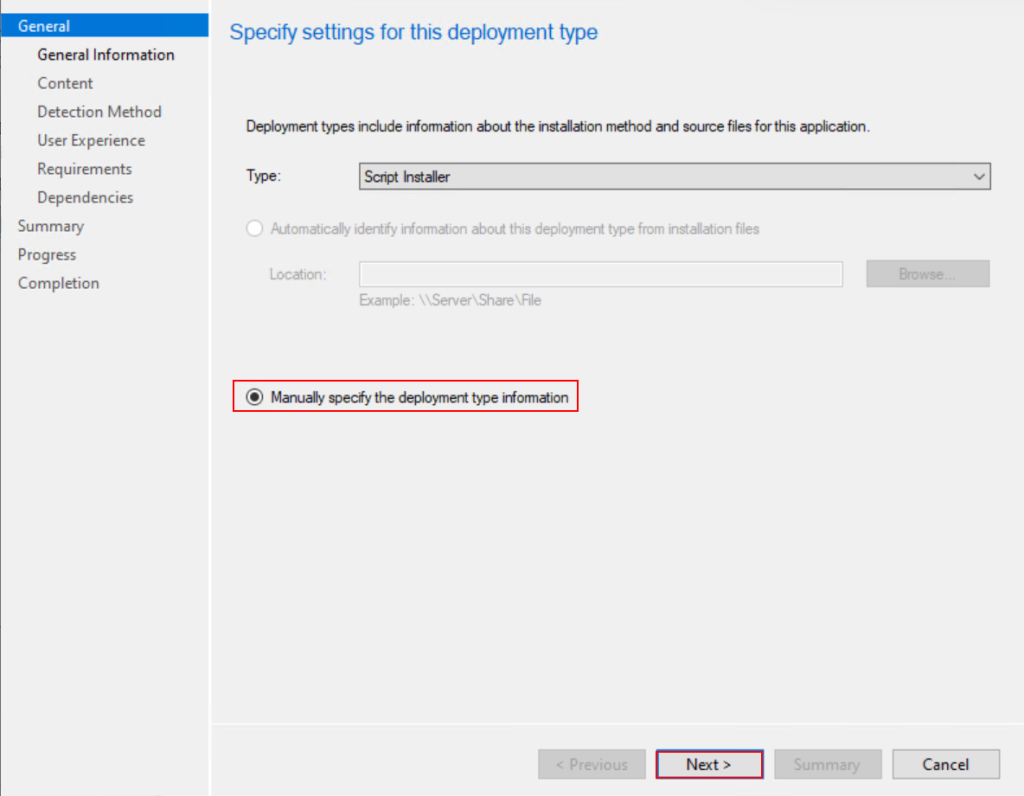
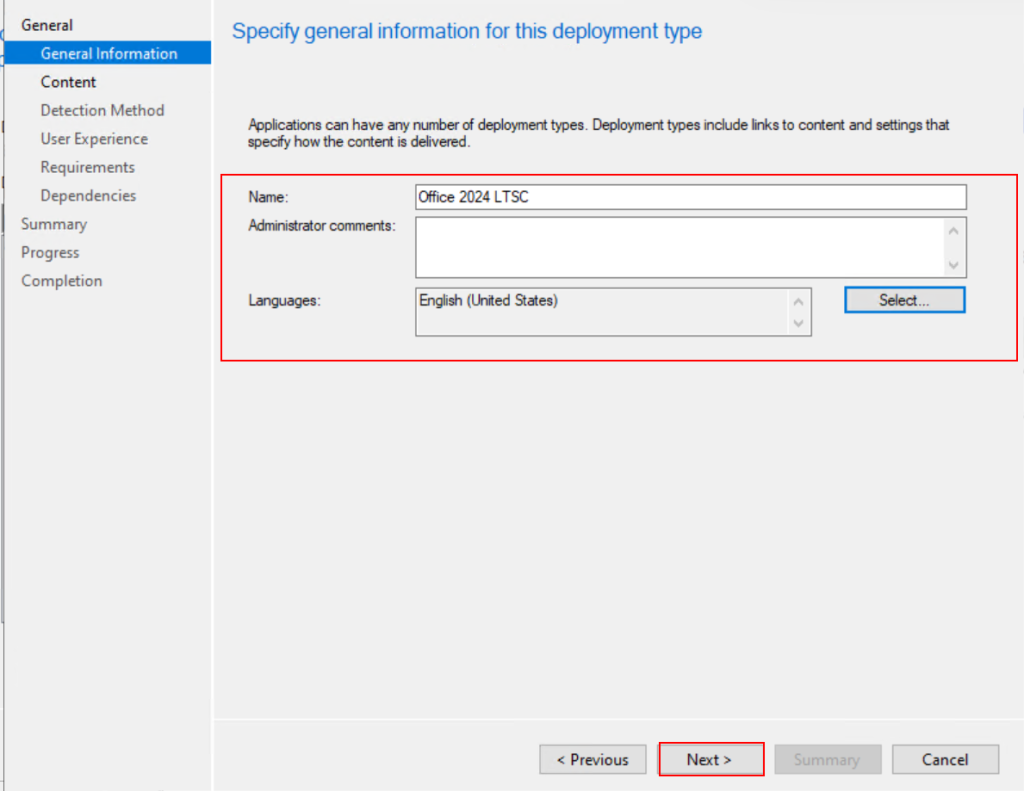
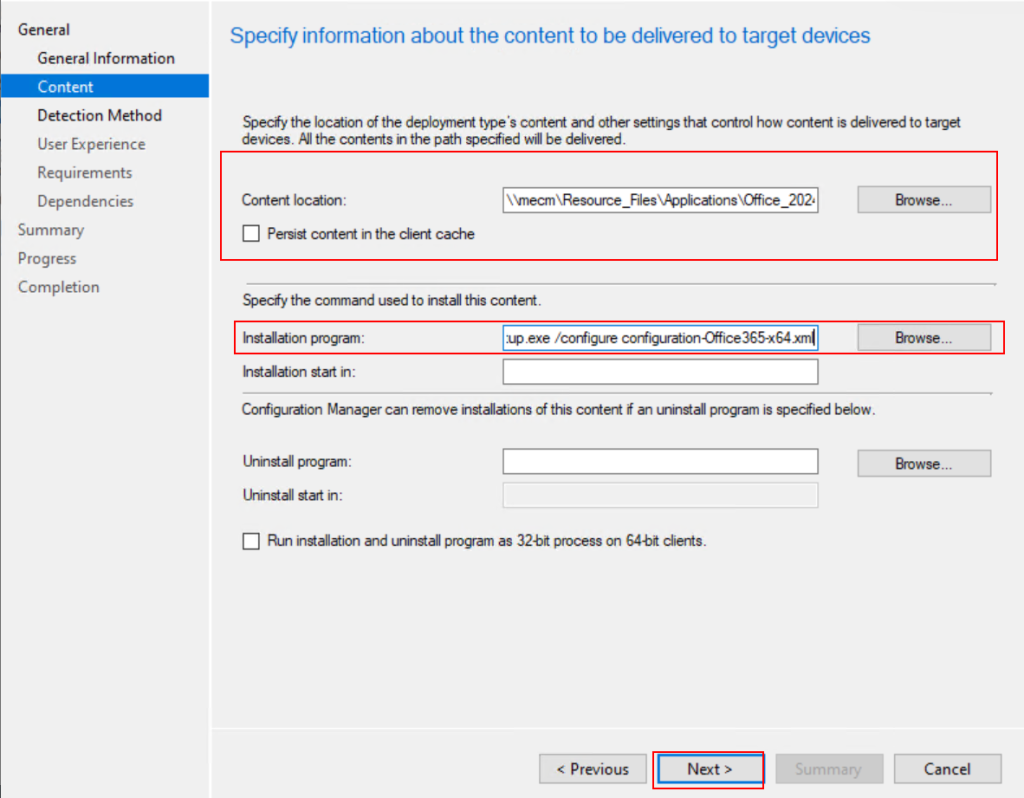
Content Location: \\mecm\Resource_Files\Applications\Office_2024
Install Command: setup.exe /configure configuration.xml
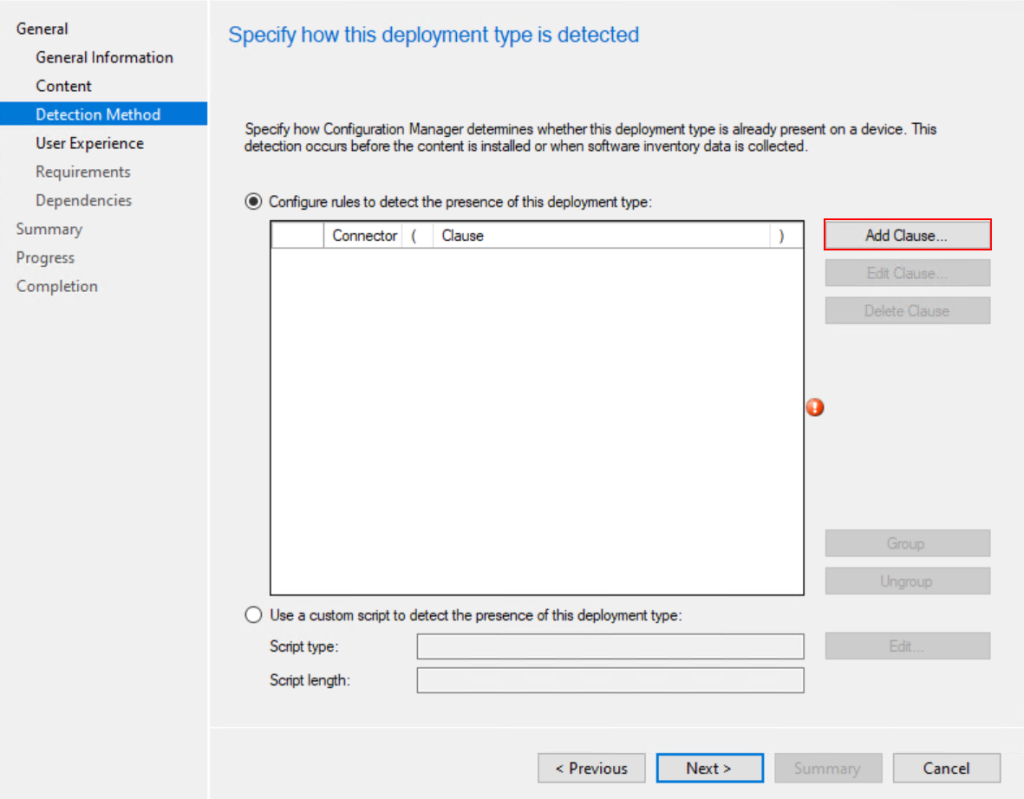
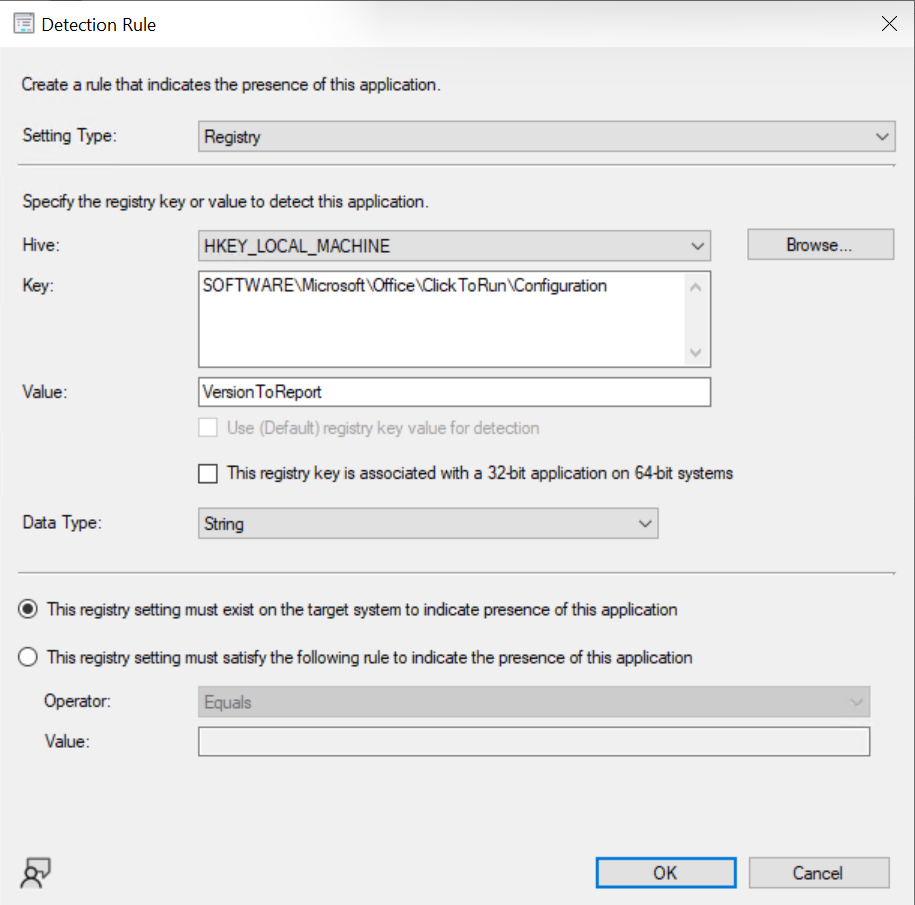
Detection Method.
Setting Type: Registry
Hive: HKEY_LOCAL_MACHINE
SOFTWARE\Microsoft\Office\ClickToRun\Configuration
Value: VersionToReport
Data Type: String
and leave everything same as in the below image.
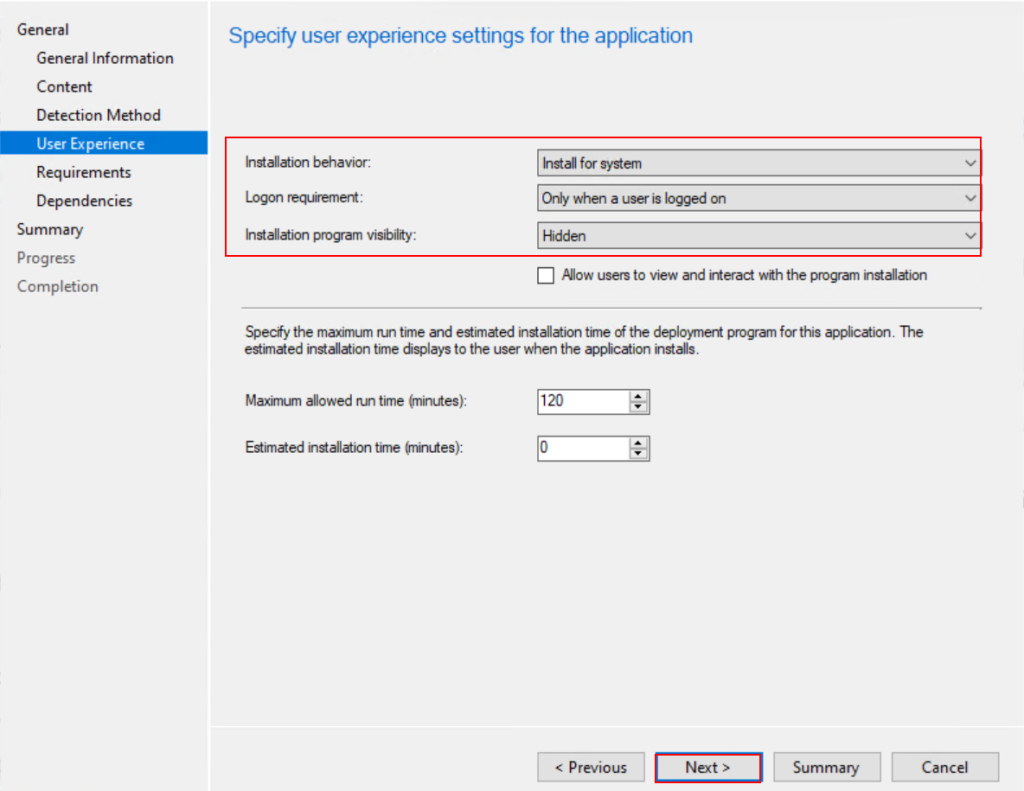
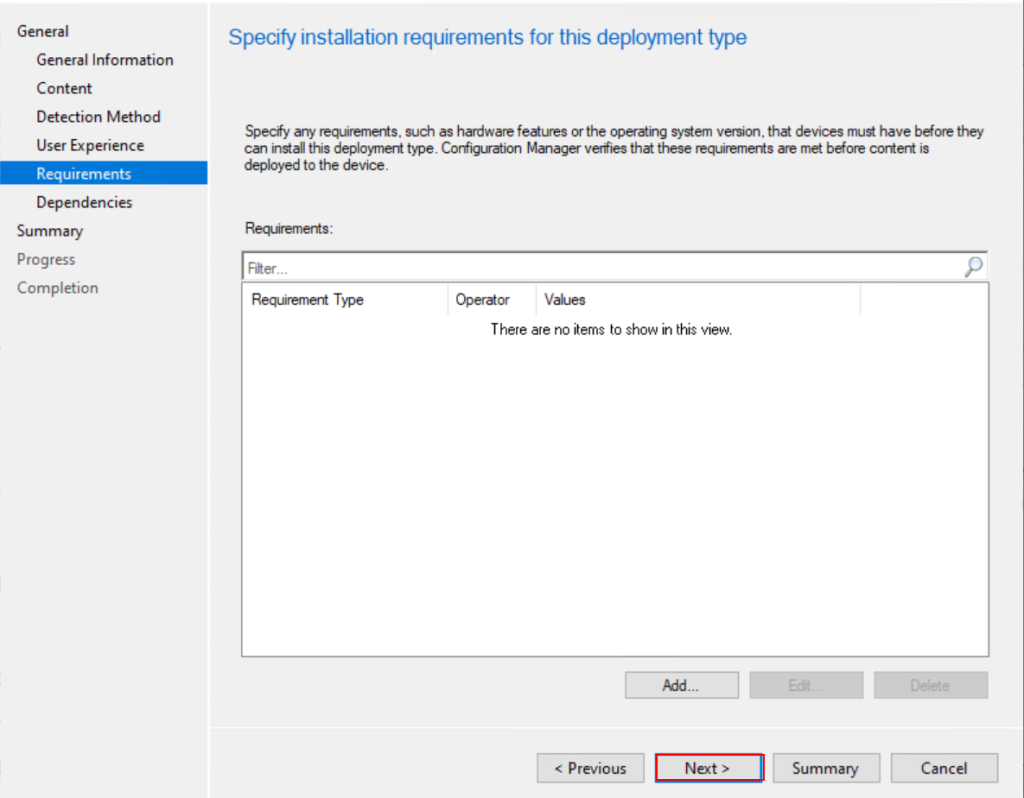
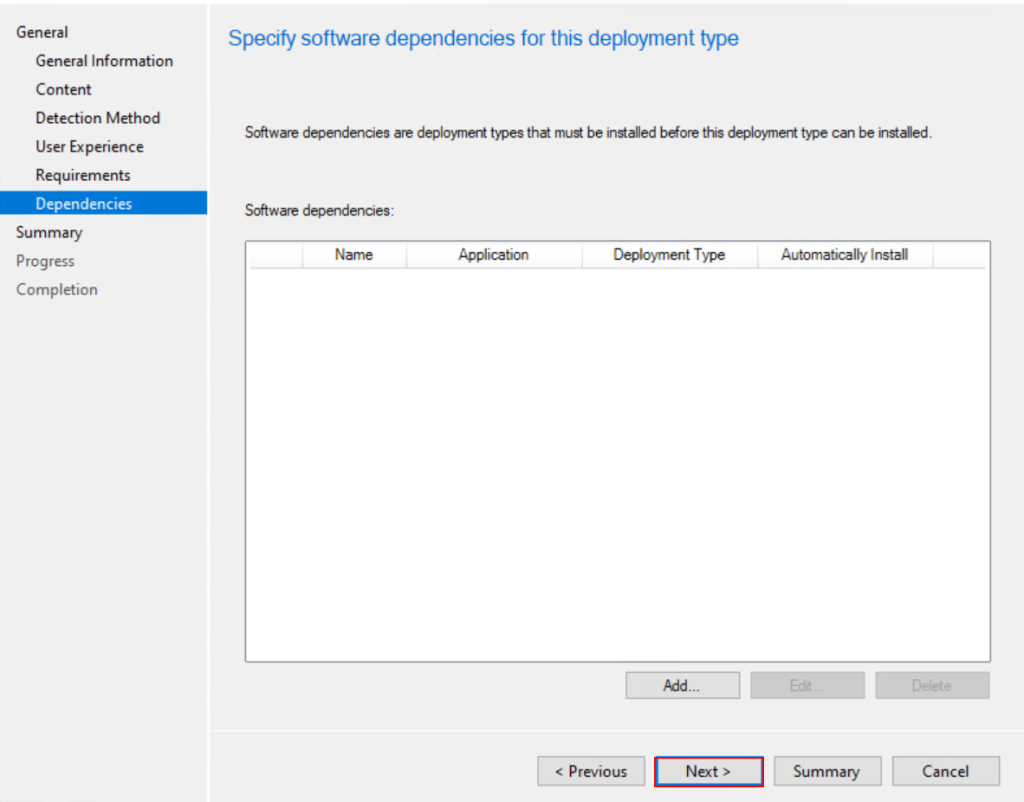
Once Application Creating is done. Distribute the application content for to the distribution point. which i am skipping here because if you are deploying Office package to the computer then you must have been already deployed other MSI and Exe packages where you have already done content distribution and deployment.
Once distribution is done you can deploy to the Device collection as per the desire.
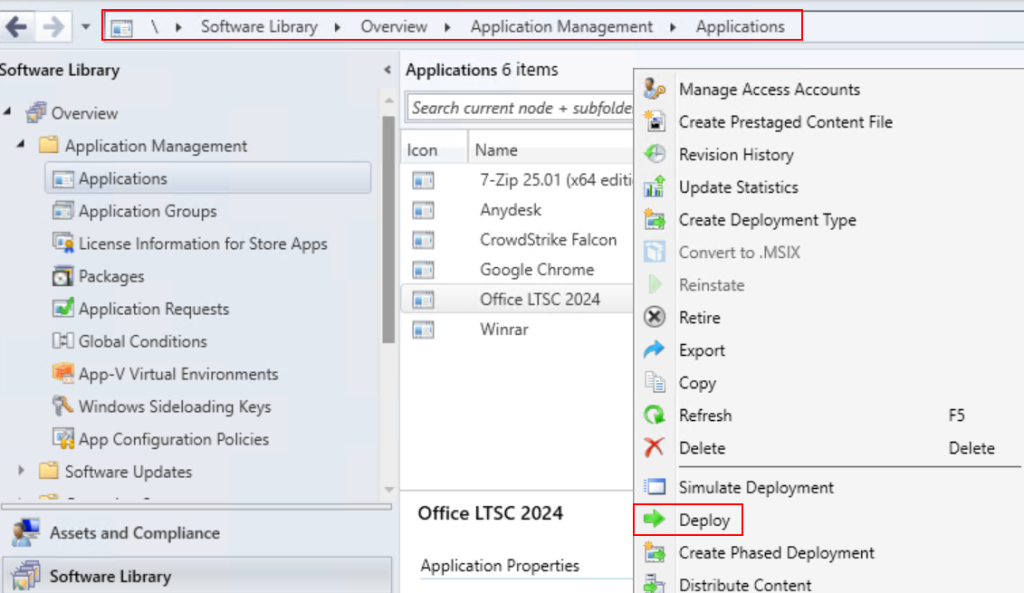
Mserverpro.com
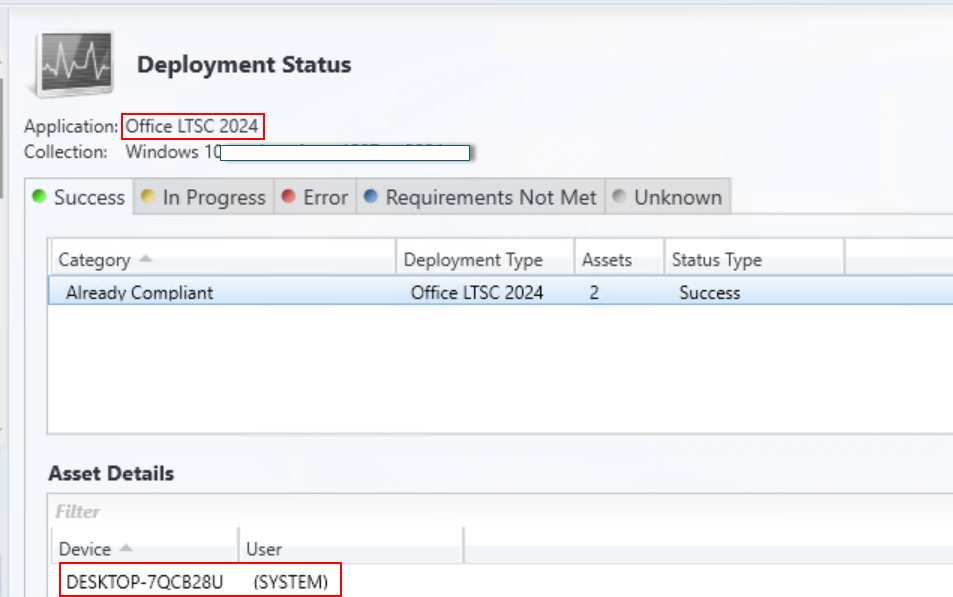
That’s it !
This article explains you to step by step to install office package using SCCM server to large scan of the computers.
Did you enjoyed this article ? read the next article where i have explained find Non-Activated windows computer and how to activate windows using SCCM server in bulk.


https://shorturl.fm/sFm0x
Enjoy every single day