Introduction
One of the most frustrating issues MECM administrators encounter is WSUS synchronization failing repeatedly with Cancelled status while software updates stop appearing in the console entirely. You trigger a manual sync, it runs for a minute, and then cancels leaving your All Software Updates list completely empty showing 0 items.
This is a well-known issue caused by incorrect WsusPool Application Pool settings in IIS. When the queue length is too low or memory limits are too restrictive, the WSUS worker process gets overwhelmed and terminates mid-synchronization, causing repeated failures.
In this guide you will learn the exact root cause, how to identify the problem from the MECM console, and the complete step-by-step fix including IIS Application Pool tuning, service restarts, and verification that synchronization succeeds.
Understanding the Problem
Before jumping into the fix, it helps to understand what is actually happening.
WSUS communicates with Microsoft Update servers through IIS using a dedicated application pool called WsusPool. By default this pool has conservative memory and queue settings that were designed for smaller environments. In larger MECM environments with many update classifications and products enabled, these defaults cause the WsusPool worker process to run out of resources during synchronization and terminate resulting in a Cancelled result every time.
The problem is compounded in MECM because MECM relies entirely on WSUS to pull update metadata. If WSUS cannot sync, MECM has nothing to display under Software Updates.
Symptoms
You will recognize this issue by the following signs in your environment:
| Symptom | Location |
|---|---|
| Multiple Cancelled sync results | WSUS Console → Synchronizations |
| All Software Updates shows 0 items | MECM → Software Library → Software Updates |
| Only occasional Succeeded sync | WSUS Console → Synchronizations |
| WsusPool showing Stopped status | IIS Manager → Application Pools |
| SMS_EXECUTIVE service stopped | Windows Services |
Identify the Sync Failures in WSUS Console

Open IIS Manager and Locate WsusPool
- On your MECM/WSUS server open IIS Manager
- Press
Windows + R→ typeinetmgr→ click OK
- Press
- In the left Connections panel expand your server name
- Click Application Pools
- You will see a full list of application pools
Locate WsusPool at the bottom of the list. Note its current status — in a broken state it will show as Stopped with 0 Applications instead of the expected 8.
The other application pools running normally include:
- CCM Client Dep… — LocalService
- CCM Security T… — LocalSystem
- SMS Distributio… — LocalService
- SMS Managem… — LocalService


Check Current WsusPool Settings

Configure WsusPool Advanced Settings
Now apply the corrected settings to WsusPool.
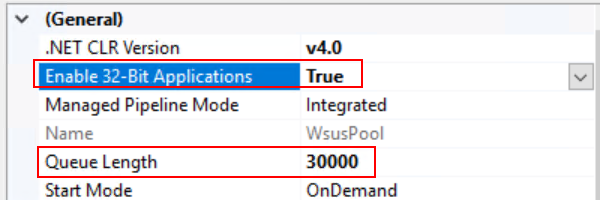
- Right-click WsusPool → select Advanced Settings
- Under (General) section configure:
| Setting | Change To | Reason |
|---|---|---|
| .NET CLR Version | v4.0 | Keep as-is |
| Enable 32-Bit Applications | True | Required for WSUS |
| Managed Pipeline Mode | Integrated | Keep as-is |
| Queue Length | 30000 | Increased from 25000 |
| Start Mode | OnDemand | Keep as-is |


Click OK to save all settings
Stop and Restart WsusPool
After saving the settings, recycle the application pool to apply changes.
- Right-click WsusPool
- Select Stop — status changes to Stopped
- Wait 5 seconds
- Right-click WsusPool again
- Select Start — status returns to Started

Reset IIS
After restarting WsusPool, perform a full IIS reset to ensure all changes take effect cleanly.
- Open Windows PowerShell as Administrator
- Run the following command:
iisreset

Attempting stop...
Internet services successfully stopped
Attempting start...
Internet services successfully restarted
This confirms IIS has fully restarted with the new WsusPool settings applied.

Restart SMS Services
After IIS reset, restart the key MECM services to ensure the software update components reinitialize correctly.
- Open Windows Services (services.msc)
- Locate and restart the following services in order:
| Service | Startup Type | Action |
|---|---|---|
| SMS_SITE_COMPONENT_MANAGER | Automatic | Restart |
| SMS_EXECUTIVE | Automatic | Restart |
| SMS_NOTIFICATION_SERVER | Manual | Start if stopped |
| SMS Agent Host | Automatic | Verify Running |
- Right-click SMS_EXECUTIVE → select Start if stopped
- Confirm the following services show Running status:
- SMS Agent Host — Running — Automatic — Local System
- SMS_EXECUTIVE — Running — Automatic — Local System
- SMS_NOTIFICATION_SERVER — Running — Manual — NT AUTHORITY
- SMS_SITE_COMPONENT_MANAGER — Running — Automatic — Local System


Verify Updates Appear in MECM
After a successful synchronization confirm that updates are now visible in MECM.
- Go to Software Library → Software Updates → All Software Updates
- The list should now populate with updates
After the fix your environment shows All Software Updates
This confirms WSUS synchronization is now working correctly and updates are flowing into MECM as expected.

[ ] Open IIS Manager → Application Pools → WsusPool
[ ] Advanced Settings → Queue Length → set to 30000
[ ] Advanced Settings → Private Memory Limit → set to 0
[ ] Advanced Settings → Idle Time-out → set to 0
[ ] Advanced Settings → Load User Profile → set to True
[ ] Advanced Settings → Enable 32-Bit Applications → set to True
[ ] Stop and Start WsusPool
[ ] Run iisreset in PowerShell as Administrator
[ ] Restart SMS_EXECUTIVE service
[ ] Restart SMS_SITE_COMPONENT_MANAGER service
[ ] Trigger manual sync in WSUS Console
[ ] Verify All Software Updates populates in MECM


