
In the previous article i have explained step by step client settings for windows computers.
Simple guide to updating MECM 2025, showing how to download updates from Updates and Servicing and keep Configuration Manager current and supported.
Microsoft Config Manager 2509 focused more in security as compare with 2503. Here as few details which make clear to viewers if it is beneficial to upgrade or not. latest released version has done some enhancements regarding to OS deployment and OS supports as well.
In version 2503 was not officially supported to Windows 11 25H2 and later but in 2509 is officially supported and automatically updates PXE boot image with latest signed in boot loader which helps administrator with secure UEFI booting without manual steps using “Use Windows Boot loader singed with Windows UEFI CA 2023″.
Few bugs also fixed in the latest release.
- Task Sequence Issues resolved in ARM64
- replication of boundary group data replication is proper.
- accuracy in reporting
- AD discovery is more stable
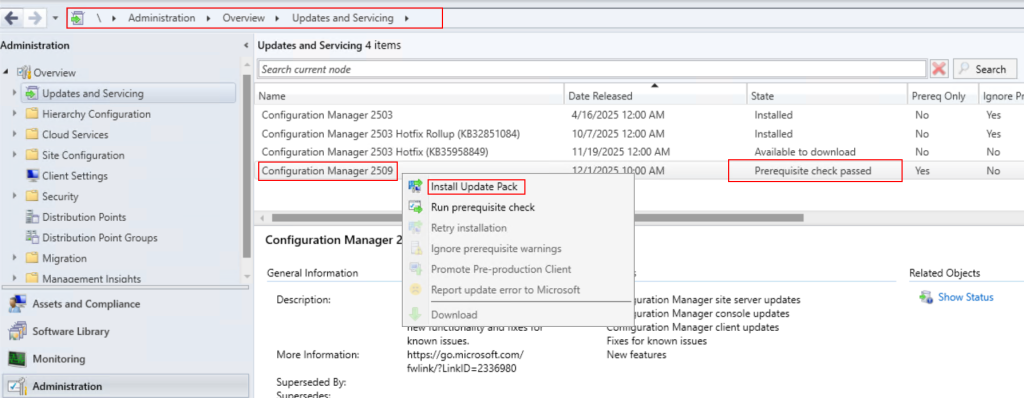
To install 2509 branch in you server go to administrator -> Overview -> Updates and Servicing. Choose the branch version and right click on it and click on download. Administrator can track download detail using log file Program Files/Configuration Manager/Logs/Dmpdownloader.log

Once branch gets downloaded, there will be option for “Ready to install” under the State. This is recomended to check prerequisite before installing the version and now right click on package and “Run prerequisite check”.

If everything goes well, there will be an alert under state as “Prerequisite check passed” and this process may take several minutes to pass the prerequisites. Once the prerequisite checking passed, administrator can install the branch version. Right click on branch 2509 and “Install Update Pack”.
New wizard will be opened, to configuration changes for the installation. On General Tab, check on “Ignore any prerequisite check warning and install this update regardless of missing requirements”. and Next.

On Features Tab, Dont need to make any changes just click on Next.

On Client update options, it is not recommended to validate on pre-production collection so click on “Upgrade without validating” and click Next.

On License Terms, Accept the terms and license agreement and click next.

As our SCCM server is not in hybrid mode and no any connection with Intune. uncheck the option “Enable cloud attach” and click on Next.

On summary tab, Read the installation details and click next if this is appropriate.

Installation is started and this may take 30 to 100 minutes to install completely in the server. wait and have patience until the process gets completed.

Once the Installation completed you will recevied a pop that there new version of the Console version need to be install in the server for better experience. Click on Ok.

Rest the server will handle automatically to install the new version of the console and this process also may take up to 10 minutes to install the newer version of the sccm console.

SCCM branch upgrade to version 2509 is completed and administrator can enjoy their work and start to use sccm server.

That’s it!
In the article i have explained, step by step process to download, check prerequisites and install the the 2509 sccm branch in the sccm server along with the console version ugradation.
Did you enjoy this? If yes, You may also enjoy reading the next article how to deploy exe using SCCM.


https://shorturl.fm/NDHx2