In the previous article, I have explained importance of synchronizing MECM with WSUS and step by step guide to configure this. In the current article, you will be learning detailed information for installing and configuring reporting service within the servers for report view.
Microsoft provide more than 4 hundreds of report in MECM server which can be customized. As this uses MSSQL server for storing information administrator can view reports or can integrate with PowerBI for custom report and also report builder for customized report based on SQL queries.
Reporting services point integrates with SQL server Reporting Service(SSRS) to fetch and view data for varieties. Using this administrator can run built-in reports such as Device compliance, Hardware inventory, Application deployment etc. and without reporting service point MECM can not manage and view the reports in SSRS.
It creates two URLs which will manages things in SSRS.
- Web Service URL: This URL most likely used by MECM server to communicate with SQL server. This machine to machine communication not used by clients and used for publish reports in SSRS.
- Report Manager URL: This is console where administrator view the report and manages it. this is used for browsing report folder, Run available reports, schedule reports as the requirement of administrator, view report history.
Based above explanations, it is mandatory to install RSP in MECM.
Open Configuration Management Console -> Administration -> Overview -> Site Configuration -> Server and Site System Roles -> Select Your Server and right click on server and Click on Add Site System Roles.

On General Tab, There is account required which will communicate between, In this example i will be using the same credentials i have logged in MECM server. Here i will choose “Use the site server’s computer account to install this site system”. and Next.

On Proxy Tab, We are not using any proxy server in this environment, leave the page default and click on Next.

On System Role Selection, choose Reporting services point and Next.

On Reporting services point, my SSRS and MECM both are installed in same server, It will detects Site database server name and Database name automatically. There must be communication establishment between MECM and SSRS and to verify this click on verify. “Successfully verified.“
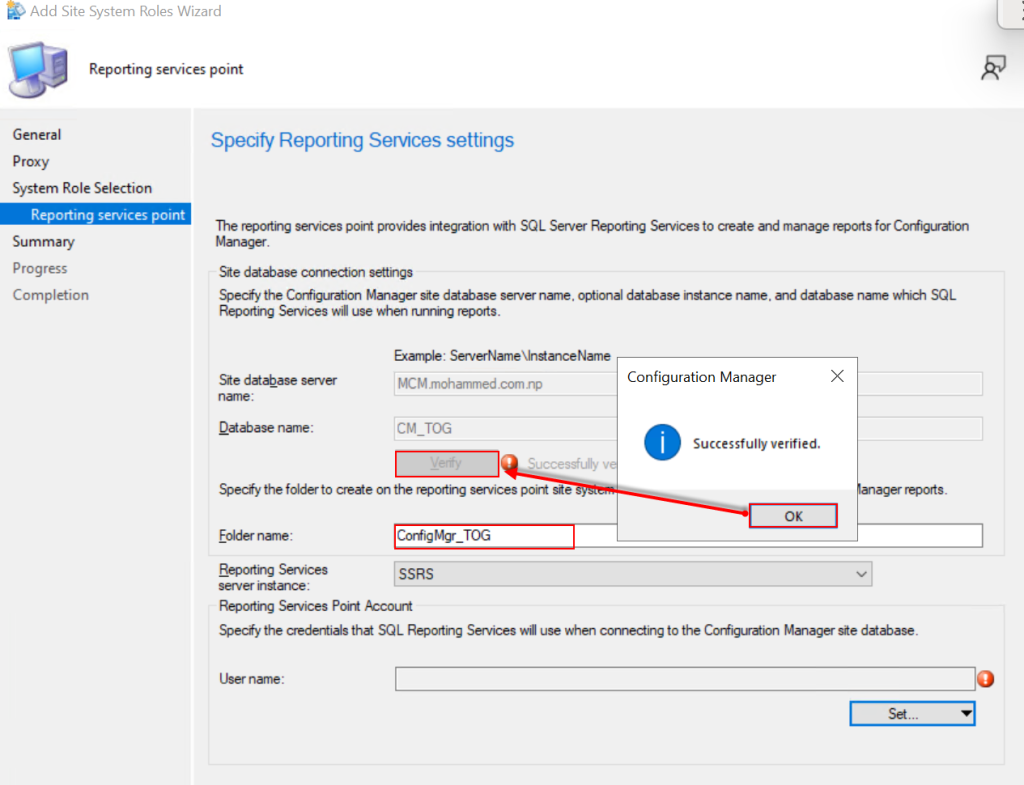
Once communication verified successfully, you need to provide the an account to communicate this. Below on the same page click on Set -> Existing Account
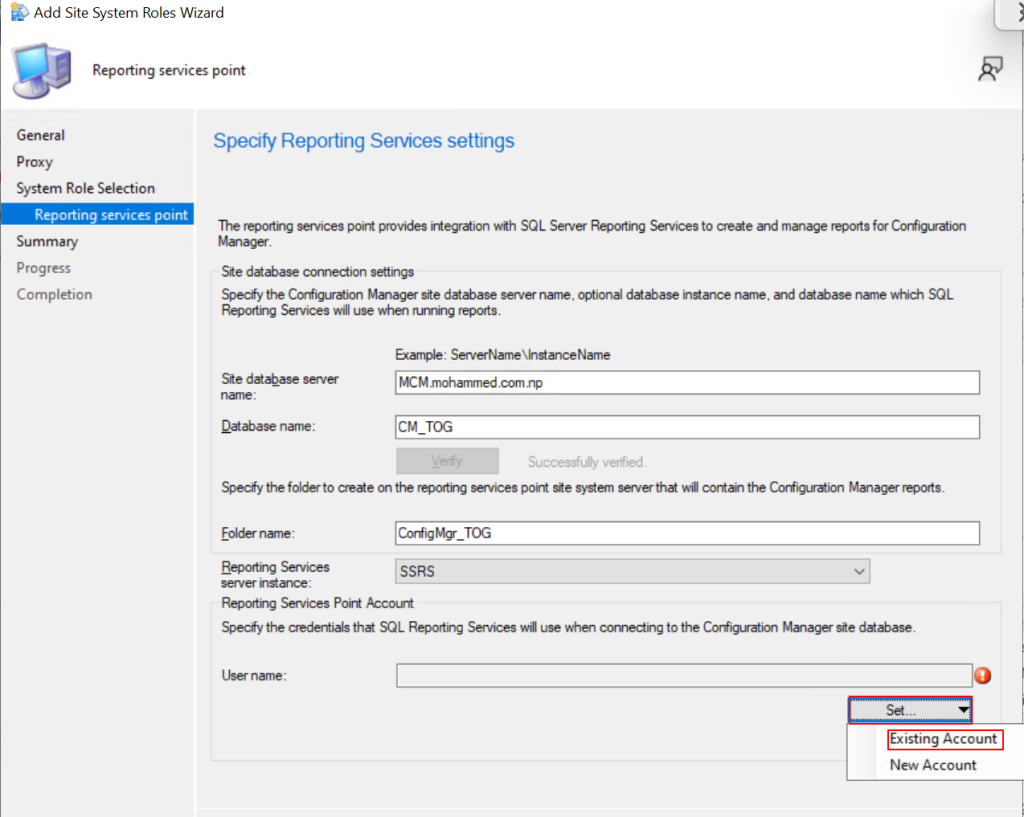
Select the account from the domain controller, and click OK.

All set, User account has been set, Click on Next.

On Summary Page, review the details and click on Next.

Completed, Close it

it will take few minutes to install the RSP., after few minutes verify if it is installed or not.
Go to Administration -> Overview -> Site Configuration -> Servers and Site System Roles and look if the Reporting service point installed.

I will also verify via Logs if this is installed or not. Go to Configuration Manager -> Logs -> Installation was Successful.

All the required details are configured and Its time to verify if it is working or not, Go to Monitoring -> Overview -> Report folder. As mentioned above in this article there are two URLs which should be working
Once Details verified its its availability click and verify one by one if they are working click on the link and Browse.


Also if report and visible in console of MECM, go to Monitoring -> Overview -> Reporting -> Reports. You will see bunch of report in the console.

That’s it!
In the Article i have explained step by step installation of Reporting service Point and why this required to installed. In the Next Article i will be explaining how to Configure Client Settings for client computers and windows computer and servers.