
In our previous article i have explained step by step configuration of MECM client settings. which are actually policies which will be applied to client computers as well as server. In this article i will be explaining details of creating Device collection in MECM server in multiple ways.
Collections can be create on multiple bases like user collection and device collection. In this article i will explained mainly Direct rule and query based collection where i will be choosing based on IP address.
- Manually (Direct Membership Rule)
In this method administrator have to define the computer names of from active directory which remains static because in Microsoft active directory concept 2 computers can not exists with the same name. In MECM user have to define the names of the computer in this collection method which is explained below with sample images.
to create Device Collection -> Open Configuration Manager Console -> Assets and Compliance -> Overview -> Device Collections -> Right Click and Create Device Collection

On General Tab,
Provide an appropriate name of the collection to better identification after creating the collection and put a comment of the details as per your desire. Limiting collection tell us which will be the base collection mean from where computers will be searched detected in this example All system is preferred collection for me.

On Membership Rules Tab,
Here administrator have to define the type of collection they want. as we are creating direct membership rule. Click on Add Rule -> Direct Rule

Here new tab will define the resource which will be member of this collection. Click on Next.

On Search for Resources Tab,
Resource class: System Resource
Attribute Name: Name
Value: Put your computer name which you want to add this collection
In this example wanted to add all those computer which have name like Win10. Hence, i have put a wildcard value to search all the computer starts with this name Win10%. Click on Next.

All the computer starts with name Win10 are detect which are in count 2. select required computer and click on Next.

On summary Tab,
This will shows resource detail which are added to collection membership. Click on Next.

Click on Close.

Membership rule is added and resource can ne seen on the under the membership rules . your rule is created and click on Next.

read the summary details and go back if there anything missing in the selection and click on Next.

Collection Creation is done now click on Close.
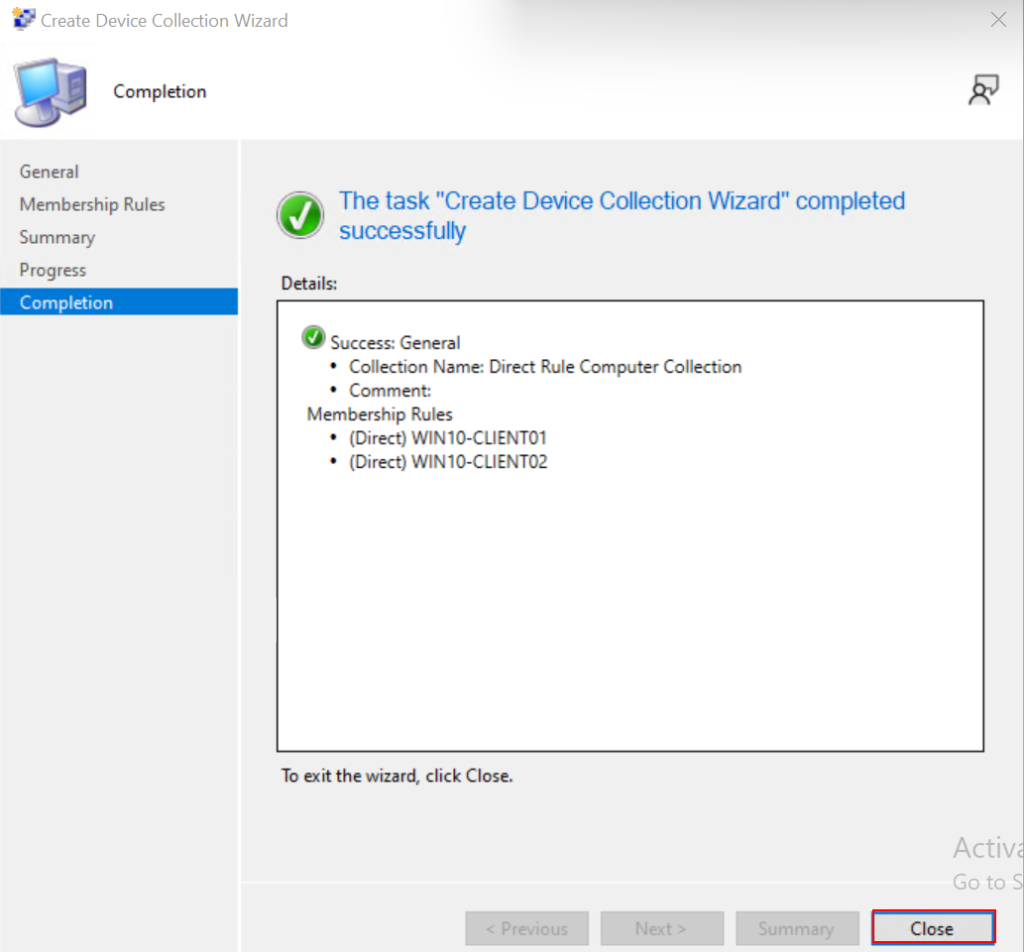
Verify, the Collection is created.

Query-Based


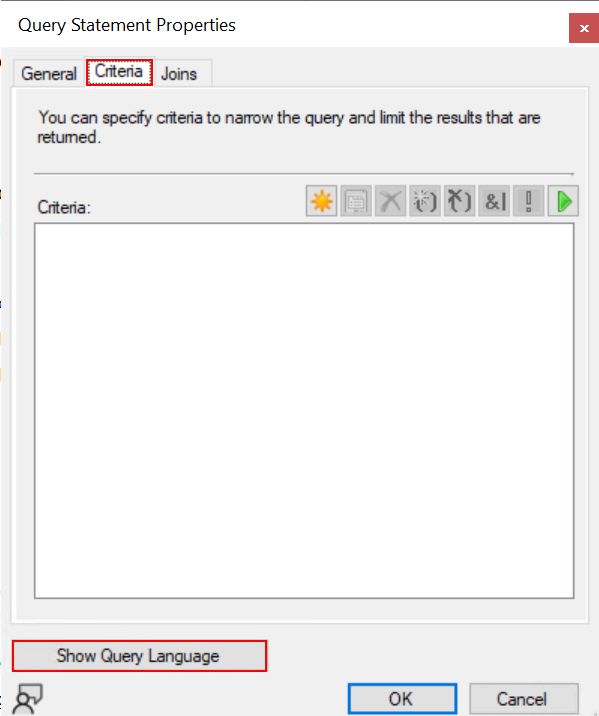
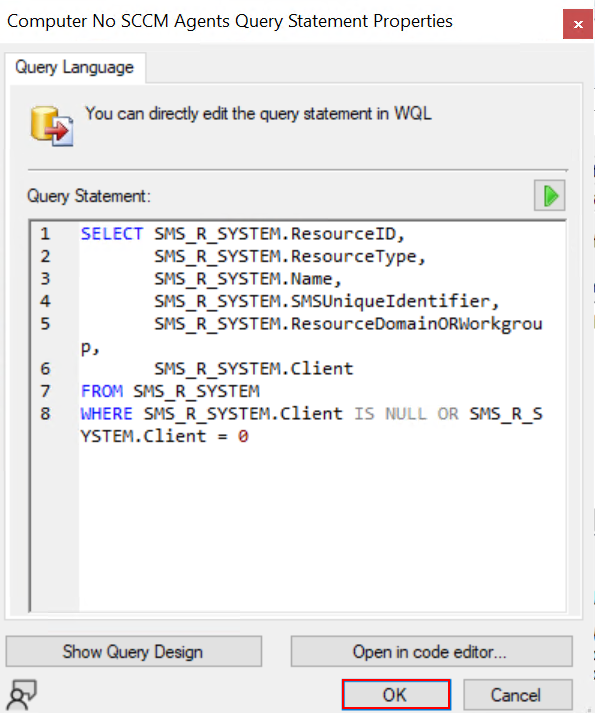
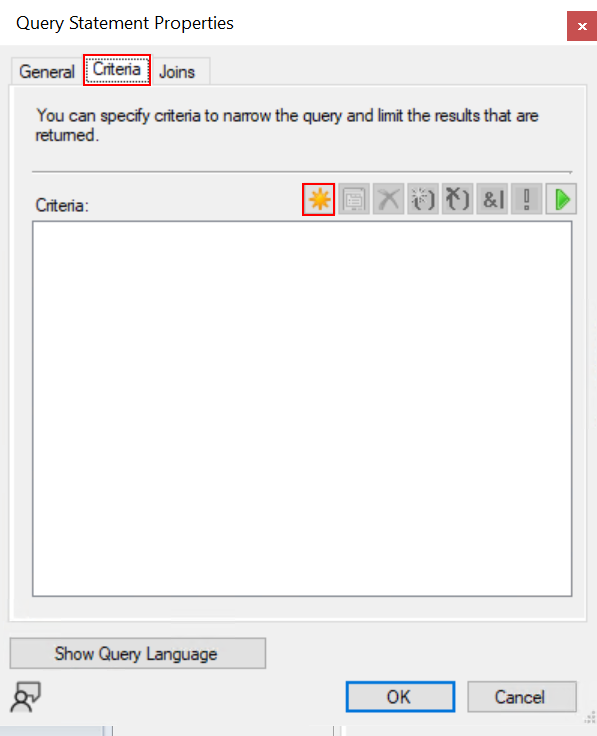
select SMS_R_System.ResourceId,
       SMS_R_System.ResourceType,
       SMS_R_System.Name
from SMS_R_System
where SMS_R_System.Client = 0 or SMS_R_System.Client is null


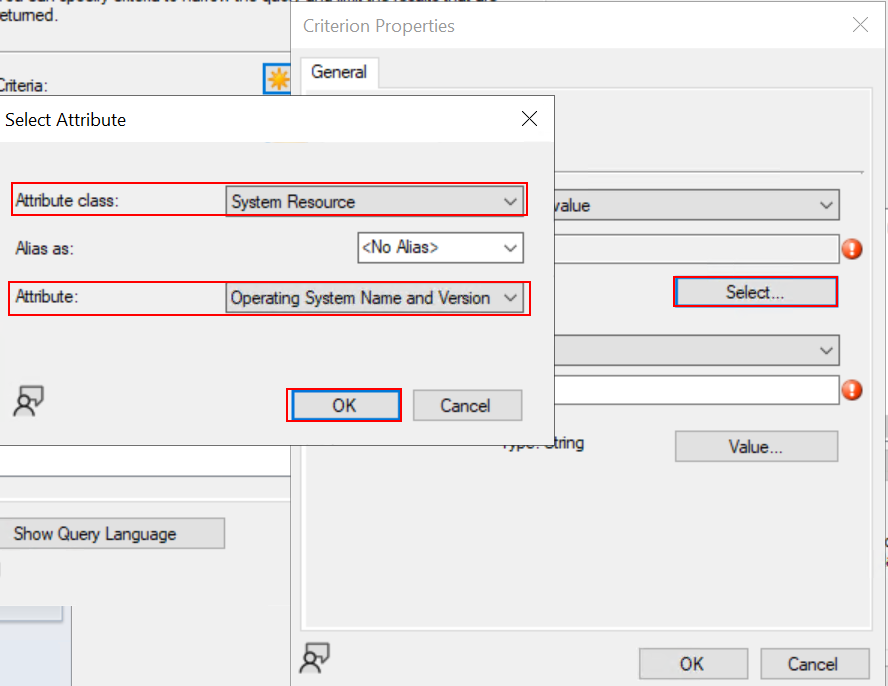
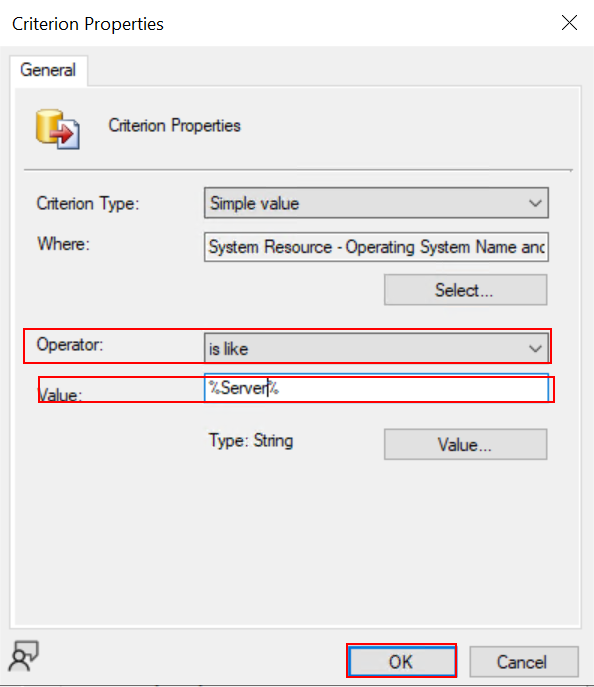
All Server Collection






Great explanation on creating collections based on IP addresses and wildcard names! I especially liked how you walked through each step clearly, from naming the collection to verifying its creation.
Using wildcards like “Win10%” seems super efficient for grouping similar devices—have you found any limitations with this approach?
The part about limiting collections to “All systems” as a base makes sense, but I wonder if there are scenarios where a narrower base collection would be better?
Also, how often do you update these query-based collections—manually or automatically?
The summary check before finalizing is a smart move—saves a lot of troubleshooting later!
Would love to hear your thoughts on best practices for naming conventions to keep collections organized.
By the way, for the “All Server Collection,” do you usually filter by OS or roles, or just keep it broad?