Introduction
In Microsoft Endpoint Configuration Manager, collections are the foundation of everything — software deployments, compliance policies, script targeting, and reporting all depend on collections being correctly defined. While most administrators are familiar with Device Collections, User Collections are equally important when you need to target deployments or policies based on who the user is, rather than which device they are using.
In this guide, you will learn how to create a User Collection in MECM from scratch, using a Query Rule to automatically populate the collection with members of the Domain Admins group from Active Directory. Every step is covered with exact navigation and configuration details matching the MECM console.
What is a User Collection in MECM?
A User Collection is a logical grouping of user accounts discovered by MECM from Active Directory. Once created, a User Collection can be used to:
- Deploy applications to specific users regardless of which device they log in to
- Apply configuration baselines to targeted user groups
- Scope administrative access within the MECM console
- Generate user-based reports and compliance data
Prerequisites
Before creating a User Collection confirm the following:
- Active Directory User Discovery is enabled and has run at least once
- Users are visible under Assets and Compliance → Users in the MECM console
- You are signed in as Full Administrator in MECM
- The target AD group (Domain Admins) exists and has members in Active Directory
Navigate to User Collections
- Open the MECM Console
- Click Assets and Compliance workspace from the bottom-left panel
- Expand Overview
- Right-click User Collections
- Select Create User Collection from the context menu

Configure General Settings
The Create User Collection Wizard will open on the General page.
In the Name field enter: Domain Admins
Leave the Comment field blank or add a description for your team
Under Limiting collection click Browse

The Select Collection window will open showing all available User Collections
All Users
Click OK

Click Next to proceed


Define Membership Rules
You are now on the Membership Rules page. This is where you define how MECM determines who belongs to this collection.
Click the dropdown arrow next to Add Rule
ou will see four rule types:
- Direct Rule
- Query Rule ← select this
- Device Category Rule
- Include Collections
- Exclude Collections

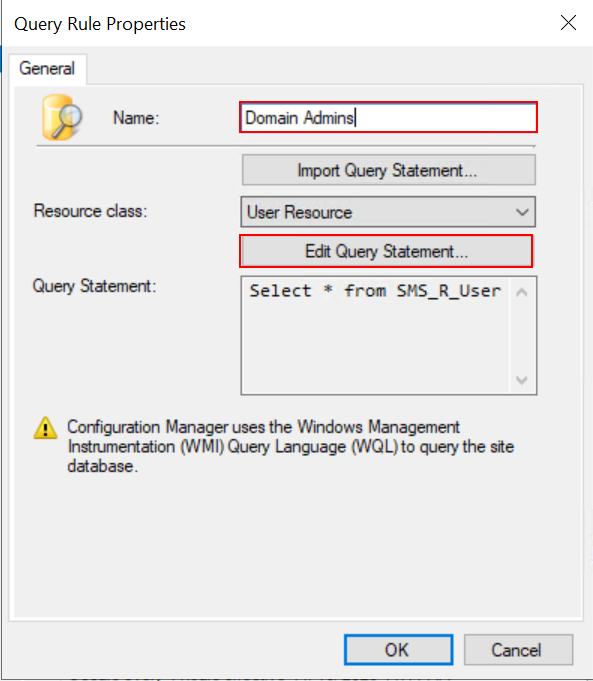
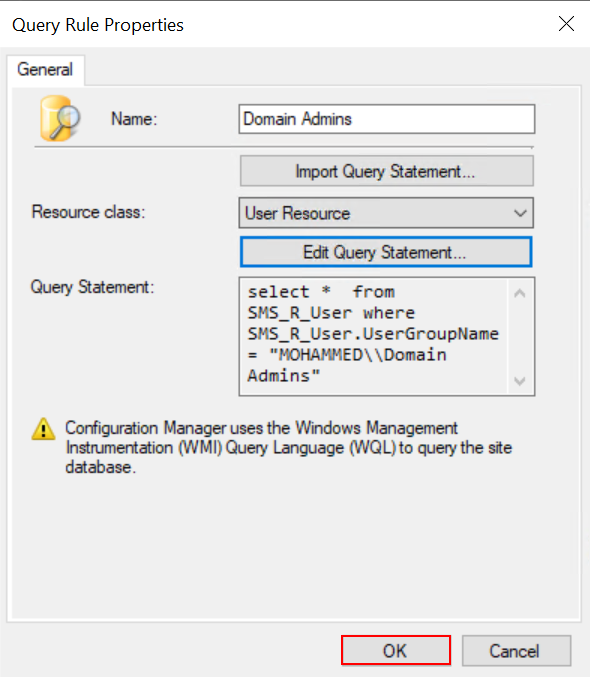
Configure Query Rule Properties
The Query Rule Properties window opens.
In the Name field enter: Domain Admins
Confirm Resource class is set to: User Resource
Click Edit Query Statement
Build the Query Statement
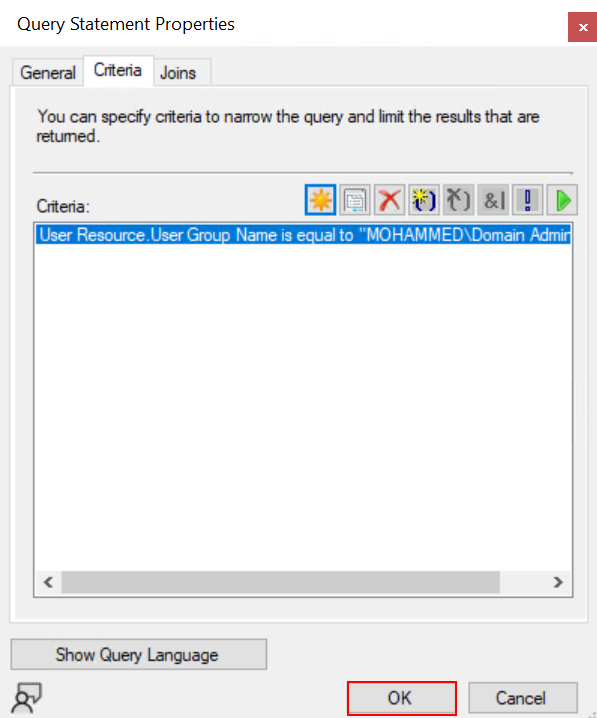
The Query Statement Properties window opens with two tabs: General and Criteria.
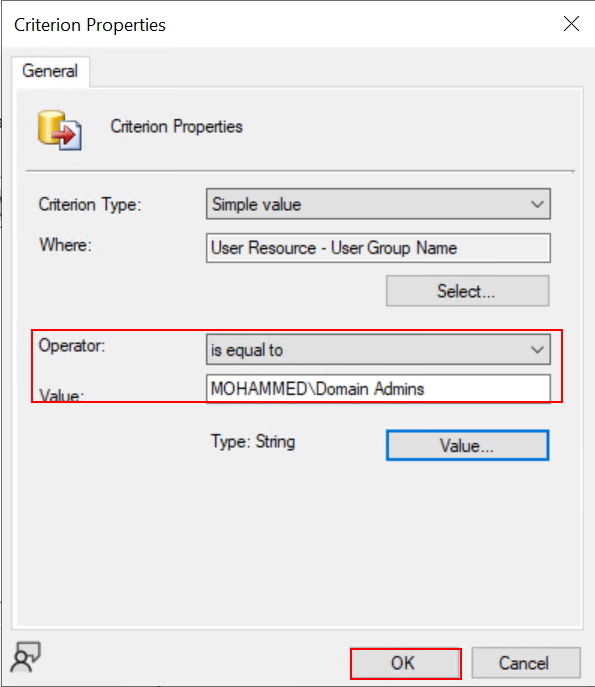
Click the Criteria tab Click the yellow star icon (Add Criteria button) in the toolbar The Criterion Properties window opens Configure as follows:
- Criterion Type: Simple value
- Click Select next to the Where field
The Select Attribute window opens:
- Attribute class: User Resource
- Alias as: No Alias
- Attribute: User Group Name
Click OK to confirm the attribute selection Back in Criterion Properties set:
- Operator: is equal to
- Value:
MOHAMMED\Domain Admins(Replace MOHAMMED with your actual domain name)
Click OK


The completed criteria will appear as:
User Resource.User Group Name is equal to “MOHAMMED\Domain Admins”
Click OK to close Query Statement Properties
Confirm Query Rule
This query tells MECM to return all users from the site database where their User Group Name matches the Domain Admins group in your domain.
Click OK to save the Query Rule.

Review Summary
The Summary page shows a confirmation of all settings:
- General
- Collection Name: Domain Admins
- Comment: (blank)
- Membership Rules
- (Query) Domain Admins
Review the details and click Next to create the collection.


The Domain Admins collection is now visible with 2 members — confirming that MECM successfully queried Active Directory and found 2 users belonging to the Domain Admins group.

Understanding the Collection Update Process
| Update Type | How It Works | When It Runs |
|---|---|---|
| Incremental Update | Detects newly added or removed users quickly | Every few minutes automatically |
| Full Update | Re-evaluates all members against the query | Every 1 hour (or your custom schedule) |
| Manual Update | Right-click collection → Update Membership | On demand anytime |
Conclusion
Creating a User Collection in MECM using a Query Rule is one of the most practical skills an MECM administrator can have. By targeting the Domain Admins group through a dynamic query, the collection automatically stays current as membership in Active Directory changes;, with no manual updates are needed.
This same approach can be applied to any AD security group in your environment. Simply change the value in the Criterion Properties DOMAIN\Domain Admins to any group name you want to target, giving you a powerful and flexible way to manage user-based deployments across your organization.