Introduction
Backing up your Microsoft Endpoint Configuration Manager (MECM) site server is one of the most critical responsibilities of any MECM administrator. Without a proper backup, a server failure, database corruption, or accidental misconfiguration could result in complete loss of your MECM environment, including all deployments, collections, policies, and client data.
MECM includes a built-in backup site server maintenance task that automatically backs up everything needed to fully recover your site. In this guide, you will learn how to configure MECM backup correctly, what gets backed up, where backups are stored, and how to verify your backup is running successfully.
What Does MECM Backup Include?
When the built-in backup task runs, it automatically captures:
| Component | Included |
|---|---|
| Site database (SQL Server) | Yes |
| Site control file | Yes |
| CD.Latest folder | Yes |
| SMS Provider files | Yes |
| Configuration Manager registry keys | Yes |
| Custom reports | Yes |
| Software packages (content library) | No — must back up separately |
Prerequisites
Before configuring backup confirm the following:
- You are signed in as Full Administrator in the MECM Console
- The backup destination folder has sufficient disk space
- The MECM site server has network access to the backup destination
- SQL Server is running and healthy
- The SMS_SITE_BACKUP service account has write access to the backup folder
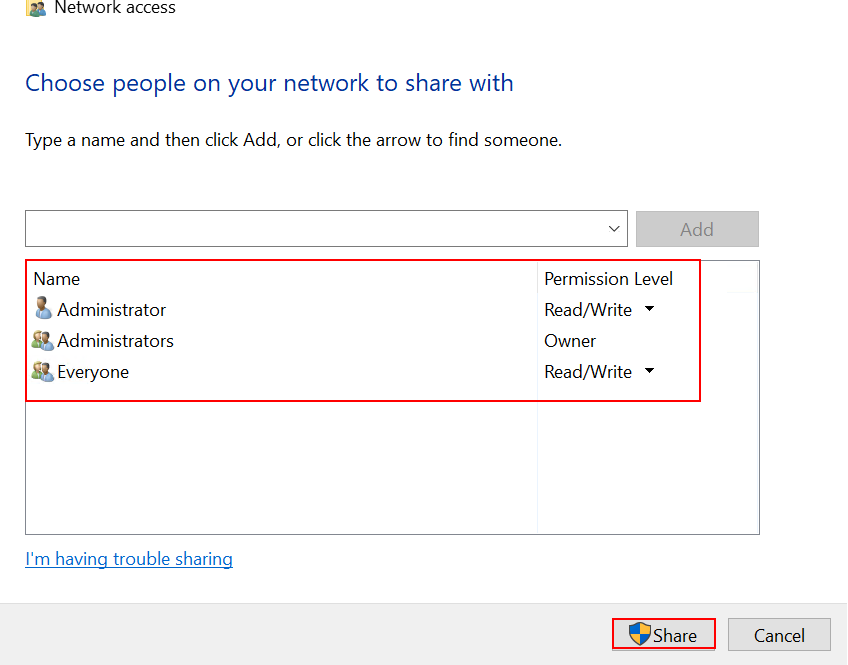
Step 1: Configure the folder for backup
Create a directory and assign read and write permissions.

Step 2 — Open Maintenance Tasks in MECM Console
Open the MECM Console
Go to Administration workspace
Expand Site Configuration
Click Sites
Select your Primary Site
Click Site Maintenance in the top ribbon

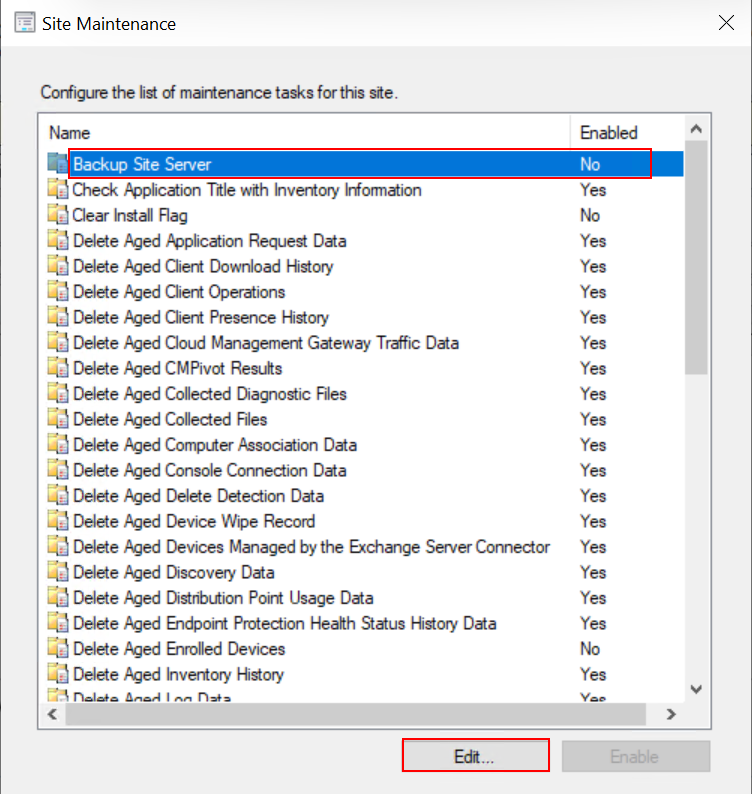
Step 3 — Enable Backup Site Server Task
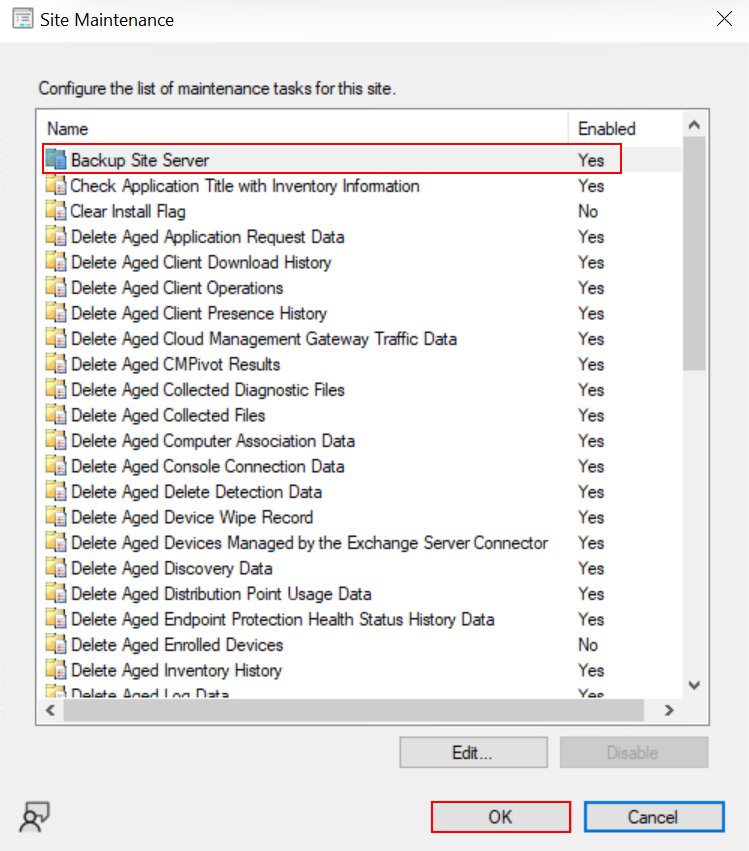
- In the Site Maintenance window scroll down to find Backup Site Server
- Select it and click Edit
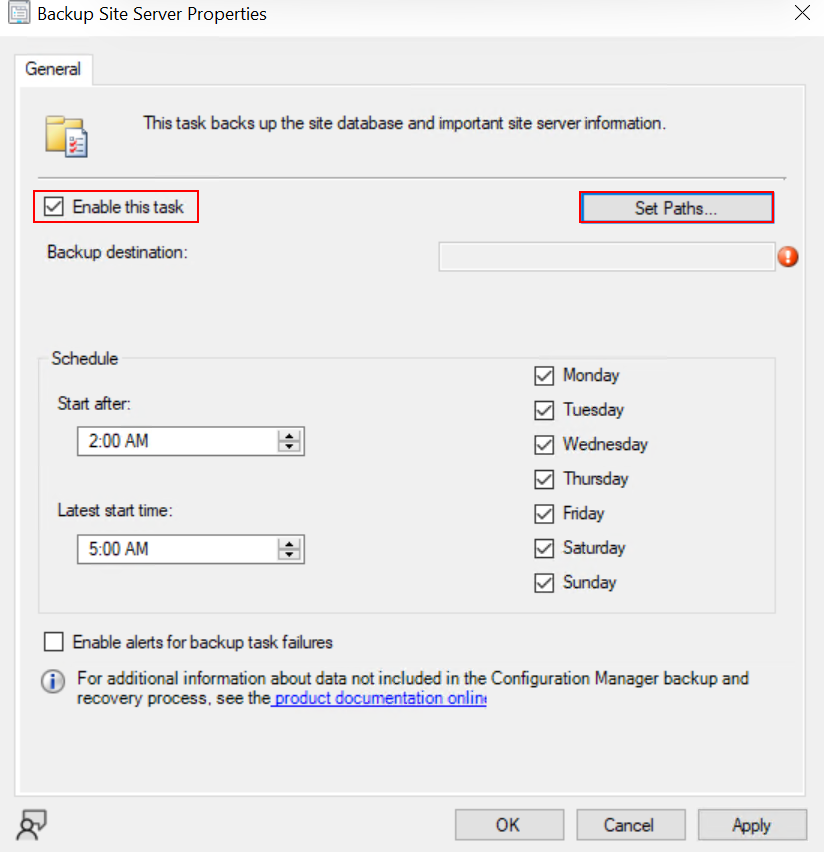
- Check the box Enable this task
- You will now see the backup configuration options
Step 4 — Configure Backup Destination
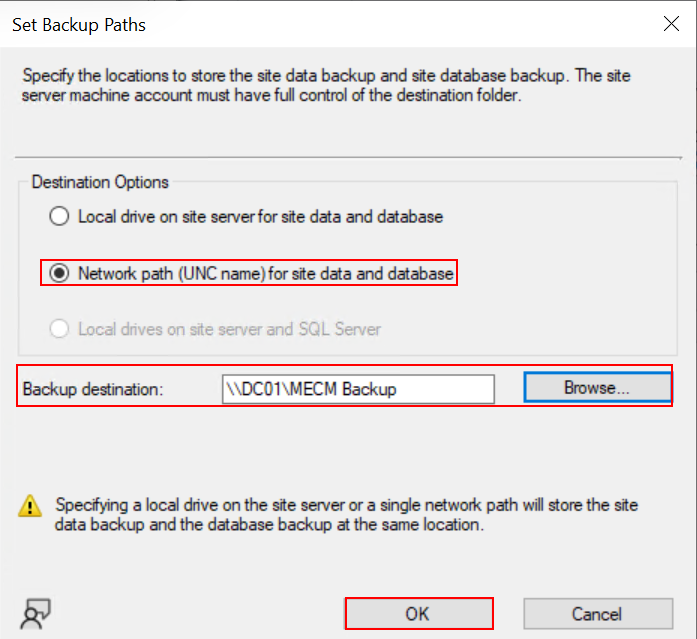
- Under Backup destination click Set Paths
- Enter the full path where backup files will be stored
- Local path example:
D:\MECM_Backup - Network path example:
\\BackupServer\MECM_Backup
- Local path example:
- Click OK
- Under Schedule click Set
- Choose your preferred schedule:
| Schedule Option | Recommended Setting |
|---|---|
| Start time | Off-peak hours e.g. 11:00 PM |
| Recurrence | Daily |
| Days | Every day |
- Click OK to confirm the schedule

Step 5 — Configure Retention Settings
MECM keeps only the last 5 backup snapshots by default. Older backups are automatically overwritten. If you need longer retention, copy backups to a secondary location using a scheduled robocopy script:
Step 6 — Save and Confirm
- Click OK to save the maintenance task
- The task will now show as Enabled in the Site Maintenance list
- Note the Last Run Time and Next Run Time columns

Check Backup Log File
The primary log for MECM backup is smsbkup.log
:\Program Files\Microsoft Configuration Manager\Logs\smsbkup.log

Check Backup Destination Folder
- Navigate to your backup destination folder
- You should see a folder named SMSbkup with subfolders:
SiteDBServer— SQL database backupSiteServer— site files and registryCD.Latest— installation source files

Conclusion
Configuring MECM backup correctly is not optional; it is a fundamental part of managing a healthy Configuration Manager environment. The built-in backup site server maintenance task makes it straightforward to protect your site database and configuration files on a daily schedule.
Once backup is configured, make it a habit to check smsbkup.log regularly, keep copies of backups on a separate server, and test your recovery process at least once a year. A backup you have never tested is a backup you cannot trust.