MCM server requires bunch of port to be opened from and client computer. In this article i will be explain all the port and services need to opened from and to MCM server. there are two types of rules which requires to be configured for the server. Inbound ports and services requires to communicate from client/agents to MCM server for downloading packages, finding service location, policy request, download content etc. Outbound ports are required for client push, WMI DCOM communication, file access and other.
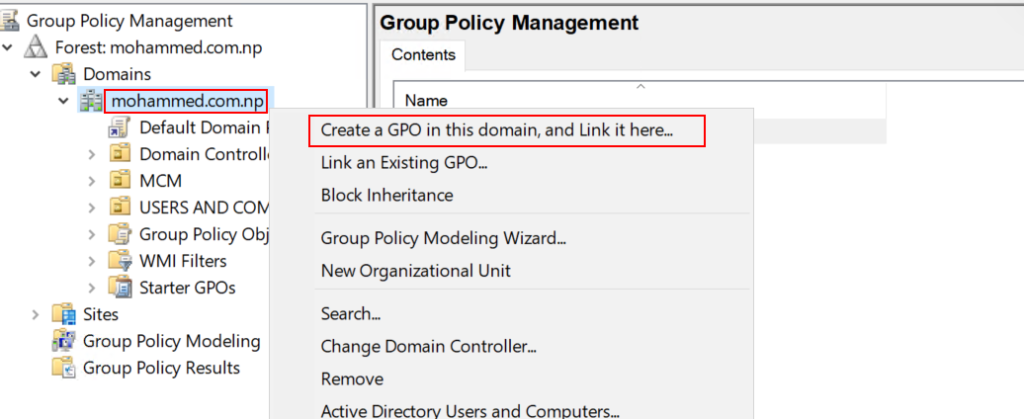
Open gpmc console in your Domain controller server. click on domain name and go to Create a GPO in this domain, and link it here.
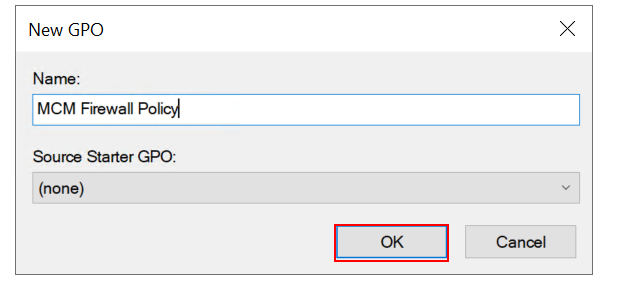
Write appropriate name of the GPO and click OK.
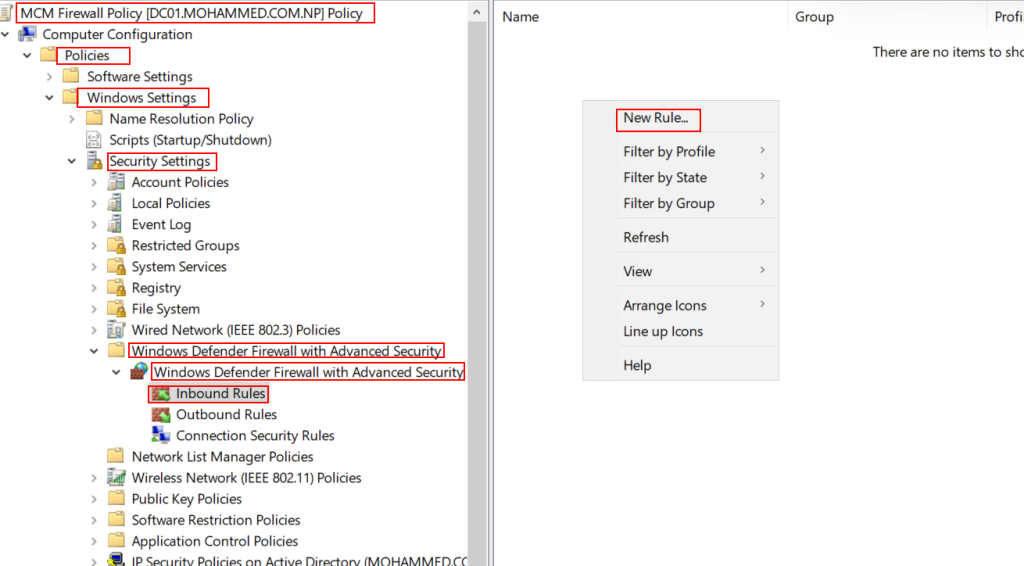
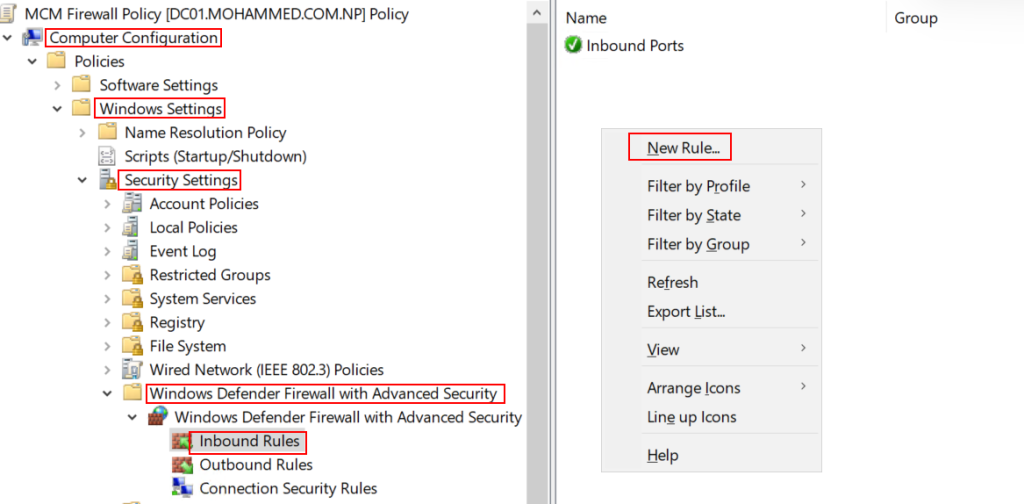
Edit the newly create GPO, Go to Computer configuration -> Policies -> Windows Settings -> Security Settings -> Windows Defender Firewall with Advance Security -> Windows Defender Firewall with Advance Security -> Inbound Rules -> New Rule….
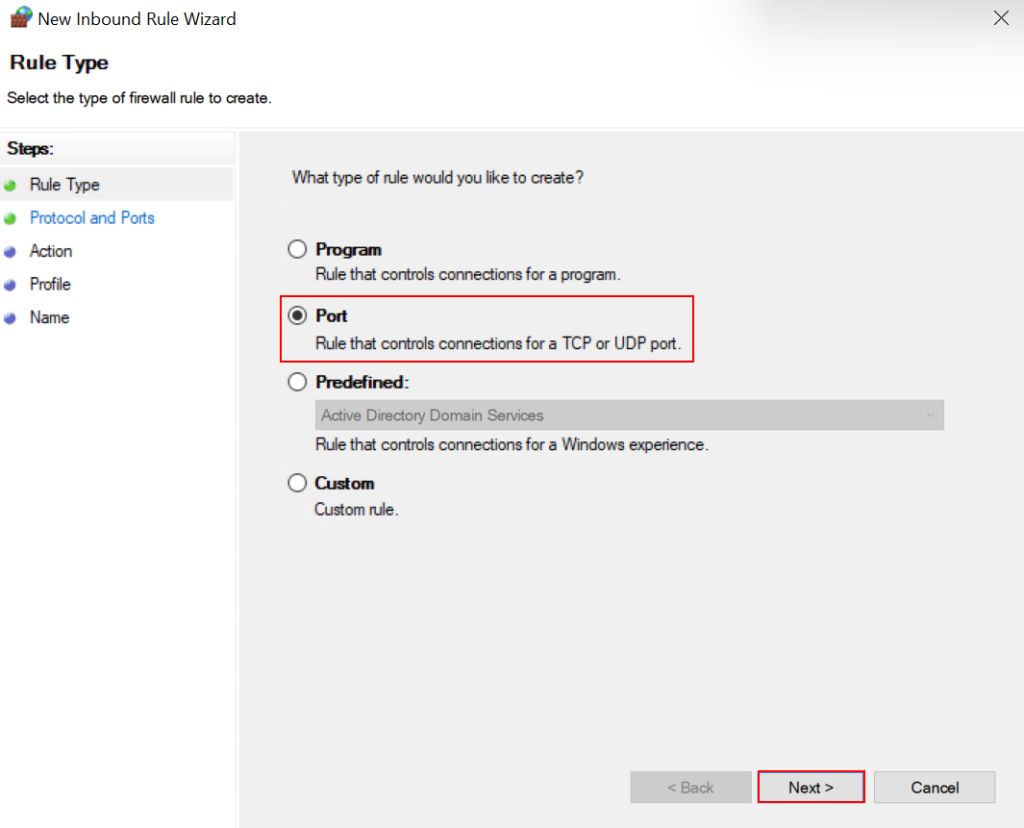
in the Rule Type page select the Port because will allow multiple ports for inbound connections.
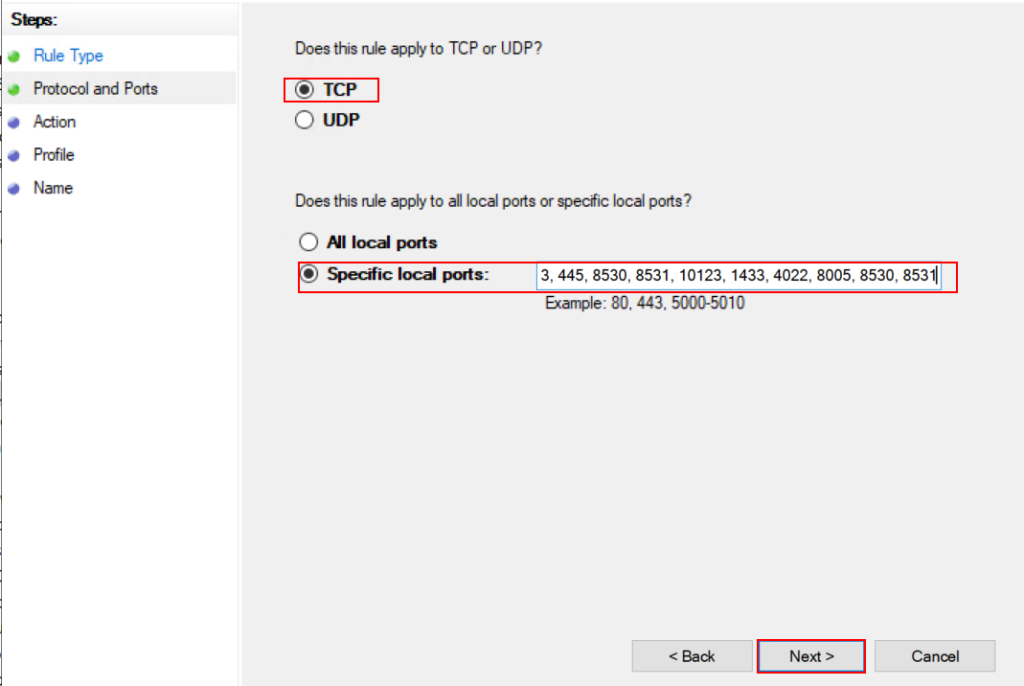
here is the list of inbound ports need to be allowed from client computers to MCM server. choose TCP put all the listed port in Specific local ports and
80, 443, 445, 8530, 8531, 10123, 1433, 4022, 8005, 8530, 8531
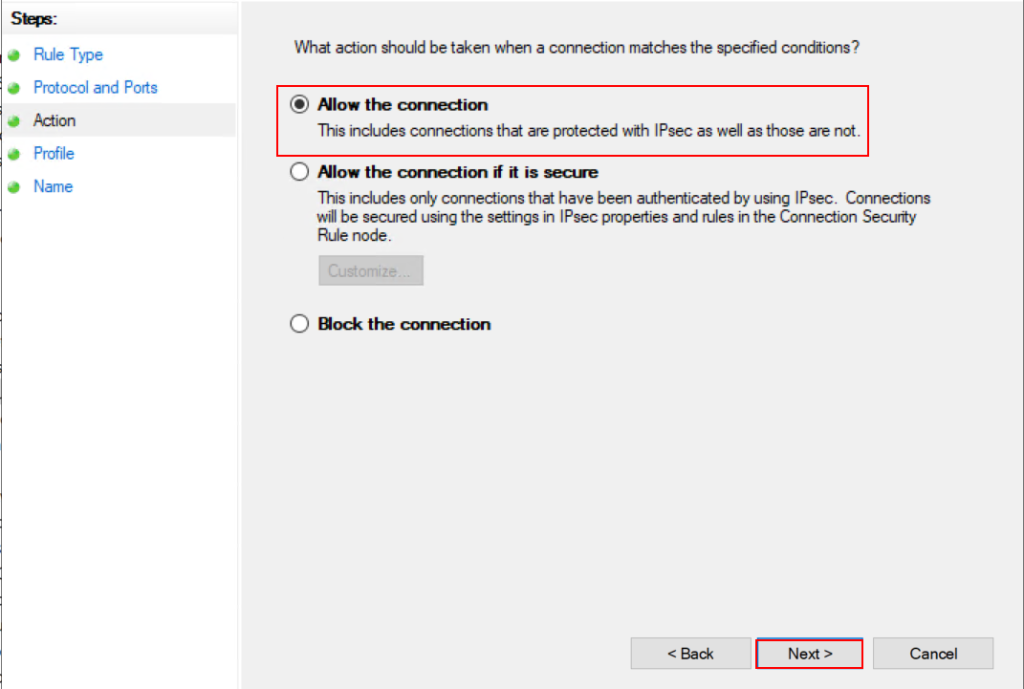
In the Action Tab, choose Allow the connection and Next.
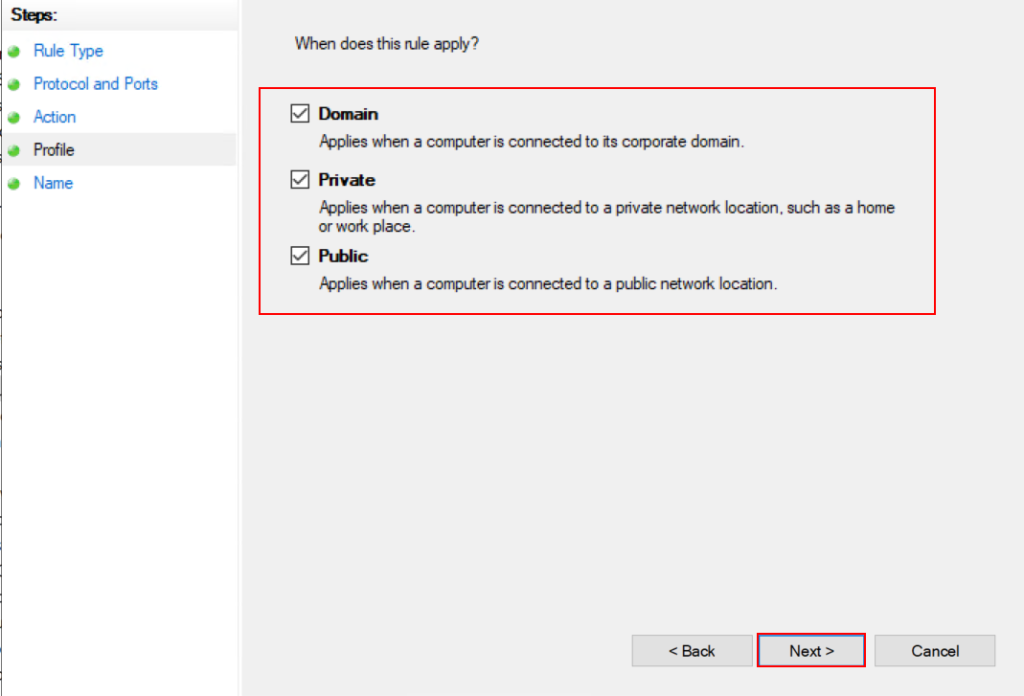
Choose where allowed in domain network only or apply all type of networks. here in this article i will choose all profiles.
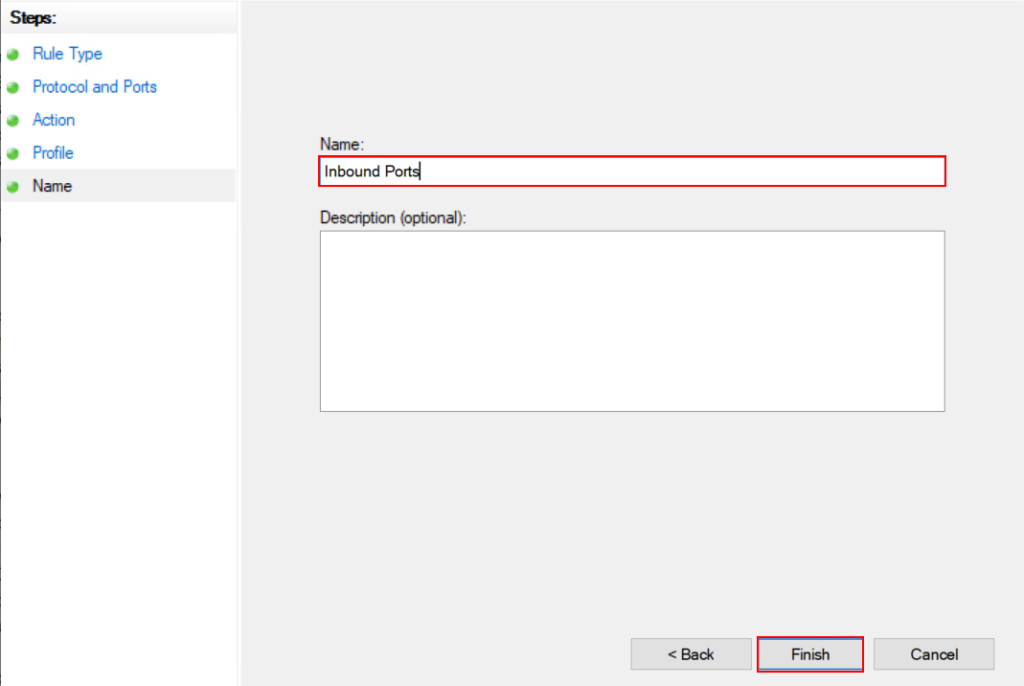
In the name tab, Provide appropriate name of the rule and give the description of any. and finish adding the rule.
Again create new rule for File and Printer Sharing, Click on New Rule….
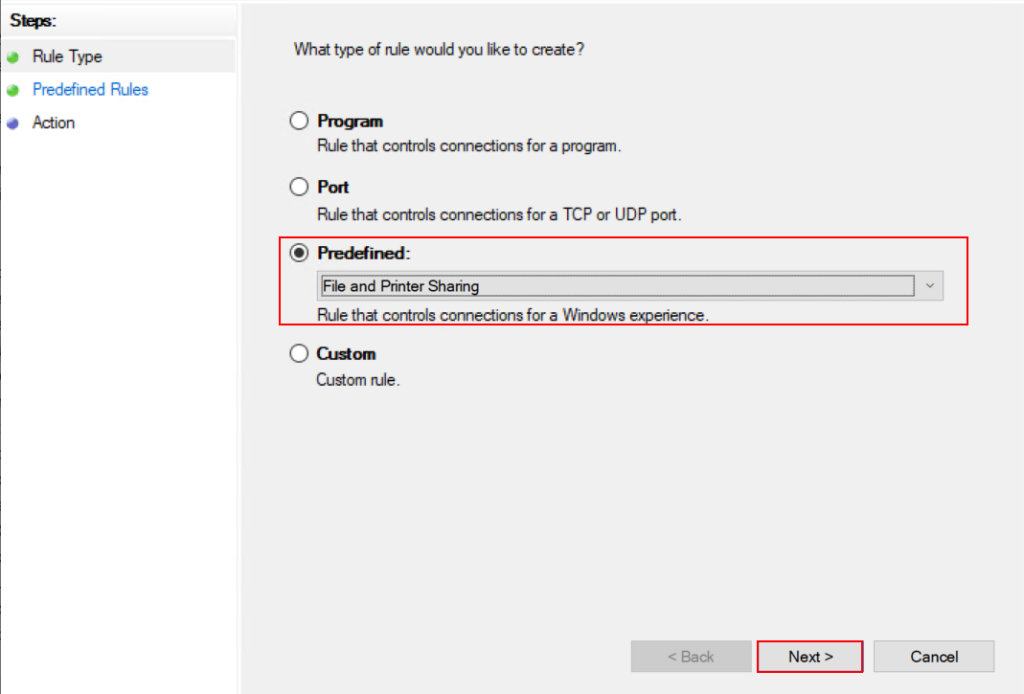
From the drop down list choose File and Printer Sharing and Next.

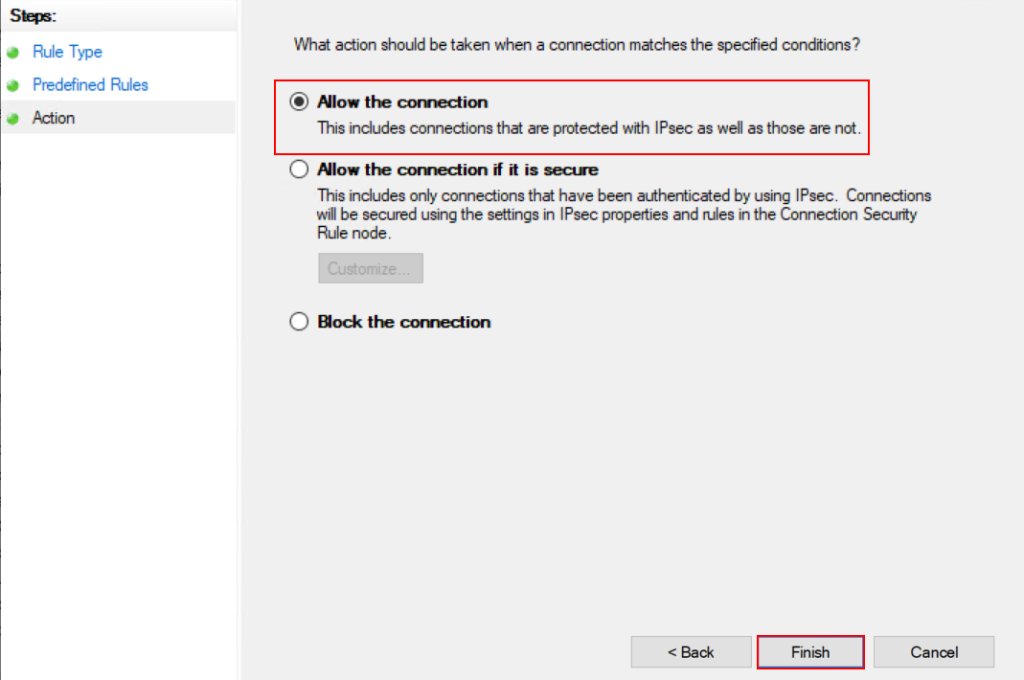
In the Action Tab, Choose Allow the connection and Finish.
Further more you need to allow WMI inbound connection to the server clients and server. go to Inbound Rules option and create New Rule…

from the drop down list choose Windows Management Instrumentation(WMI) and Next.


In the Action Tab, Choose Allow the connect and Finish

You have configured all the inbound rules required by the Server and clients, Now its time to configure outbound rules required to communicate from and to server and clients. use all ports number used in inbound rule.
Open MCM Firewall Policy -> Computer Configuration -> Policies -> Windows Settings -> Security Settings -> Windows Defender Firewall with Advance Security -> Windows Defender Firewall with Advance Security -> Outbound Rules -> New Rules….
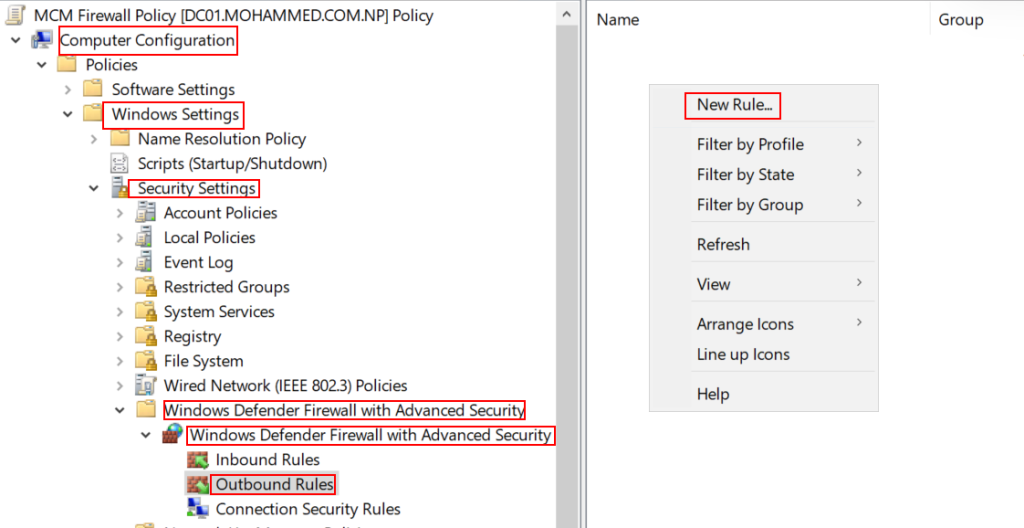
On Rule Type Tab,
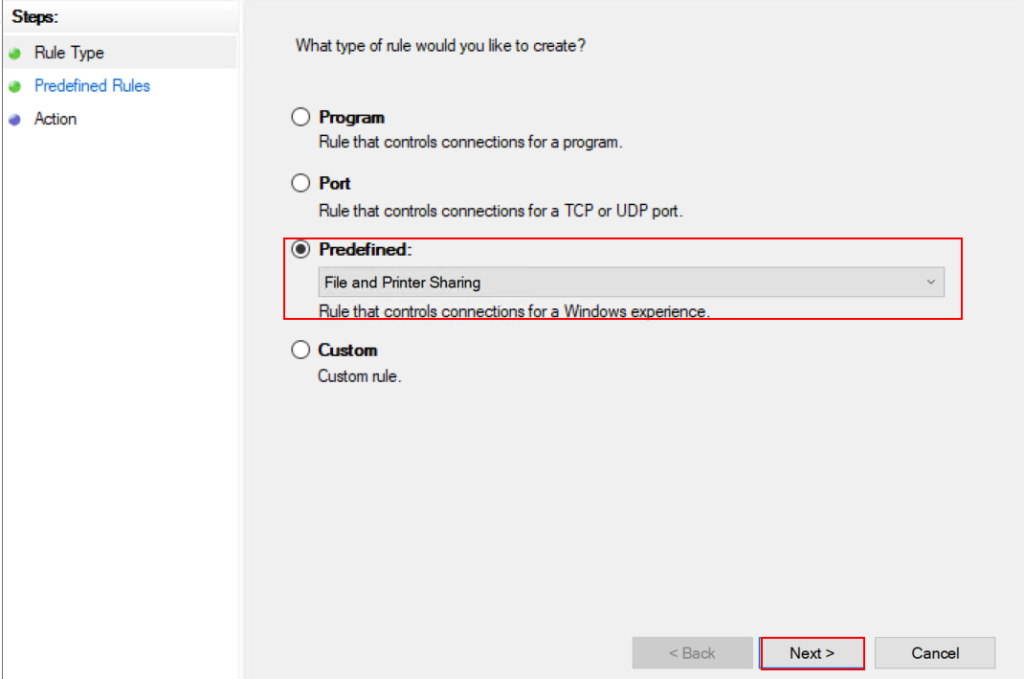

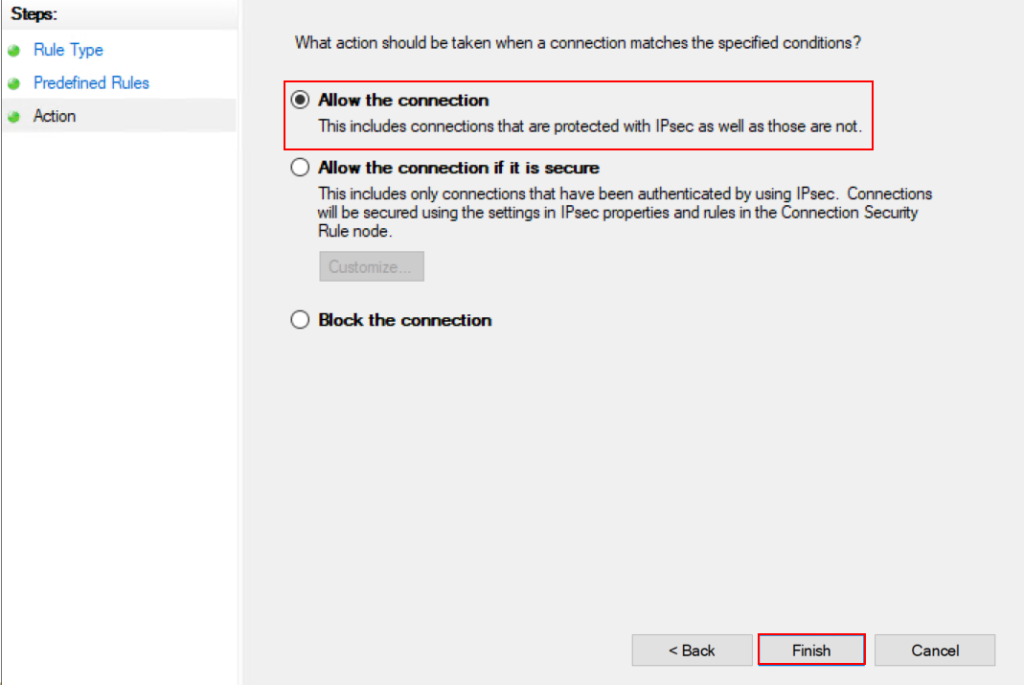
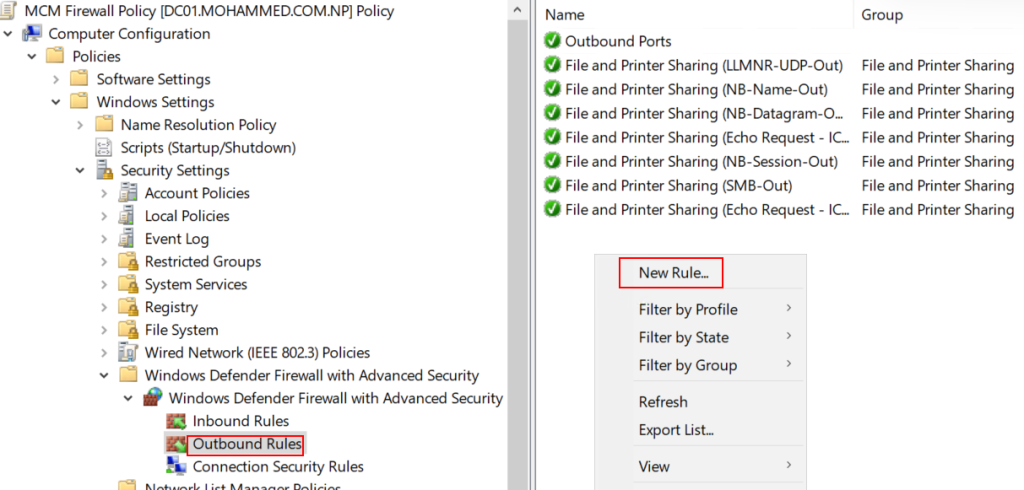
Again need to allow all those ports we have allowed in Inbound rule. Right Click on Outbound Rules and on New rule…

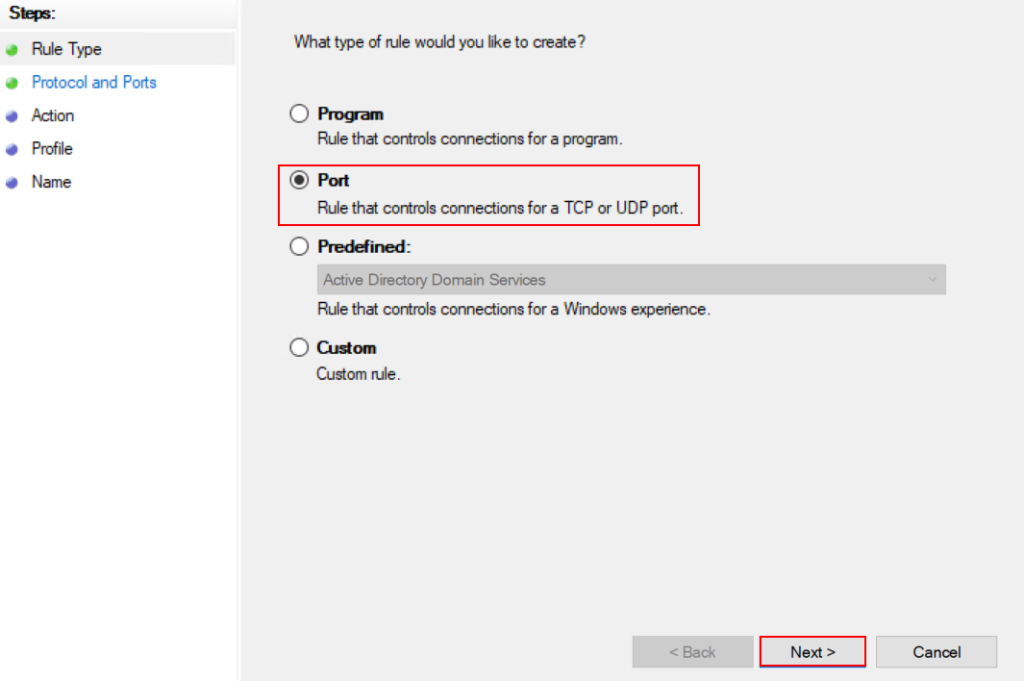
on Rule Type Tab, Choose Port. and here need to fill all the port numbers required to be allowed.
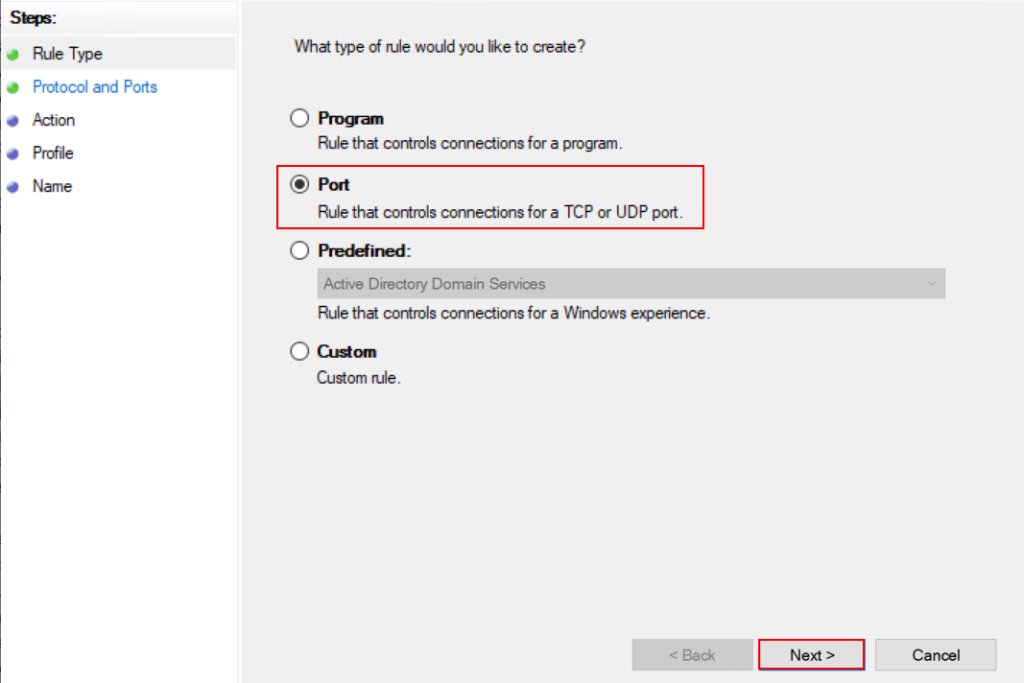
Here is the outbound port list which need to be allowed on outbound port list as TCP.
80, 443, 445, 8530, 8531, 10123, 1433, 4022, 8005, 8530, 8531

As explain, Be careful while choosing Action. because outbound port by default it show block but here carefully Choose “Allow the connection“

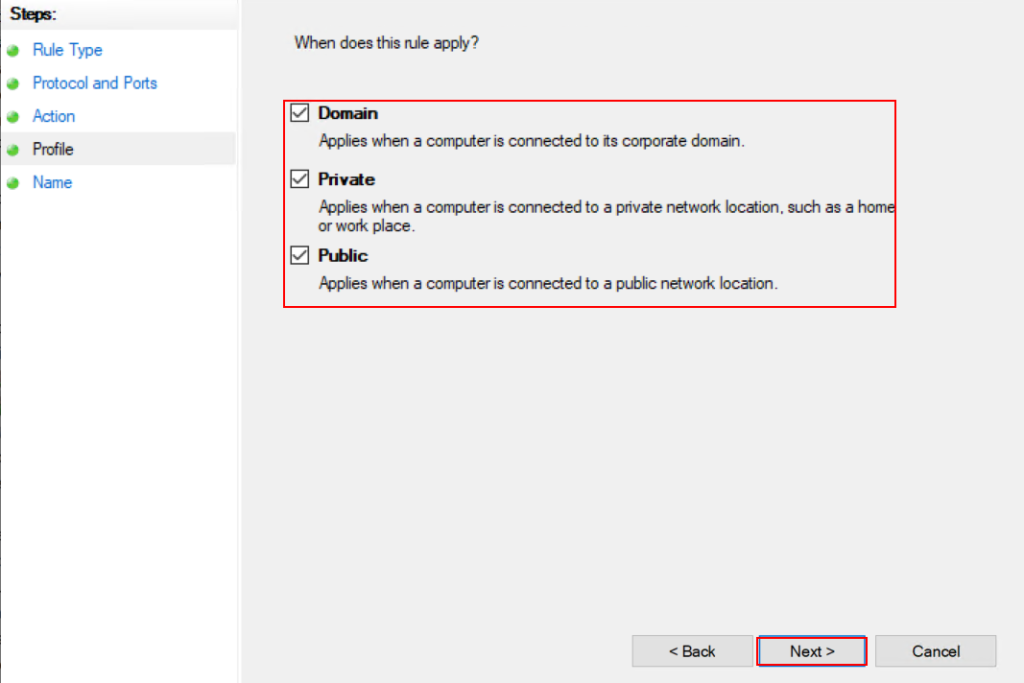
you can choose domain only but here i will choose Domain, Private, Public and Next.
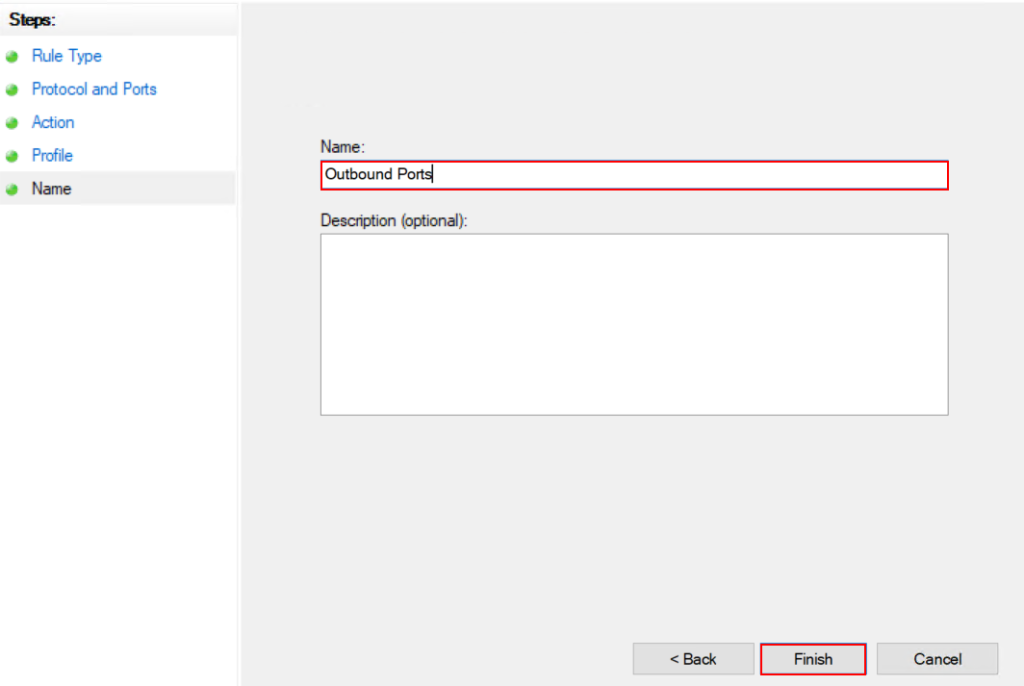
write appropriate name of the ports group and finish the page to complete the rule creation.
There are some UDP ports also need to be allowed in outgoing ports from MCM server to clients. these ports are need to opened from server to clients. due to which it will be created separately outgoing UDP ports. Right click on Outbound Rules and New Rule…
In Rule Type, Choose Port.
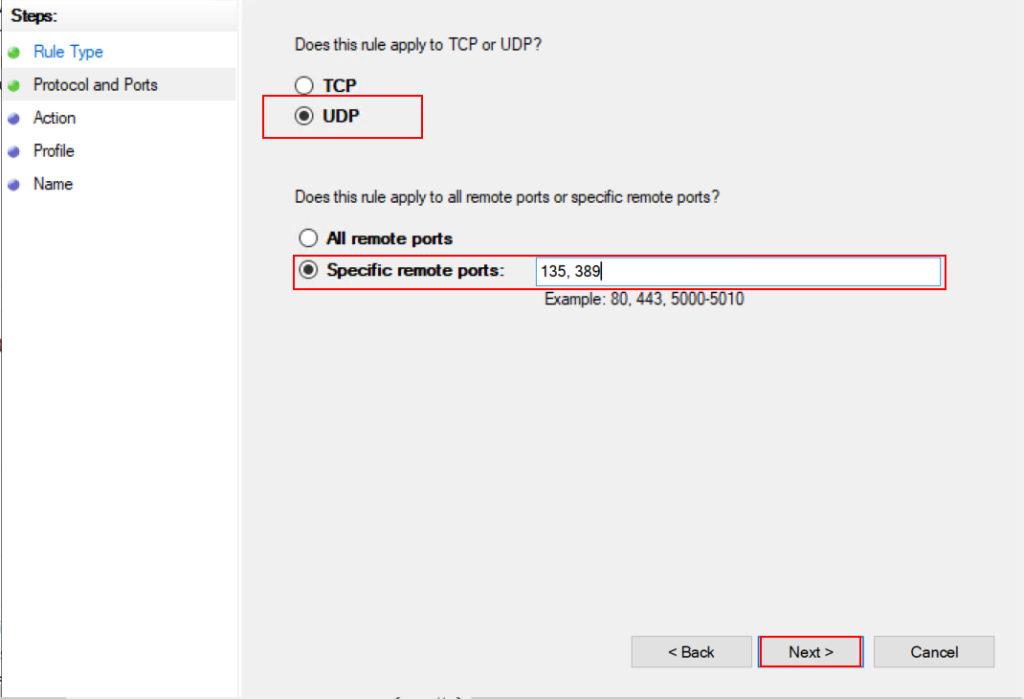
In Protocol and ports Option, Choose UDP and specify 135 and 389 port.
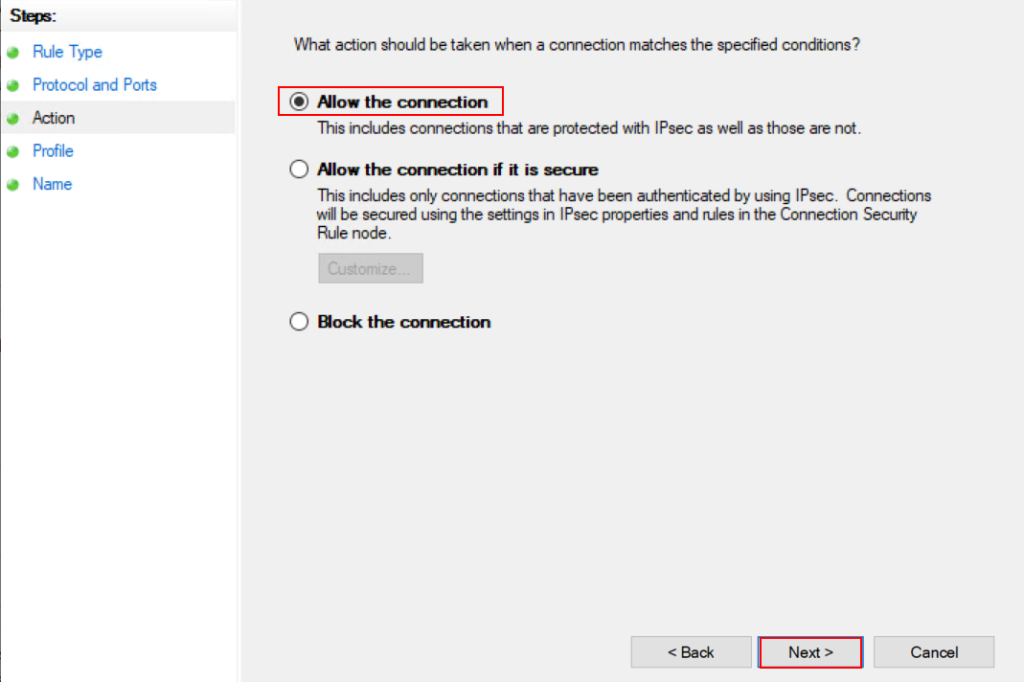
In Action Page, Choose allow connection and Next
On Profile Page, choose your appropriate Profile and Next. in the example i will choose all the profiles (Private, Domain and Public)

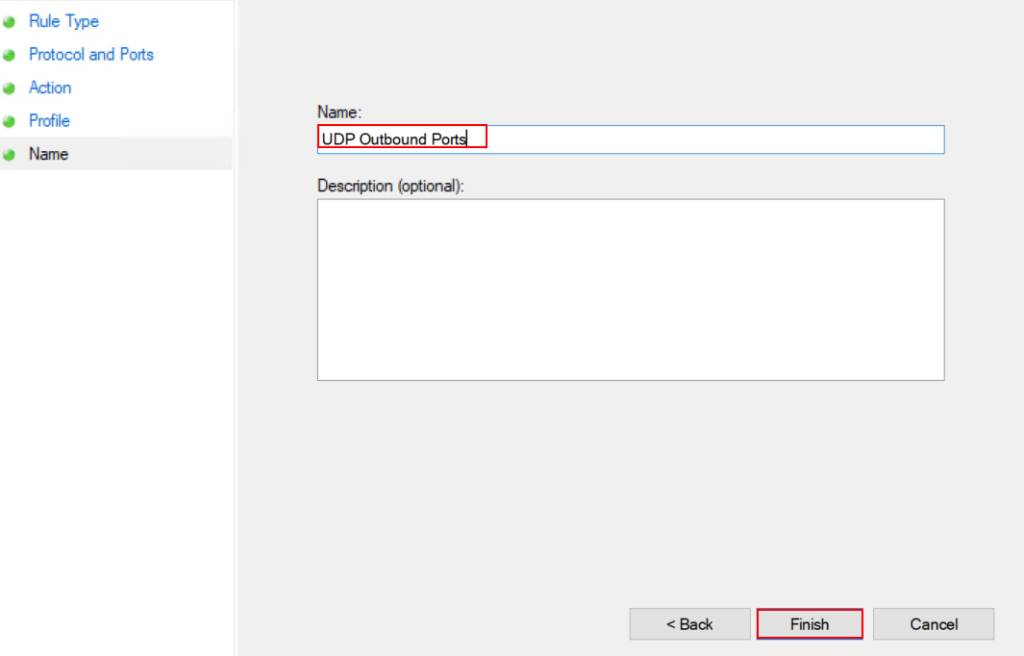
On Name Page, Provide an appropriate name as per your convenience and Finish the port allow rule.
Also it its required to allow WMI for outgoing port from MCM server to Client computers and servers. to achieve this Right click on Outbound Rules -> New Rules

On Rule Type page, From the Predefined rules use dropdown and choose WMI (Windows Management Instrumentation ) and Next.
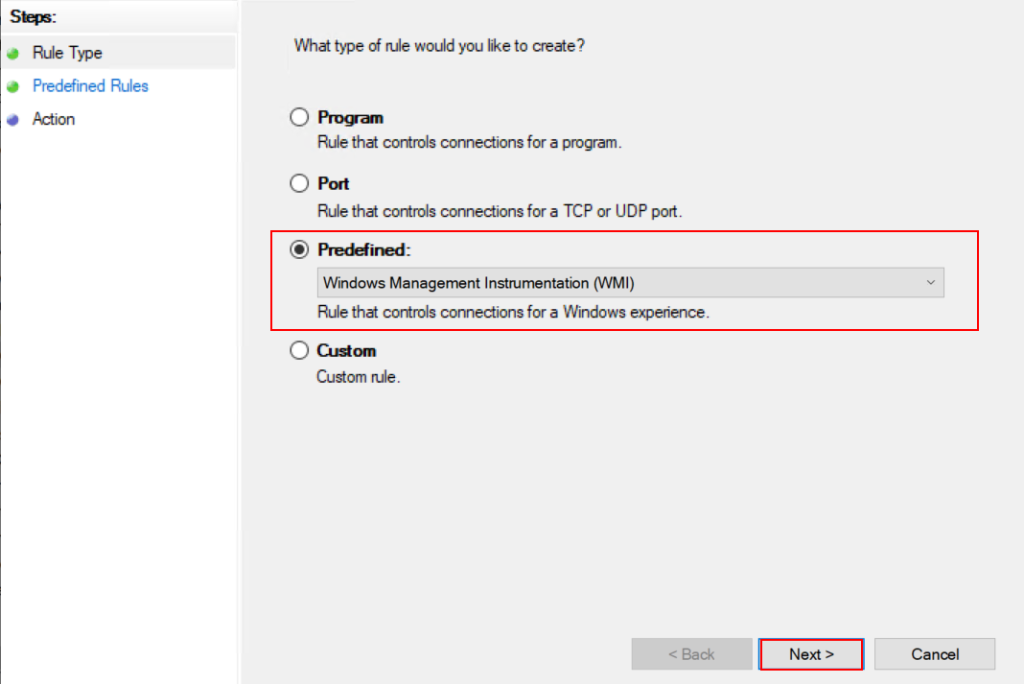
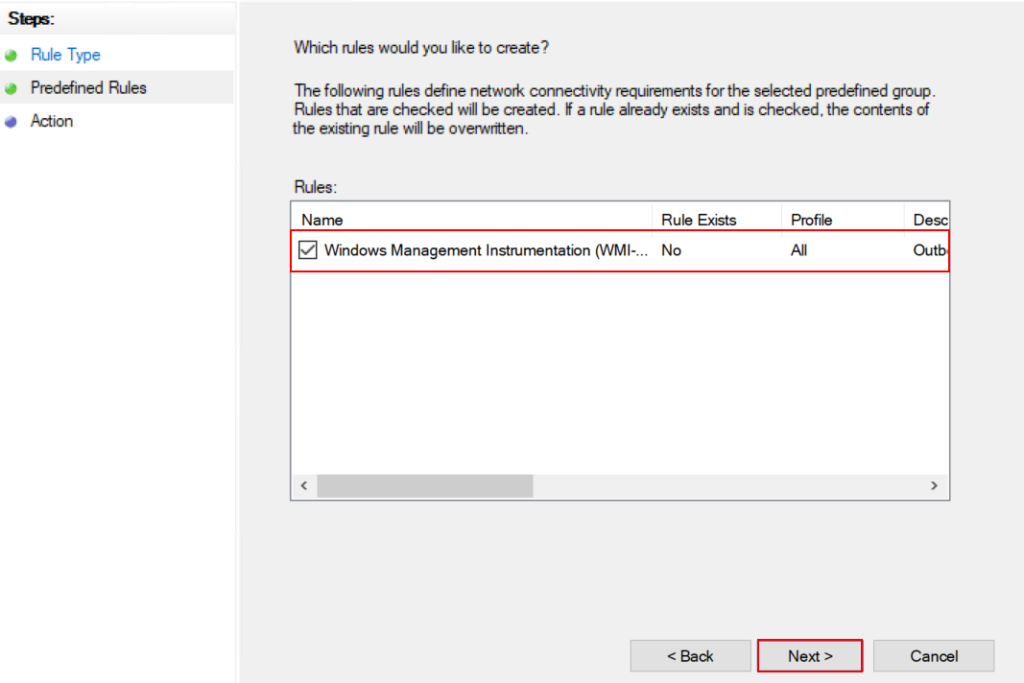
On Predefined Rules, WMI is selected verify and click Next to allow the connection
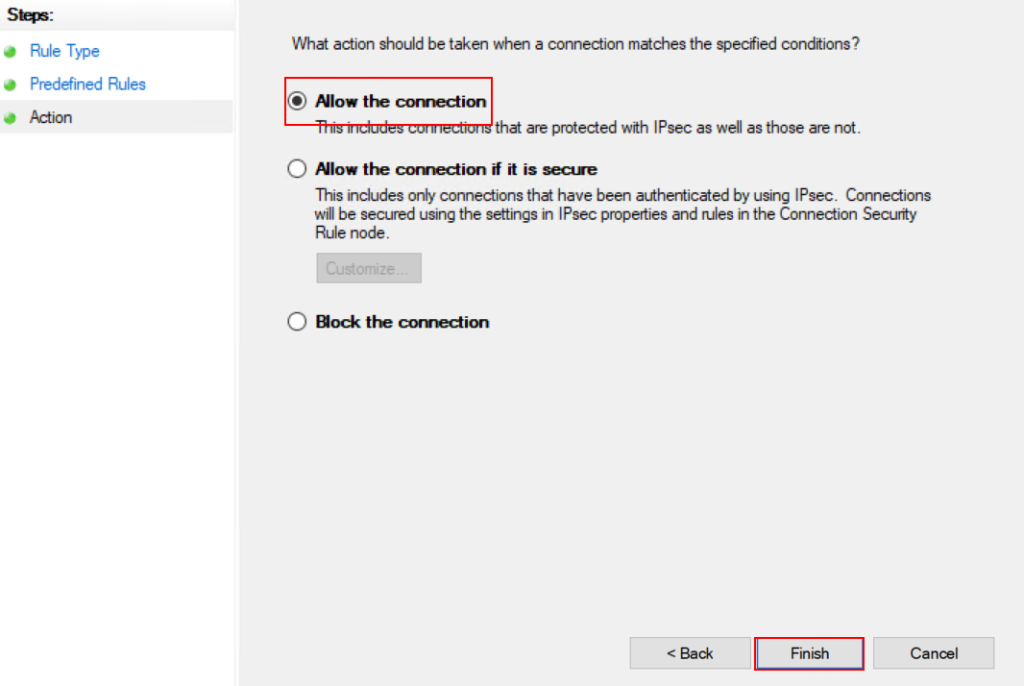
On Action Tab, choose “Allow the connection“
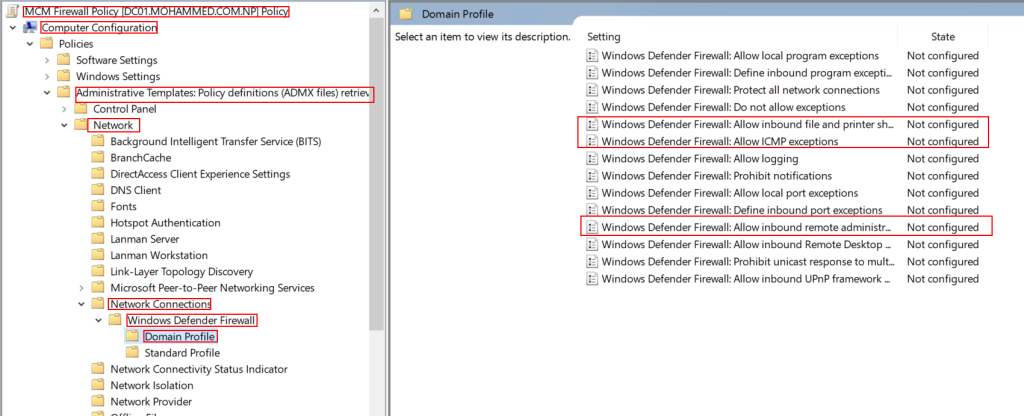
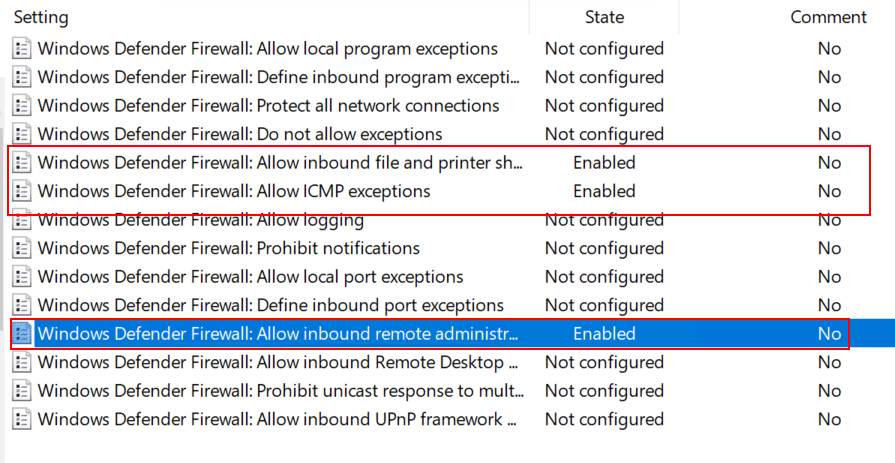
Also one more rule need to defined in network profile, which is domain profile. Go to Computer configuration -> Policies -> Administrative Templates -> Network -> Network Connections -> Windows Defender Firewall -> Domain Profile
here three rules must be enabled
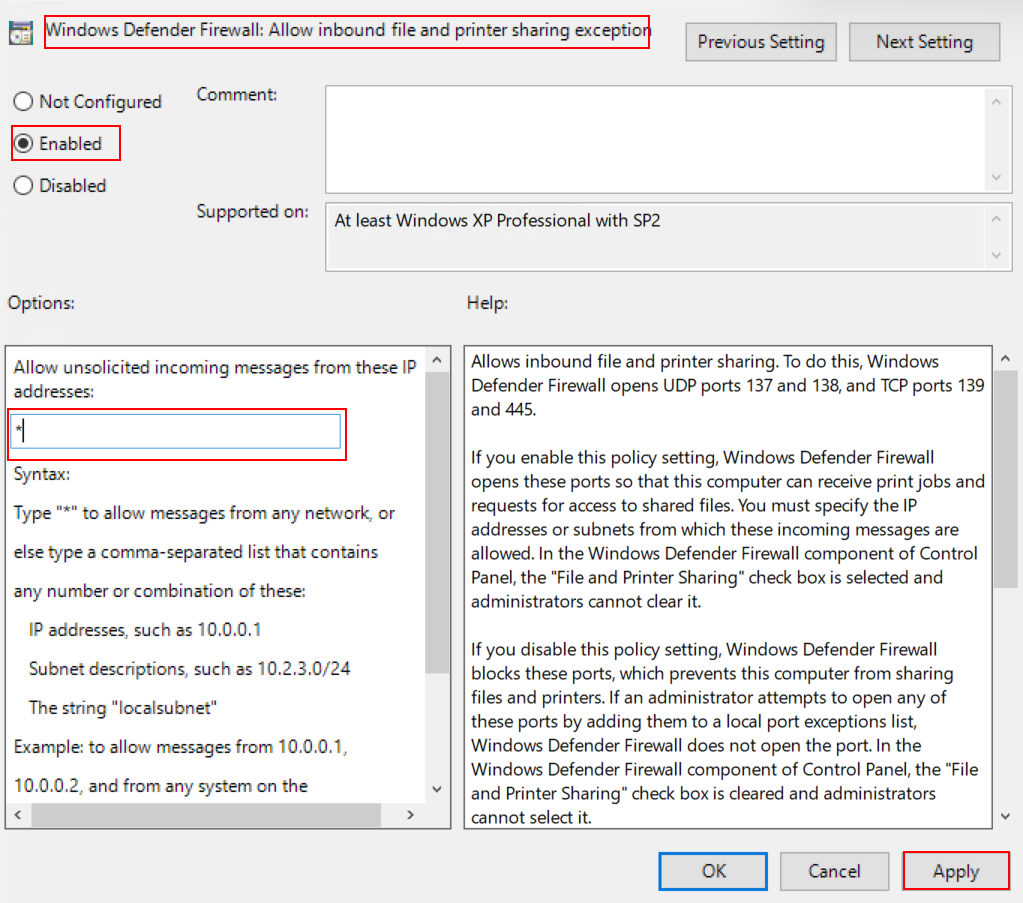
- Windows Defender Firewall: Allow inbound file and printer sharing exception
- Windows Defender Firewall: Allow ICMP Exceptions
- Windows Defender Firewall: Allow Inbound remote administration Exception


Conclusion:
In the Article your have learned how to create Group Policy Object MCM server to communicate with clients and vice versa. this article guide you step by step policy creation and application method for server and client computers. In the next Article you will understand how and why install Installing WADK for MCM in the Microsoft Configuration Manager.