In the previous articles i have explained each and every prerequisites to be installed in the MCM server. apart of these prerequisites you do need require anything further to be installed. if you followed the all previous articles, you are ready to to install MCM module in the server.
in the previous article, i have explained step by step installation of WSUS Server for MCM and its all components. In this article i will be explaining detailed step by step MCM/MECM/SCCM installation.
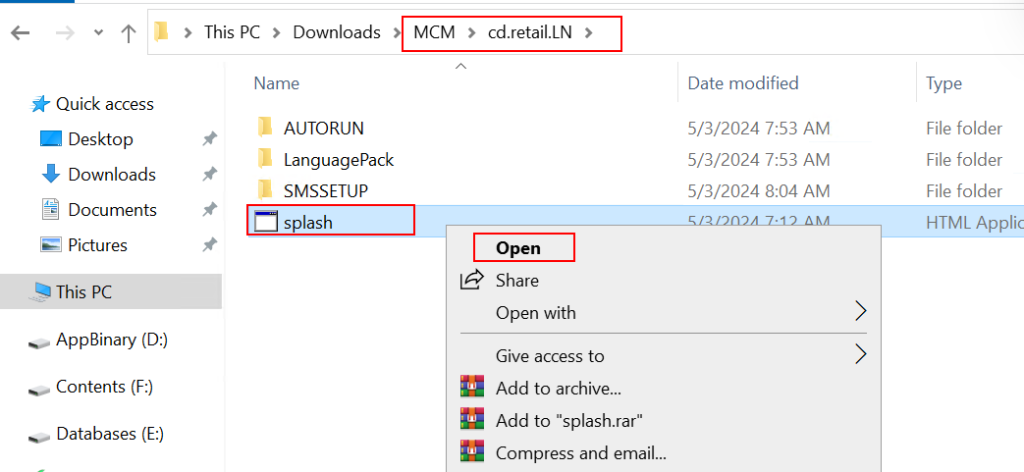
Download MCM evaluation from Microsoft and extract using WinRAR or 7Zip Open Extracted folder MCM -> cd.retail.LN -> splash -> Right click on Open
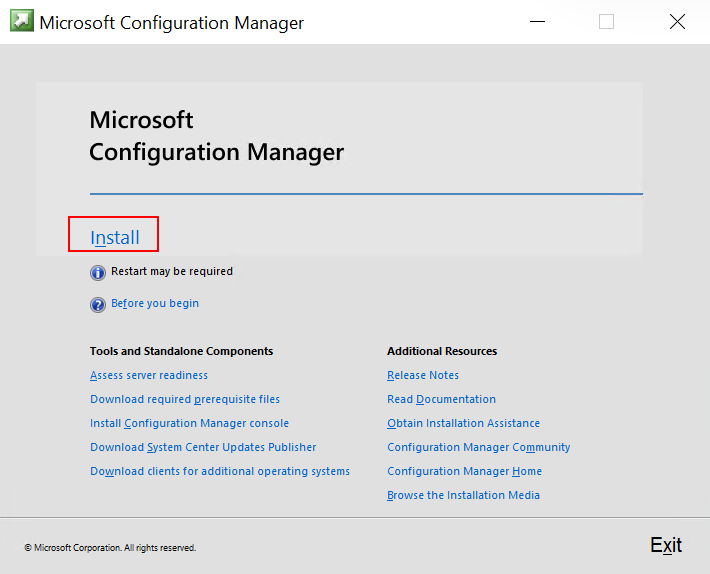
Click on Install
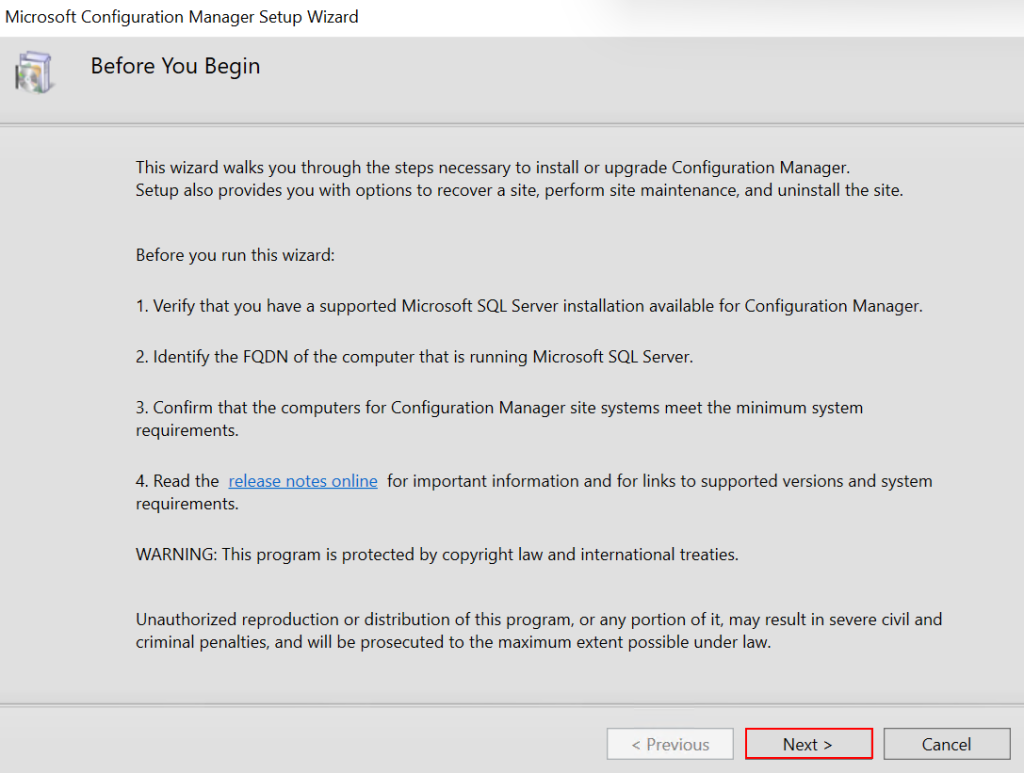
Before You Begin, Read the details for information. Next
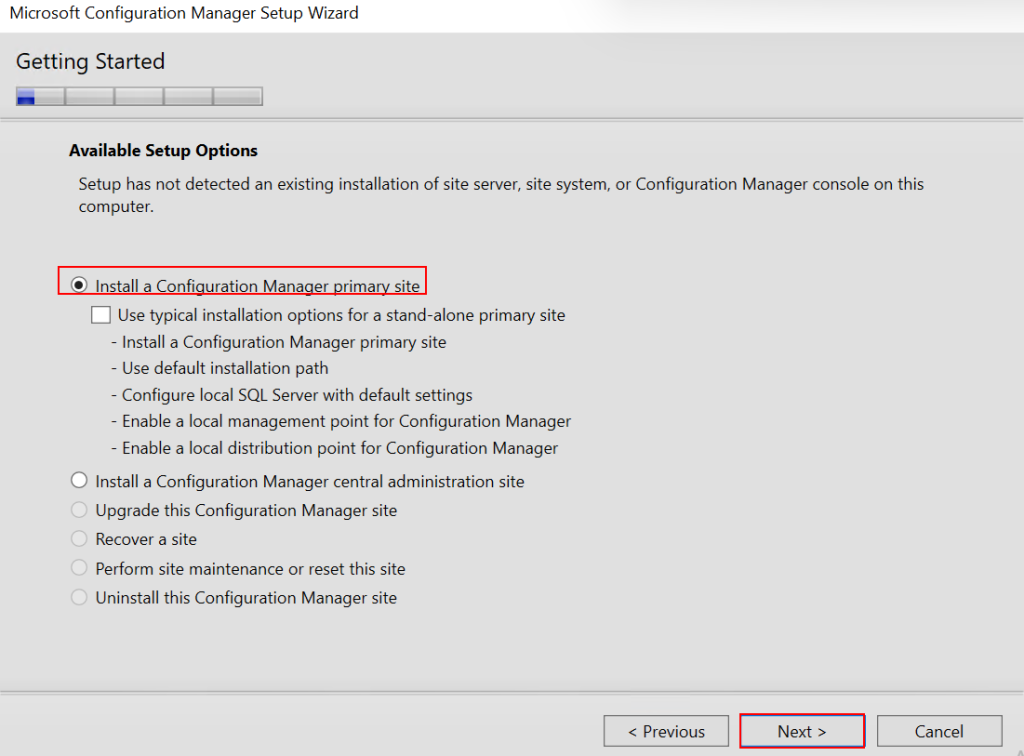
Getting Started Page, As i am installing a fresh primary site will choose “Install a Configuration Manager primary site” and click Next.
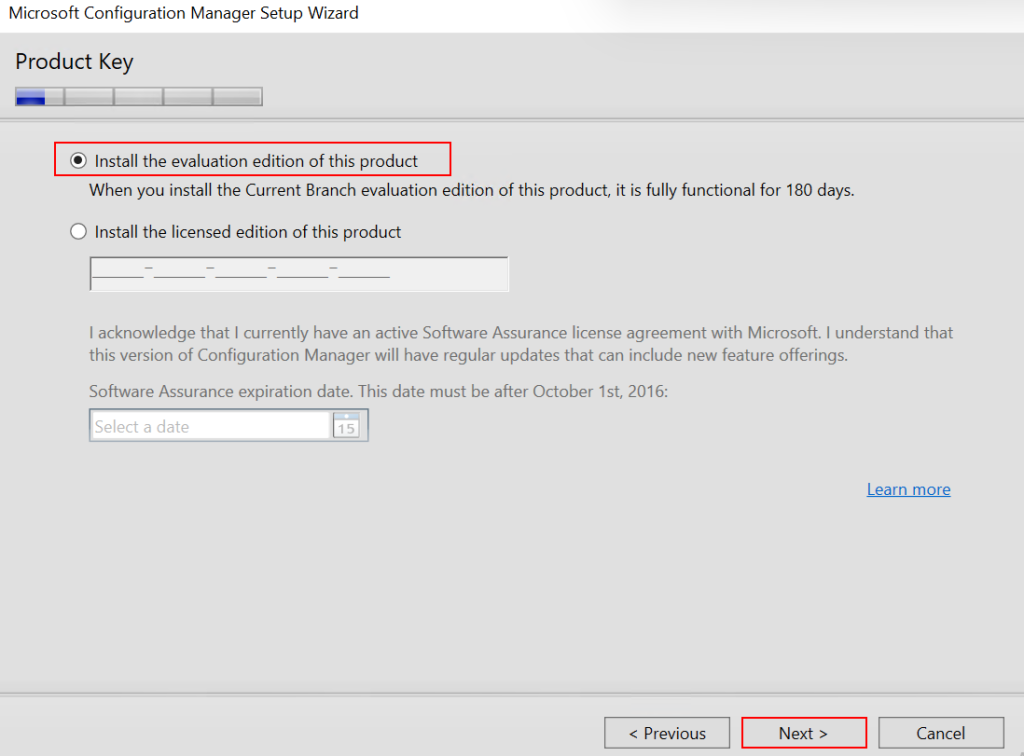
On Product Key, Input your ConfigMgr key and click next to further. as i do not have keys I will go with “Install the evaluation edition of this product” and Next.
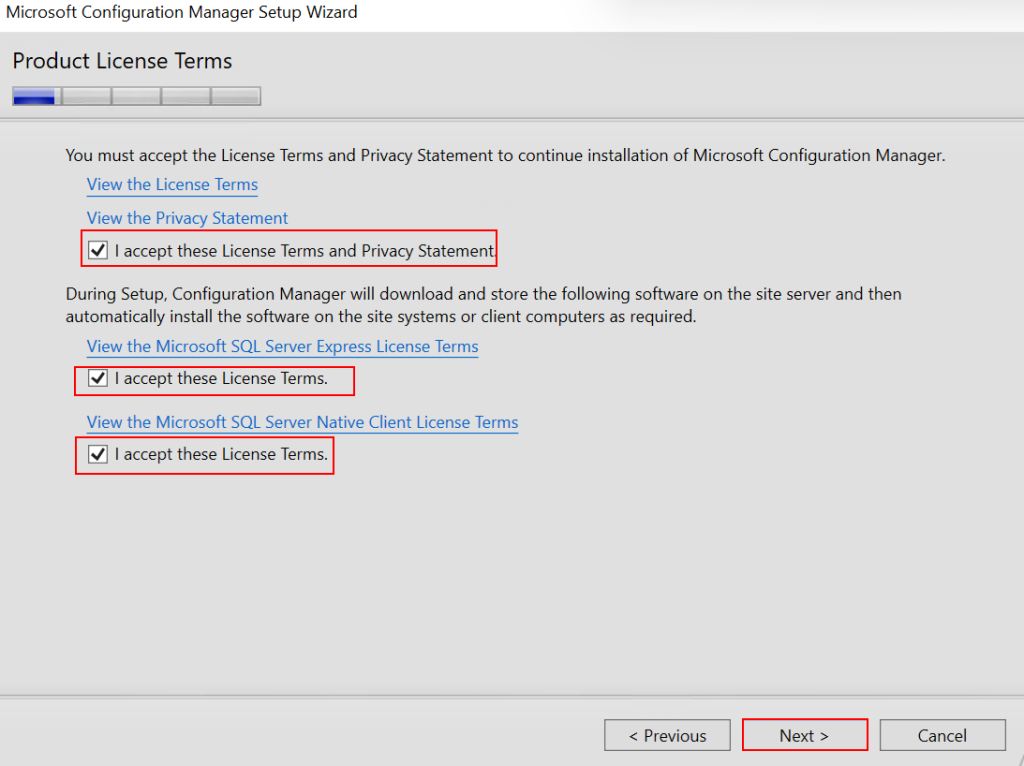
On Product License Terms Page, read the license terms and accept all the terms and Next.
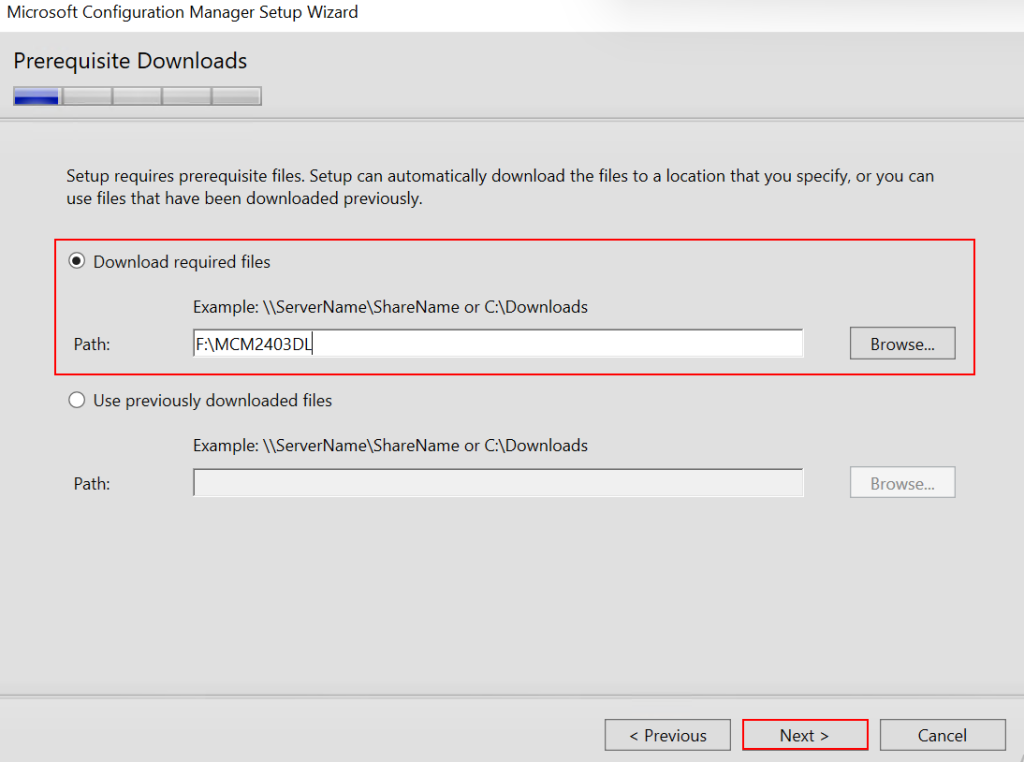
On Prerequisites Downloads, click “Download required files” provide the path to download the prerequisites.
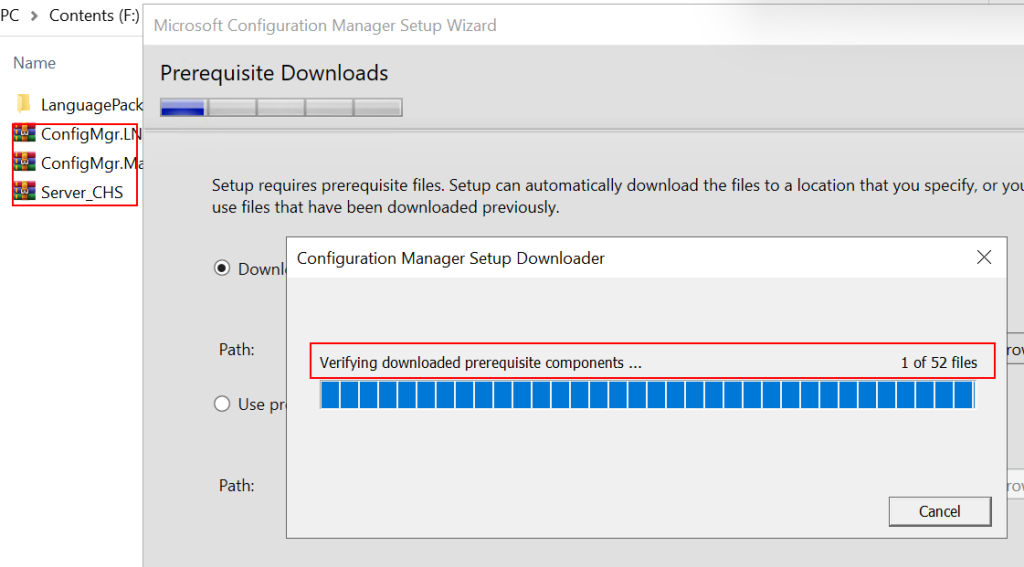
there are some prerequisites to be downloaded to get installed the MCM server.
Prerequisites are downloading
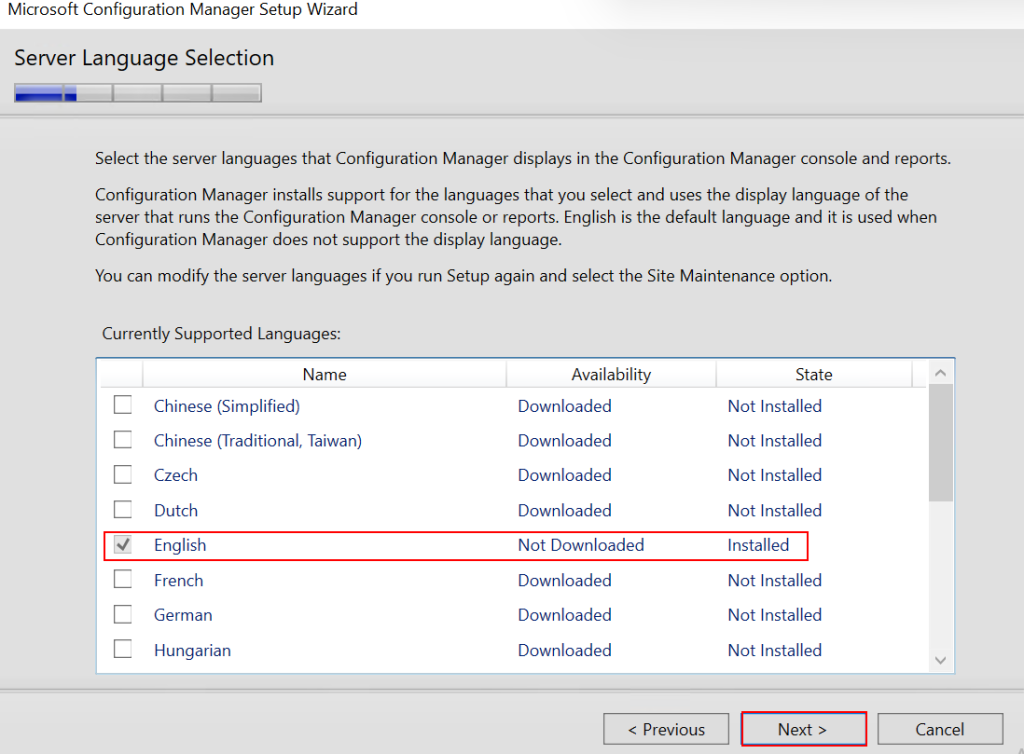
On Server language Selection, English is automatically selected, Hence, Click Next.
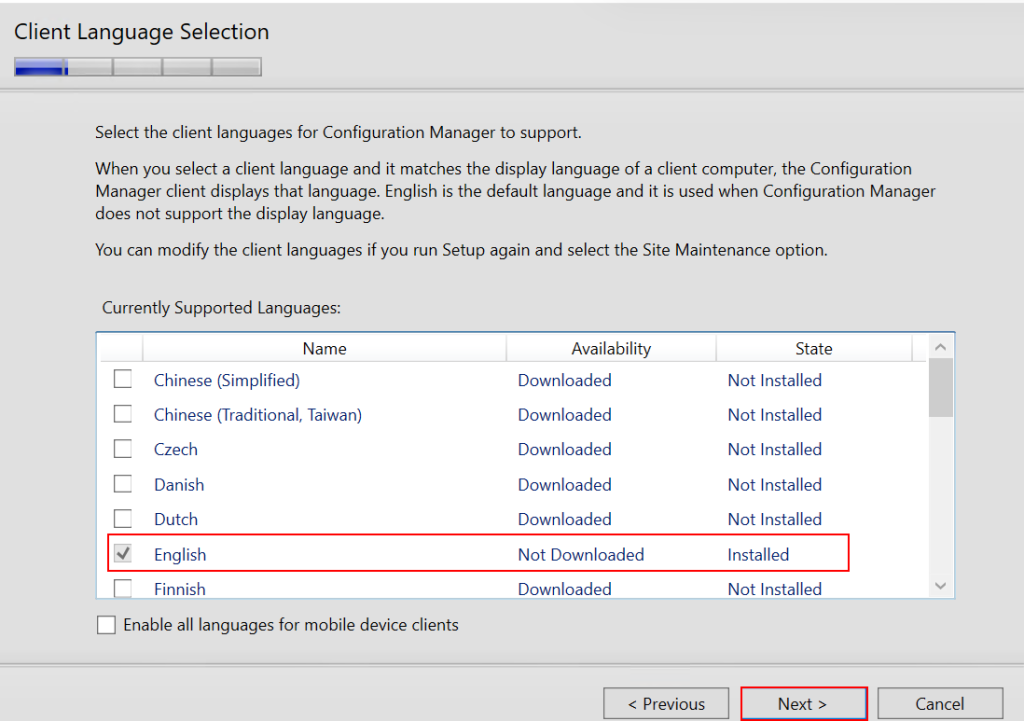
On Client Language Selection. English is selected choose if any other language you want to add else click Next.
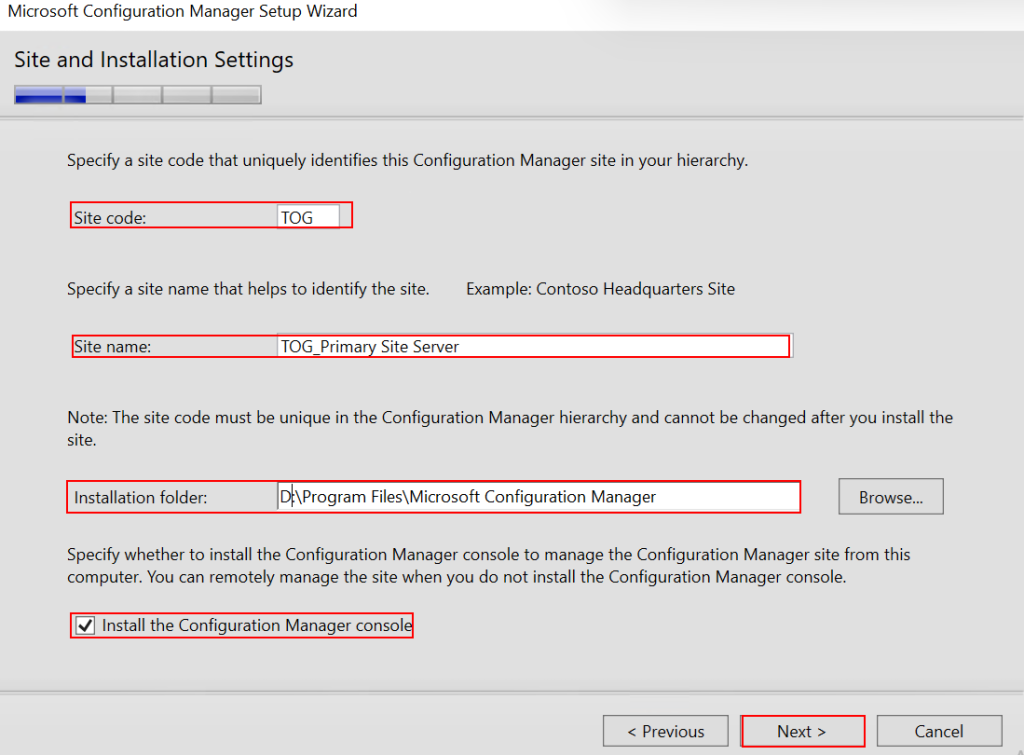
On Site and Installation Settings, Input the site code which should be three digits, Site name which should shows as this is primary site server. Installation path.
By default, Installation folder get C drive but here I am installing in Drive D. I just change drive letter and do not change anything other in the installation folder. also check “Install the configuration Manager console”
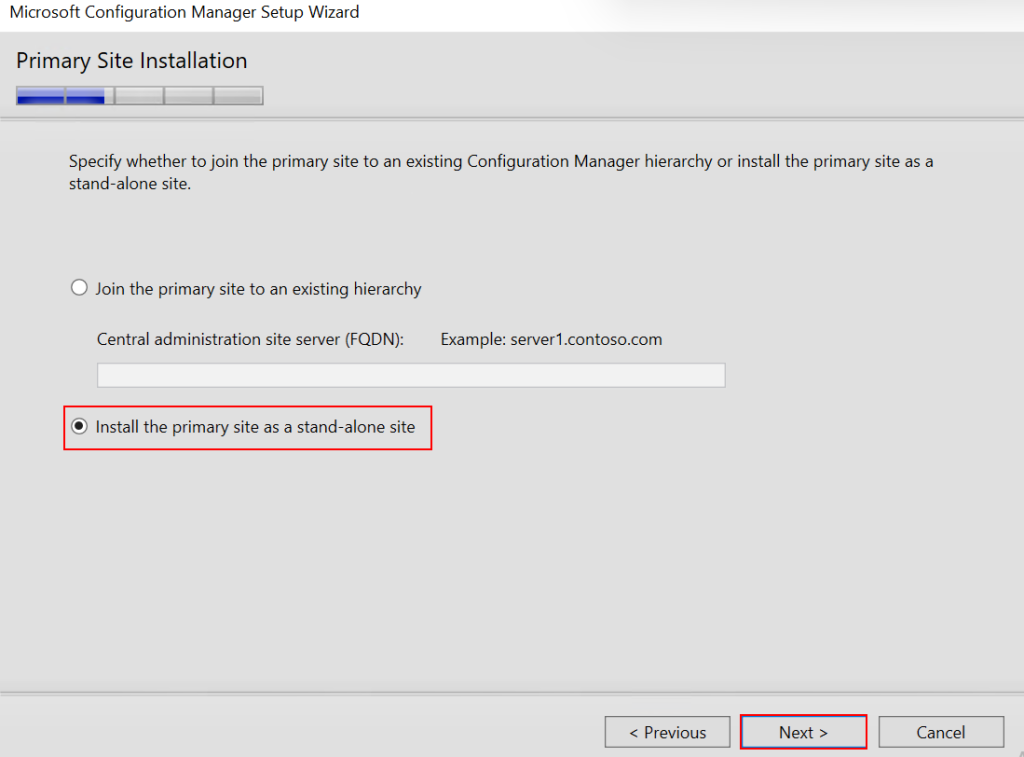
On Primary Site Installation, choose “Install the primary site as a stand-alone site” and Next.
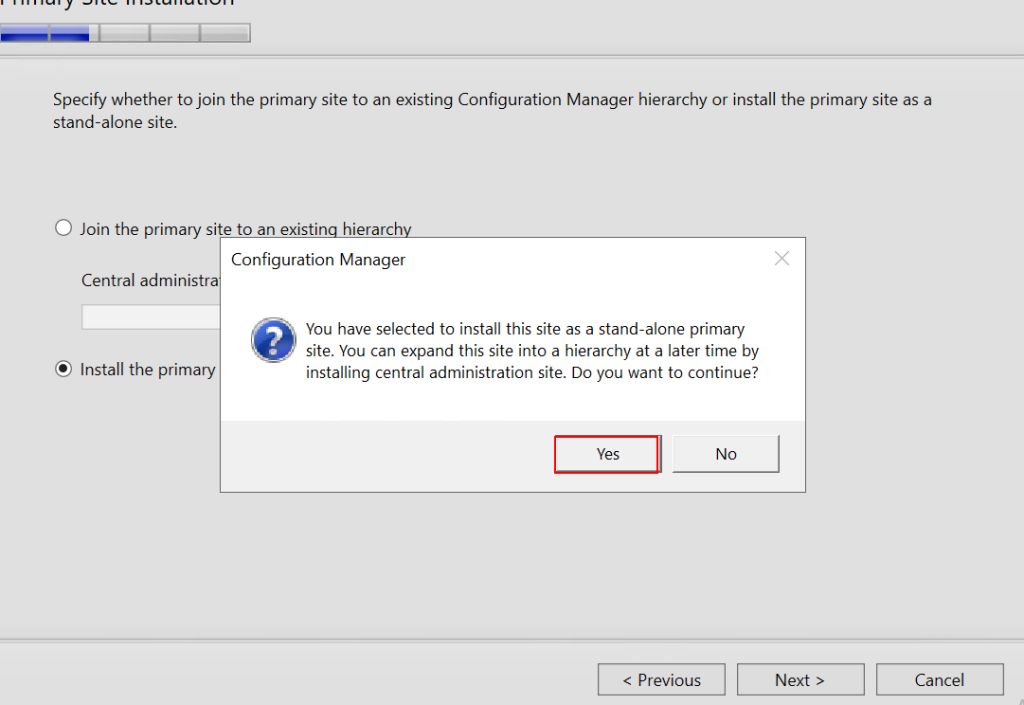
On same Page, A Pop-up Notification appeared, “You have selected to install this site as a stand-alone primary site. You can expand this site into a hierarchy at a later time by installing central administration site. do you want to continue?” Choose Yes.
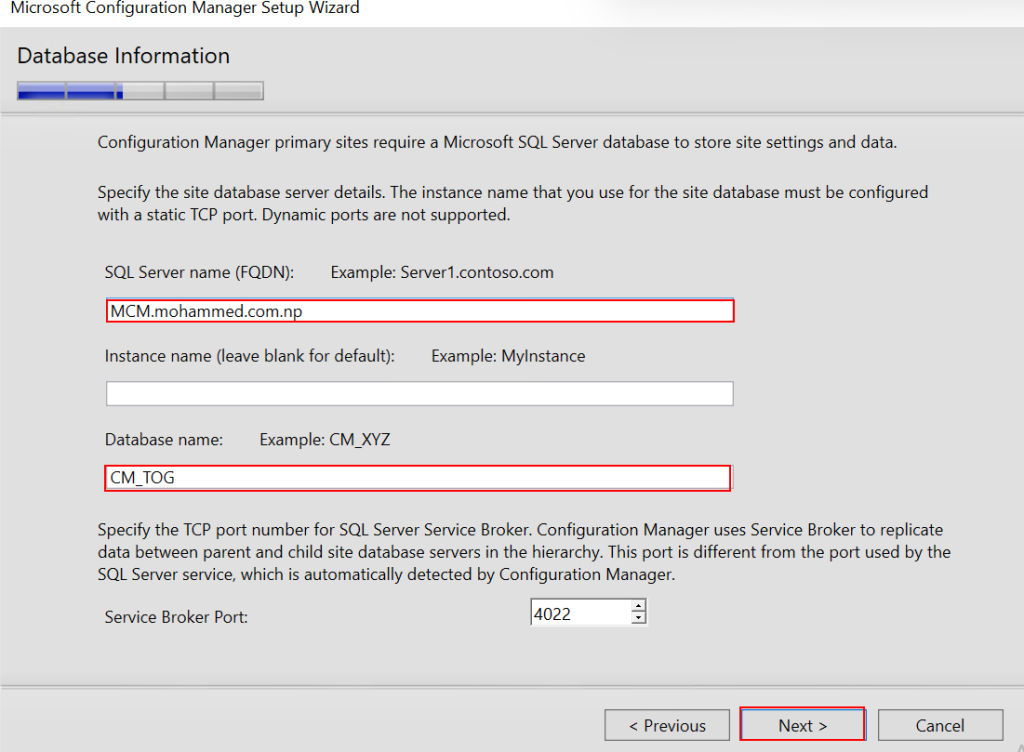
On Database Information Page, If the SQL server is installed in the same server, it will detect the server name automatically and chooses a Database name. In this instance database is installed in the same server due to which accept everything as it is and click on Next.
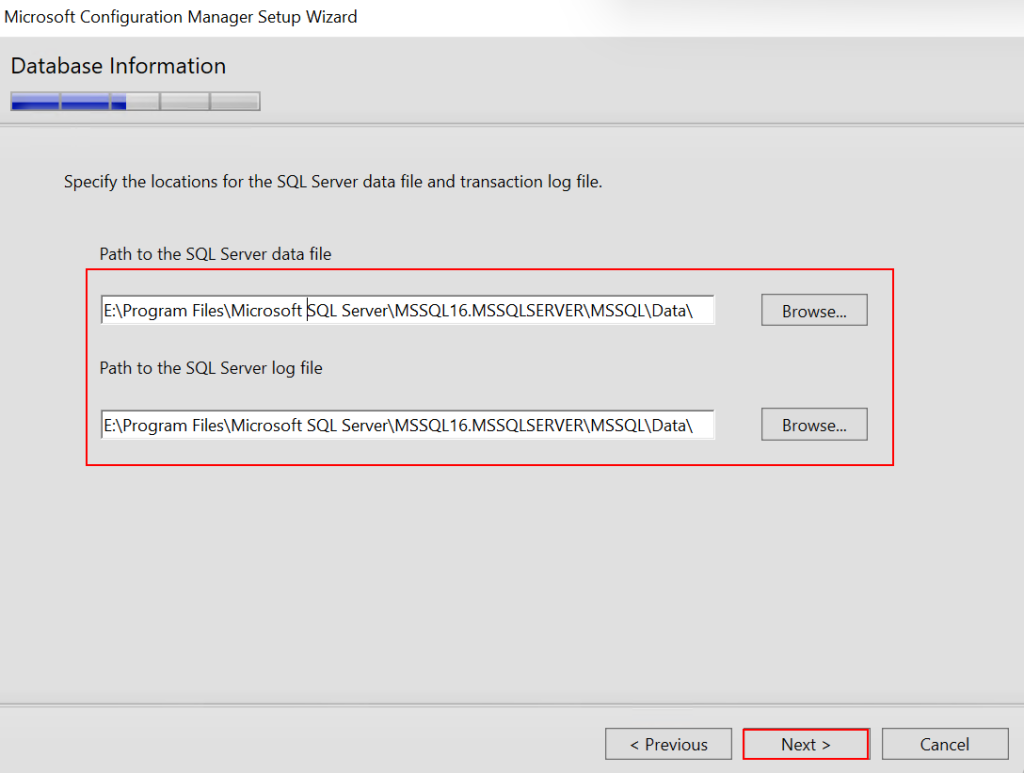
On the same tab, it is required to specify Database Path and Log path where it will be created and stored. as we are installing MCM server as per the best practice and industry use. i will changes just only drive letter name to E where i want to create MCM database. change the database location click Next.
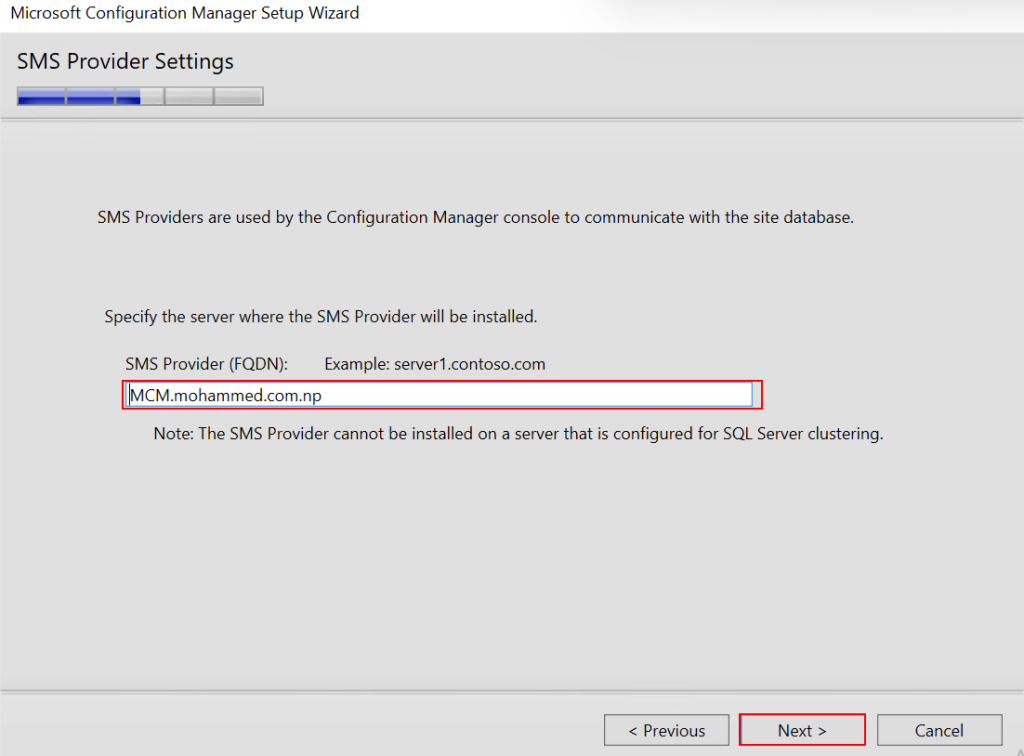
On SMS Provider Settings, auto detects the FQDN of the MCM server. Click Next.
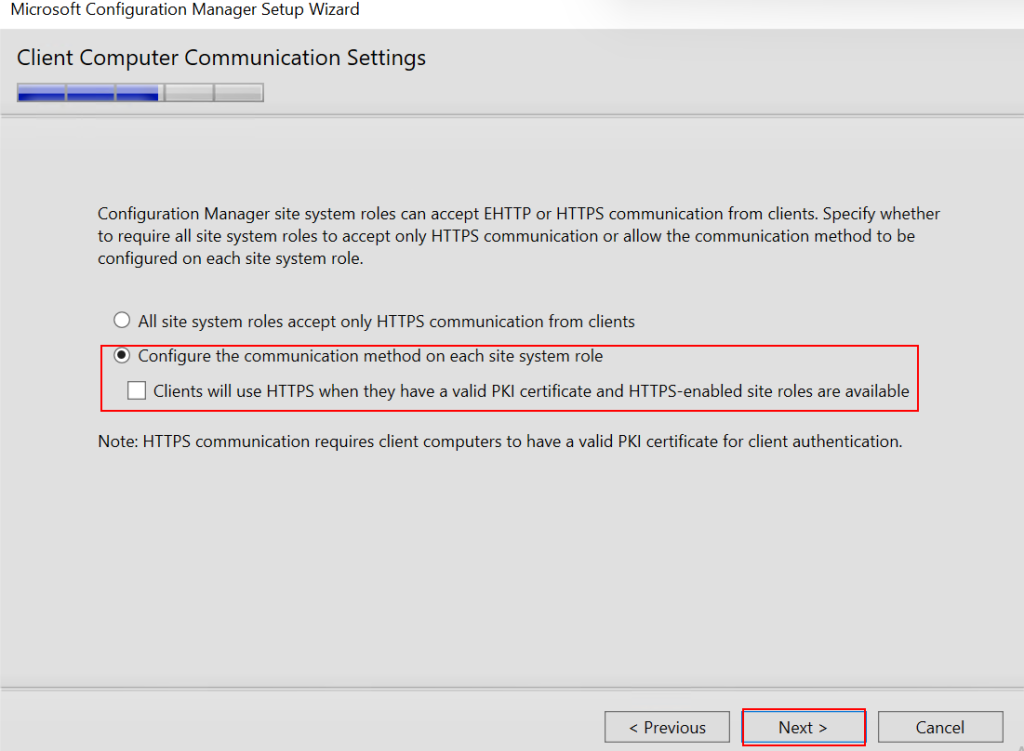
On Client Computer Communication settings page, choose “Configure the communication method on each site system role” and Next.
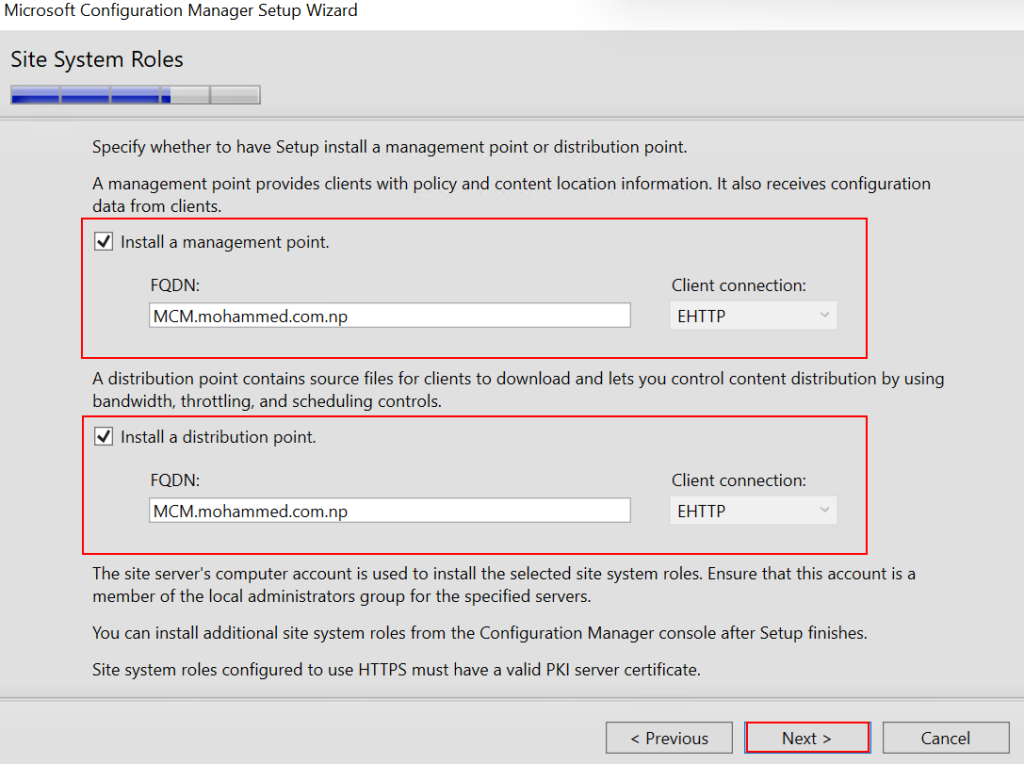
On Site System Roles page, leave default and click next.
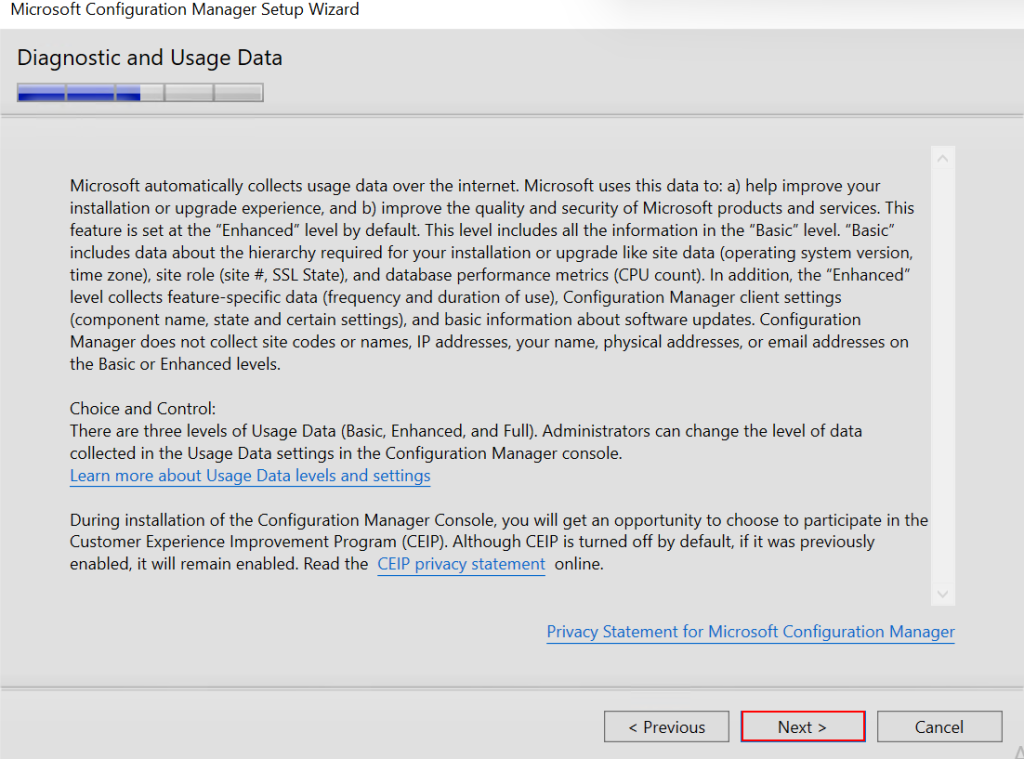
On Diagnostic and Usage Data page, Click Next.
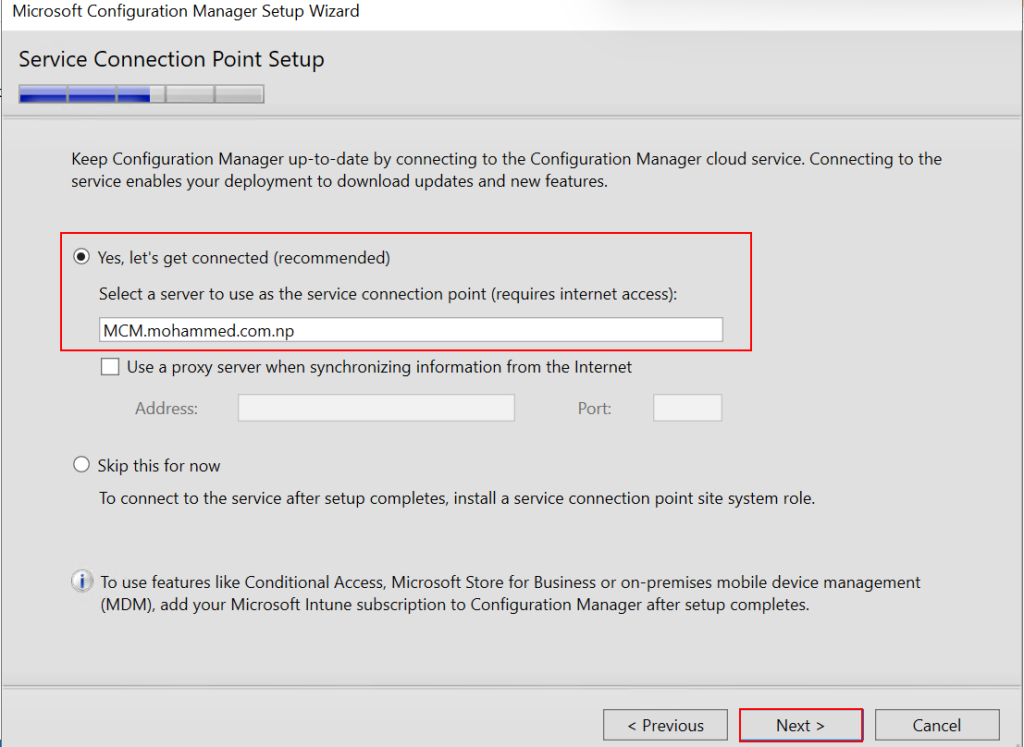
On Service Connection Point Setup Page, choose “Yes, Lets get connected(recommended)” and Next.
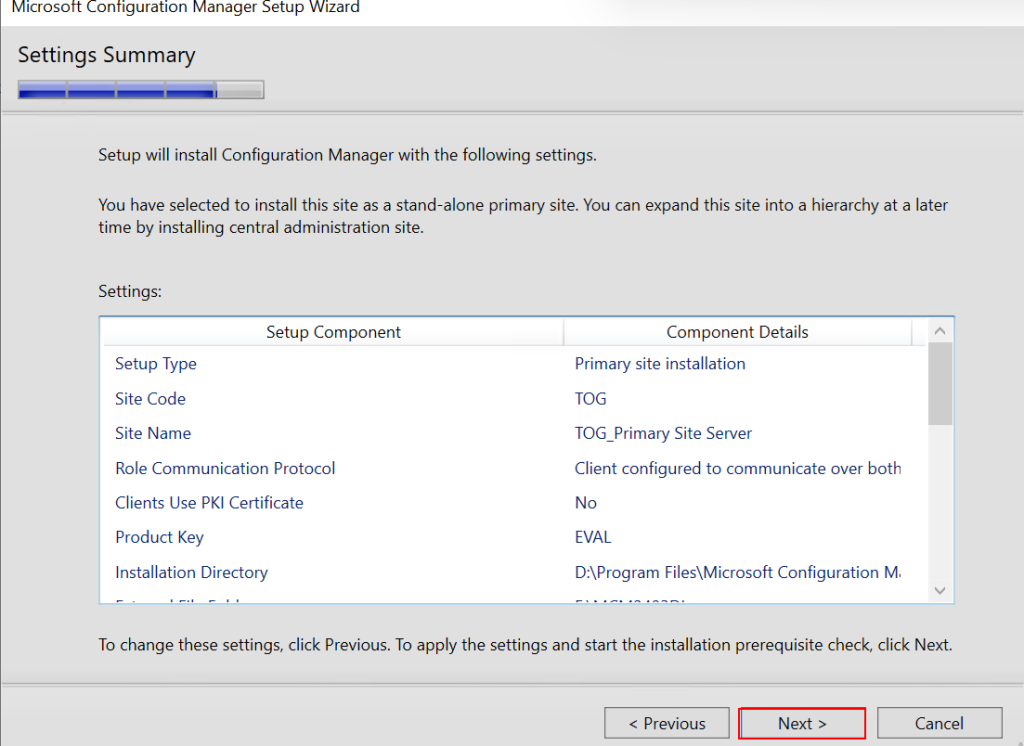
On Settings Summary Page, You will get all the information will have filled during setup of the MCM. read and click Next.
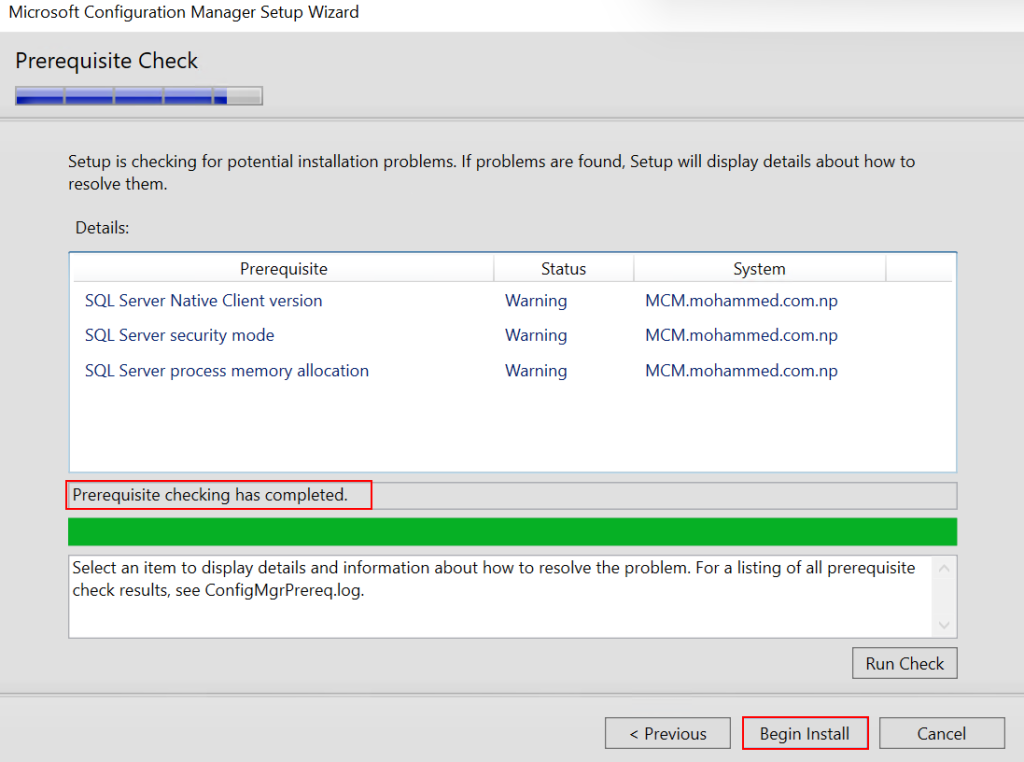
On Prerequisites Check Page, If the configuration and prerequisites are installed correctly. it will pass prerequisites check. In this Instance “Prerequisites checking has completed” now click on Begin Install.
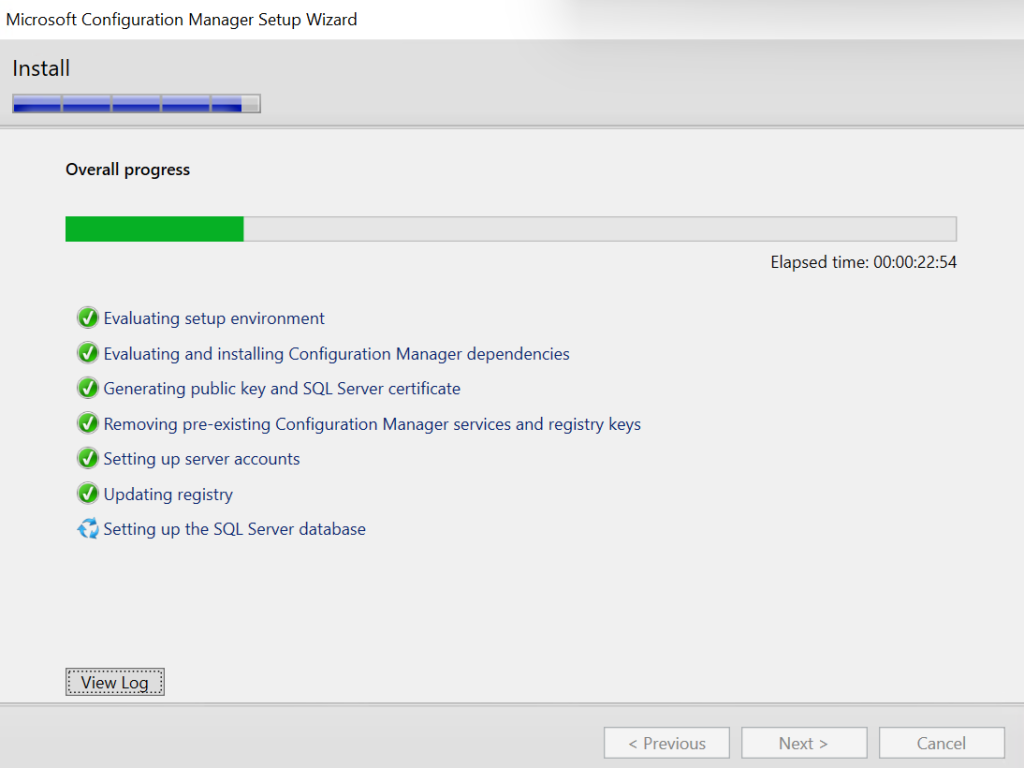
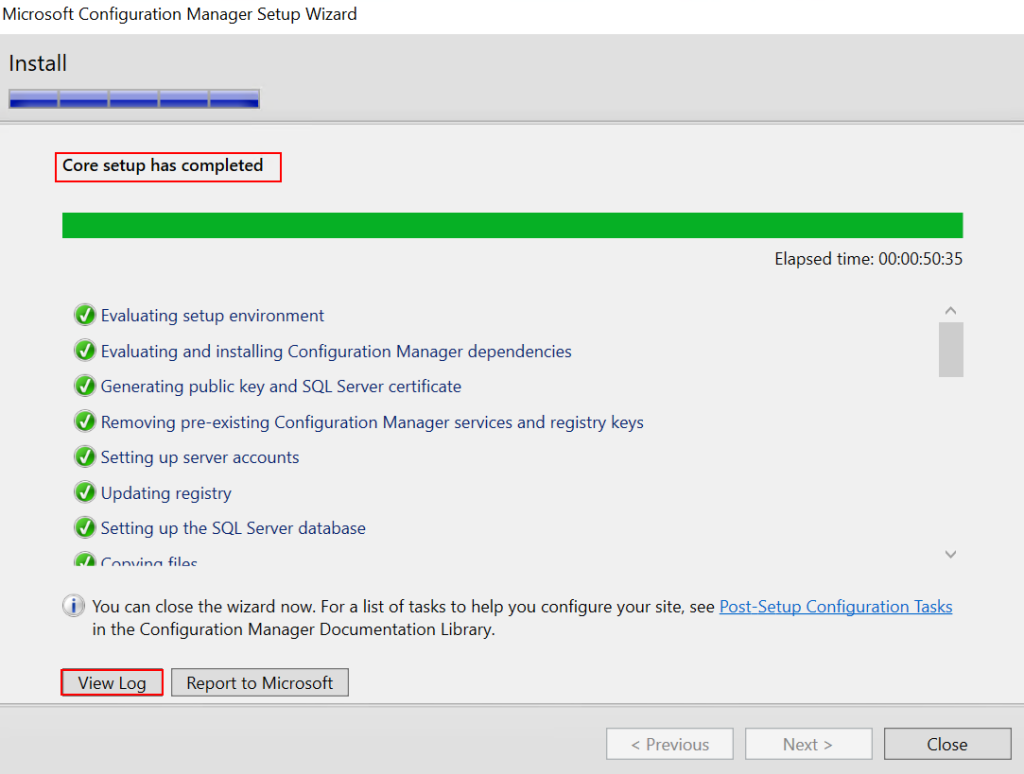
It my take hours to complete the setup depending upon CPU, Memory assigned to this computer and Disk read write speed. leave it until setup completes automatically. in my instance it took 50 minutes for successful installation.
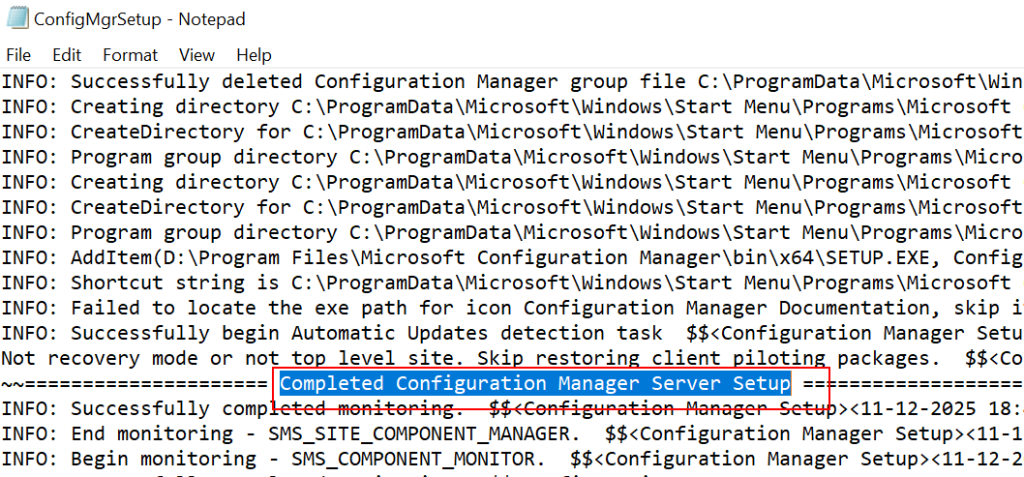
yeah, as we can see “Core setup has completed”. still there are some additional setup need to completed but don’t worry about those setup. MCM is very intelligent tool which complete rest of setups in background automatically. to view the logs if there are any error need to troubleshoot or not click on View Log.
As log also says, == Completed Configuration manager Server Setup ===
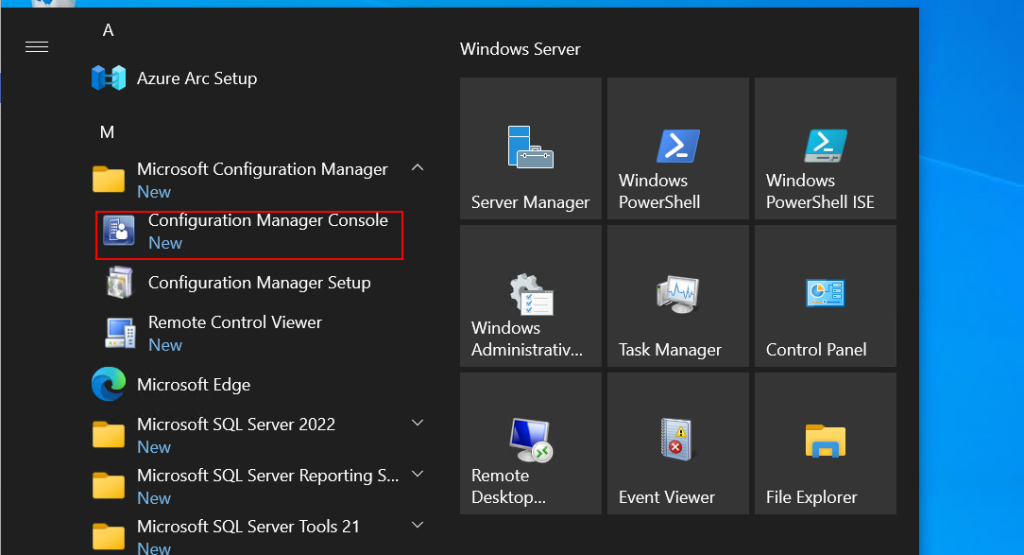
go to you server click on view and expand Microsoft Configuration Manager Folder and Open Configuration Manager Console to see the first MCM preview page.
That’s it!
Conclusion!
In the current Article i have explained step by step install of the MECM server and along with its components to be connected to complete the installation. In the Next article i will be assisting with configuration to integration of the Active Directory with MECM as post deployment task by Configuring User and Device Discovery in MECM.