Before you can manage devices and users in Microsoft Endpoint Configuration Manager (MECM), the server must first know they exist. This is where discovery methods come in. Discovery is the process by which MECM scans your Active Directory environment and network to find users, computers, and groups that it can manage. Without proper discovery configuration, devices will never appear in your MECM console, software deployments will fail to reach their targets, and user-based policies will never apply correctly. In this step-by-step guide, you will learn how to configure all major discovery methods in MECM 2026, including Active Directory System Discovery, User Discovery, Group Discovery, and Heartbeat Discovery. Whether you are setting up a new MECM environment or reviewing an existing one, this guide covers everything you need.
What is Discovery in MECM?
Discovery in MECM is a built-in process that searches your network and Active Directory for resources such as computers, users, and groups. Once discovered, these resources are added to the MECM database and become available for collection membership, software deployment, compliance policies, and reporting.
MECM provides six primary discovery methods:
| Discovery Method | What It Finds |
| Active Directory System Discovery | Computer accounts in AD |
| Active Directory User Discovery | User accounts in AD |
| Active Directory Group Discovery | Security and distribution groups |
| Active Directory Forest Discovery | AD sites, subnets, and forests |
| Heartbeat Discovery | Keeps existing client records active |
| Network Discovery | Devices on the network (non-AD) |
Configure Active Directory System Discovery
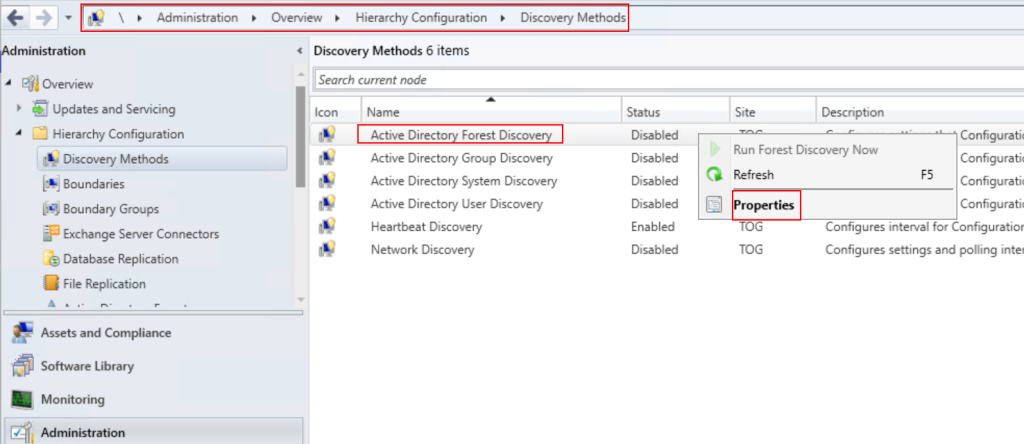
Forest Discovery automatically discovers AD sites, subnets, and additional forests, which helps MECM create boundaries automatically.
- Right-click Active Directory Forest Discovery and select Properties
- Check Enable Active Directory Forest Discovery
- Enable the following options:
- Automatically create Active Directory site boundaries when discovered
- Automatically create IP address range boundaries for IP subnets
- Set the polling schedule — recommended: every 1 week
- Click OK


Configure Active Directory Group Discovery
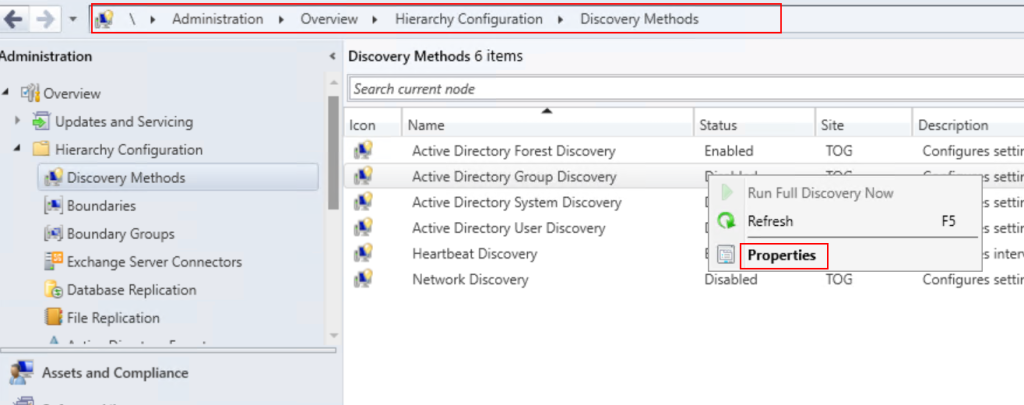
Group Discovery finds AD security groups and their members, which is useful for creating MECM collections based on group membership.
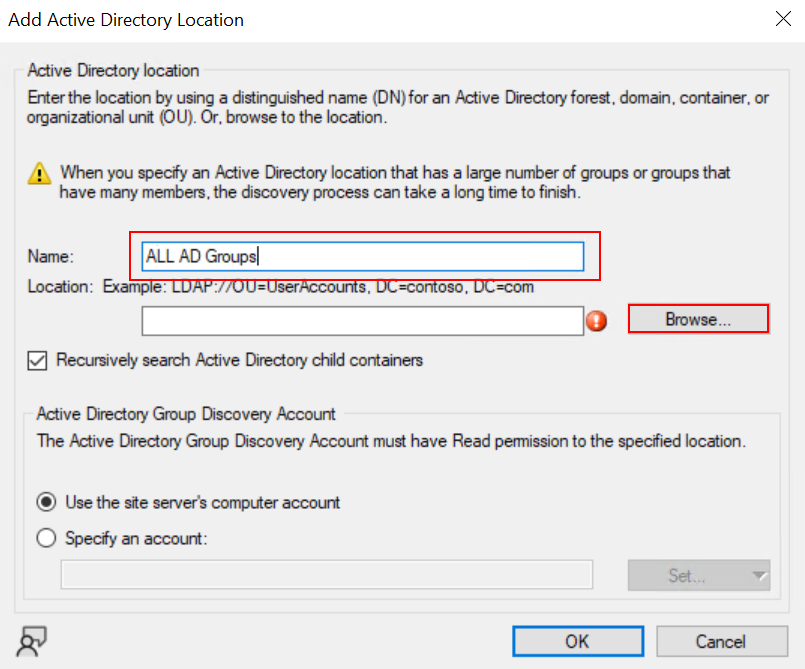
- Right-click Active Directory Group Discovery and select Properties
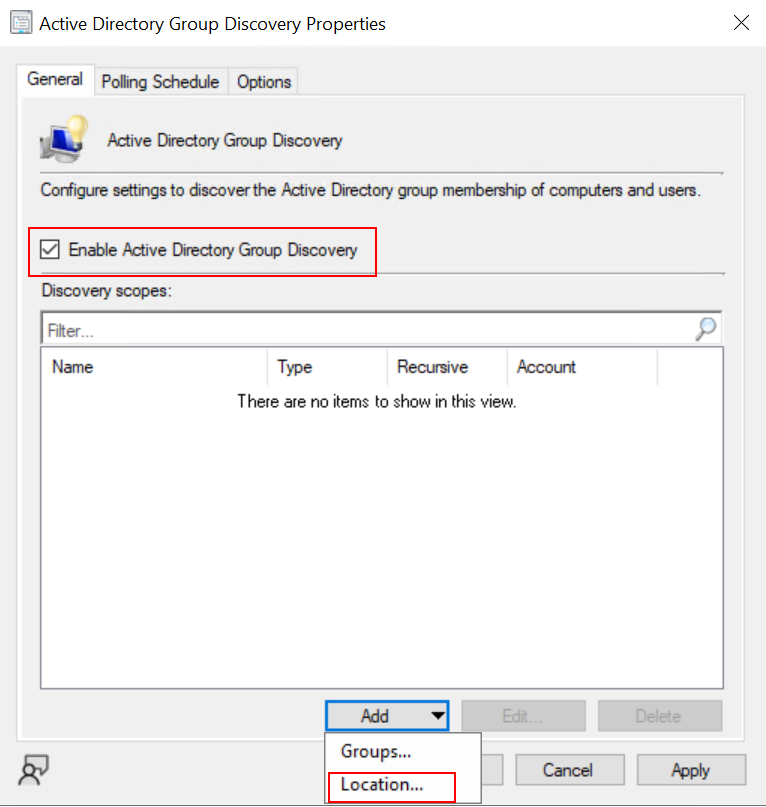
- Check Enable Active Directory Group Discovery
- Click Add and choose one of two options:
- Location — scans an entire OU for groups
- Group — targets a specific AD group directly
- Browse and select the OU or group
- Set the scope to All sub-containers if using a location
- Configure the Polling Schedule:
- Full Discovery: every 7 days
- Delta Discovery: every 5 minutes
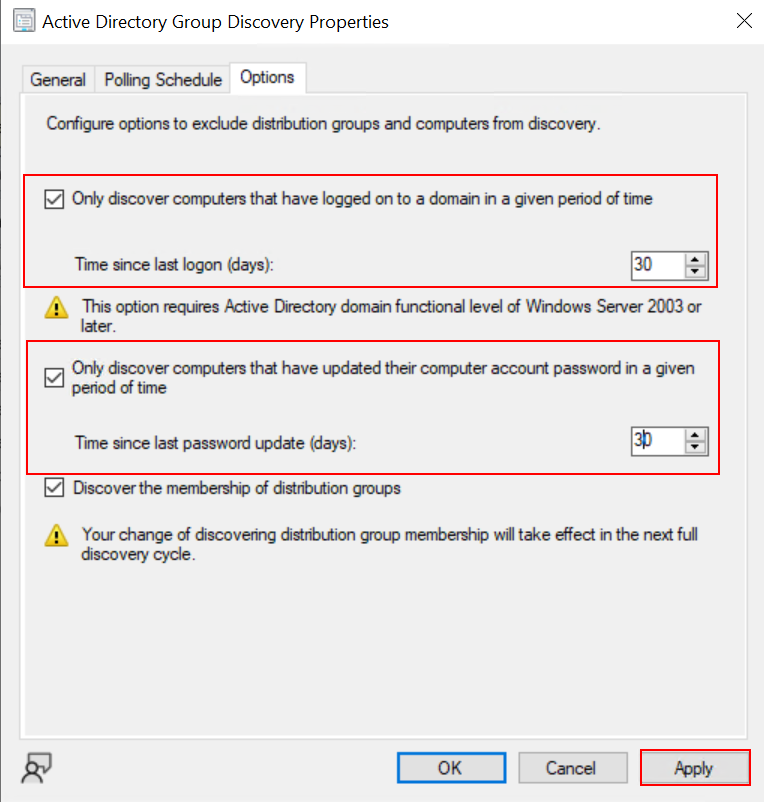
- Enable Discover the membership of distribution groups if needed
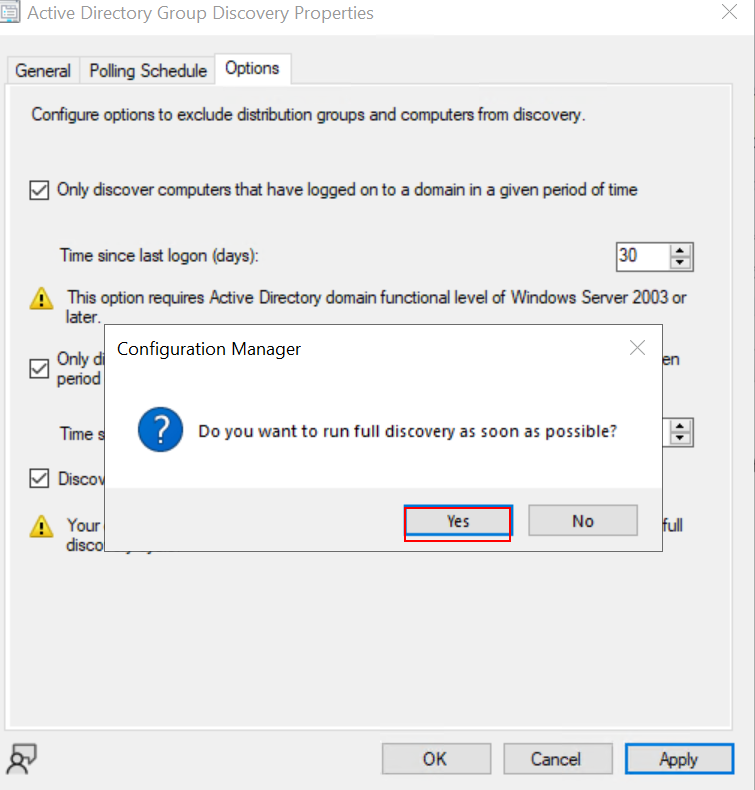
- Click OK and run a full discovery immediately

Configure Active Directory System Discovery
Active Directory System Discovery finds computer accounts from your AD and adds them to the MECM database.
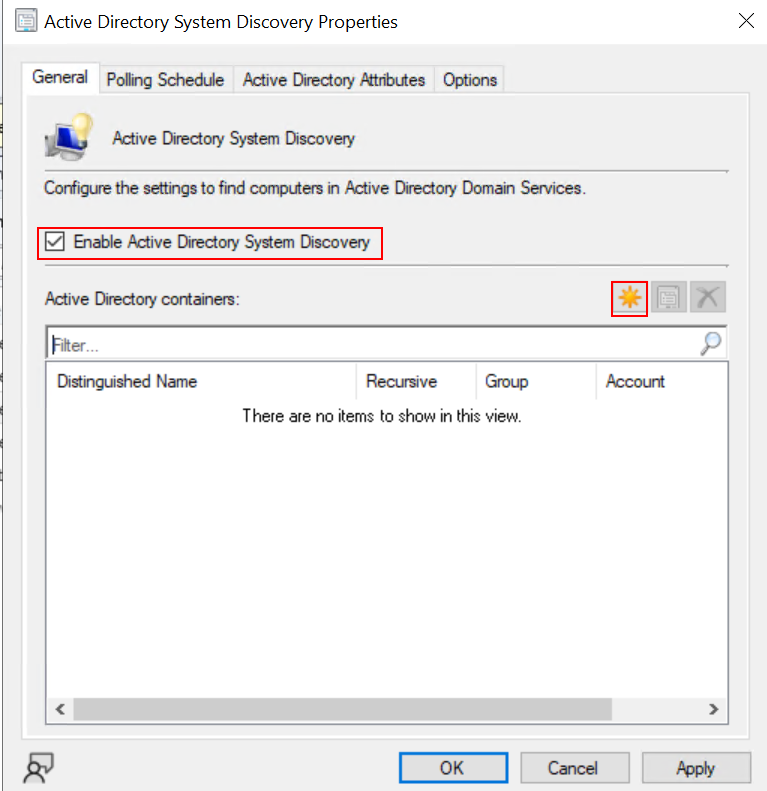
- Right-click Active Directory System Discovery and select “Properties.”
- Check the box Enable Active Directory System Discovery
- Under the Active Directory Containers section, click the yellow star icon to add a new path
- Click Browse and select the OU that contains your computer accounts
- Example:
LDAP://OU=Computers,DC=company,DC=com
- Example:
- Set the search scope:
- This container only discovers direct children
- All sub-containers — recommended for large environments
- Go to the Polling Schedule tab
- Set Full Discovery schedule—recommended: every 7 days
- Set Delta Discovery — recommended: every 5 minutes (discovers new computers quickly)
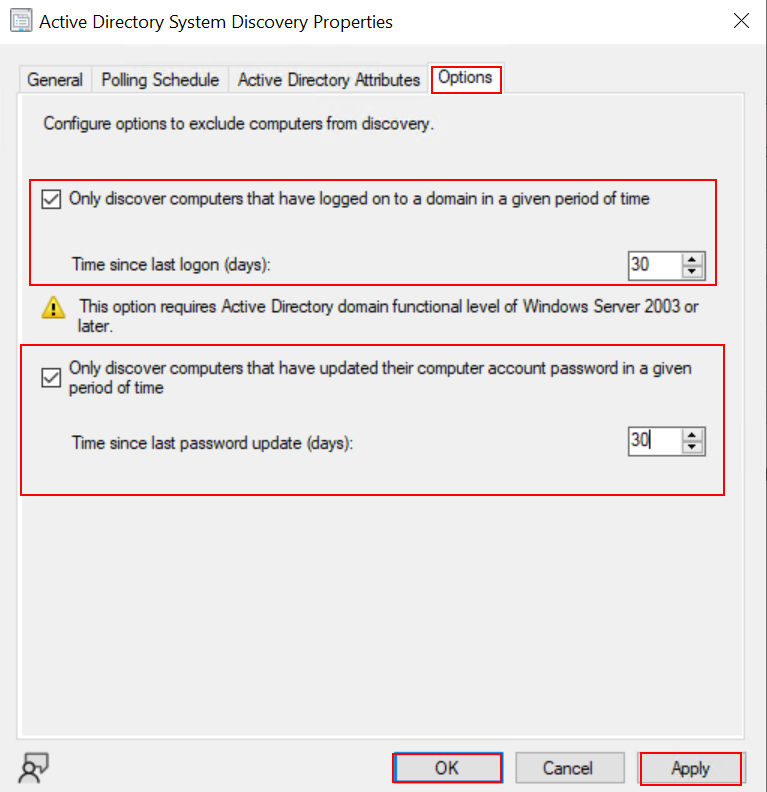
- Go to the Active Directory Attributes tab
- Add any additional AD attributes you want MECM to collect (optional)
- Click OK to save
- Right-click the method again and select “Run Full Discovery.” Now, to trigger an immediate scan




Configure Active Directory User Discovery
Active Directory User Discovery finds user accounts from your AD, enabling user-based deployments and collections.
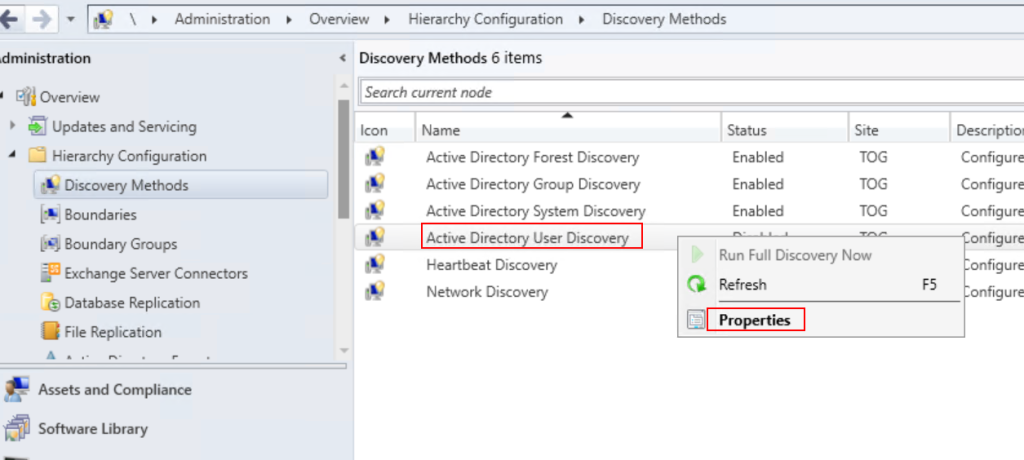
- Right-click Active Directory User Discovery and select Properties
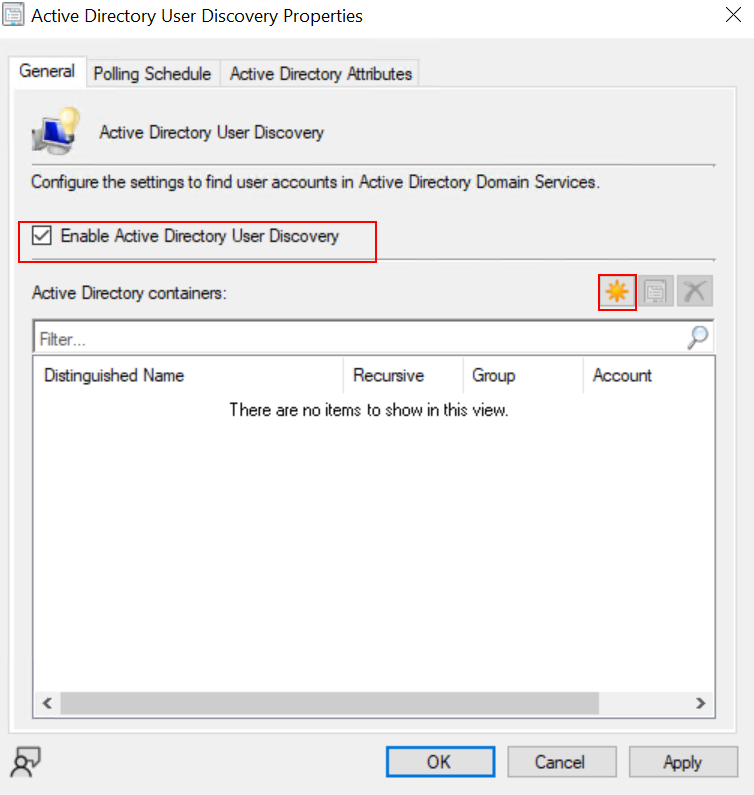
- Check Enable Active Directory User Discovery
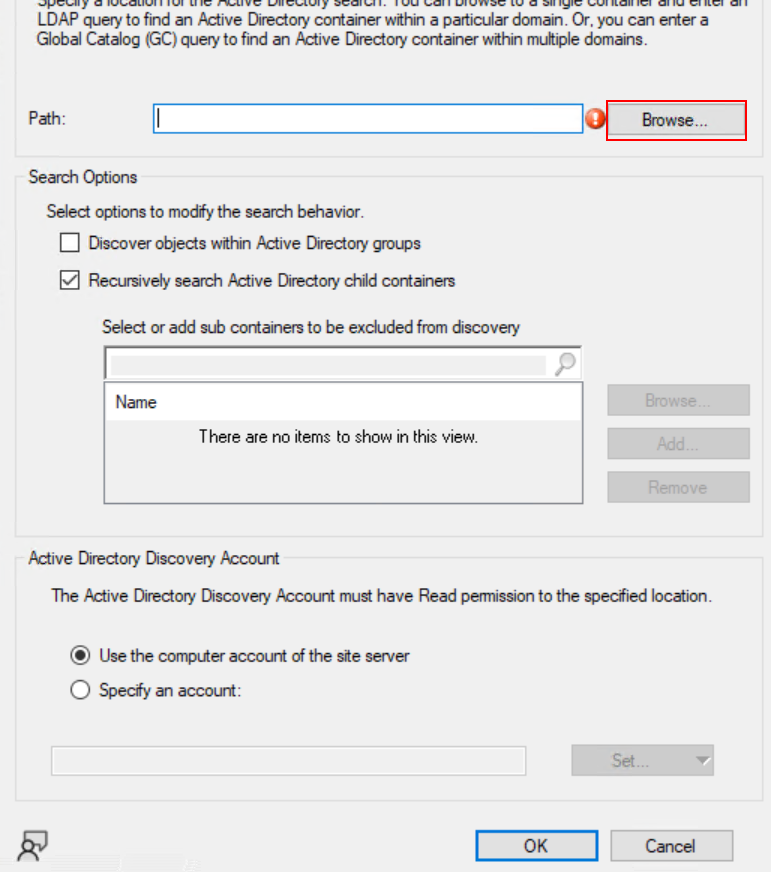
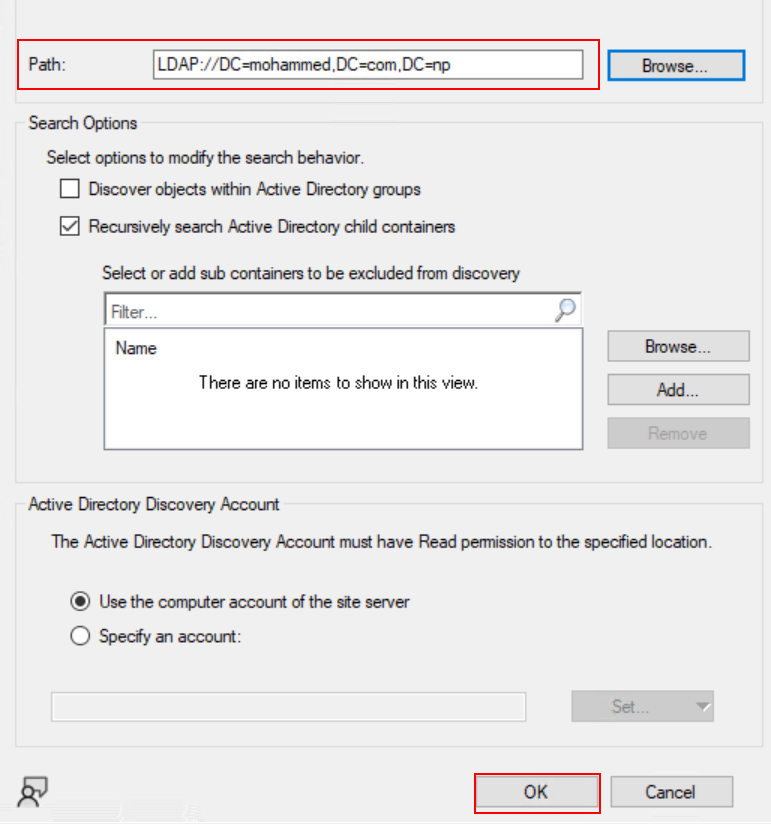
- Click the yellow star to add an AD container path
- Example:
LDAP://OU=Users,DC=company,DC=com
- Example:
- Set the scope to All sub-containers
- Under Polling Schedule:
- Full Discovery: every 7 days
- Delta Discovery: every 5 minutes
- Optionally, go to Active Directory Attributes to collect extra user fields such as department, manager, or email
- Click OK
- Right-click and select Run Full Discovery Now


Check via logs:
| Log File | Location | Purpose |
|---|---|---|
adsgdis.log | C:\Program Files\SMS\Logs | AD System Discovery |
adusrdis.log | C:\Program Files\SMS\Logs | AD User Discovery |
adgrdis.log | C:\Program Files\SMS\Logs | AD Group Discovery |
adforest.log | C:\Program Files\SMS\Logs | AD Forest Discovery |
Open these logs using CMTrace tool for easy reading and filtering.
Conclusion
Configuring discovery methods correctly is one of the most important foundational steps in any MECM environment. Without it, your server cannot manage what it cannot see. By enabling Active Directory System, User, Group, and Forest Discovery with proper schedules and OU paths, you ensure that all your devices and users are visible, manageable, and ready for deployment.