In the previous article, I have Explained Step by step Installation process of Reporting Service Point in MECM server and explained the importance of RSP. In this article i will be explaining create and configure client device settings and its components step by step.
Before all it is crucial to understand that what is client settings and why this we do configure, Here i will be telling you all required details and also show you step by step configuration. Client setting may differ in organization as per their requirement of the organization. Here i will be explaining general settings required by most of the organization from scratch. For server and client settings may different and this can be applied across the organization whether they are client or server.
Open Configuration manager console -> Administration -> Overview -> Client Settings Right click on Client Setting -> Create Custom Client Device Settings

On Custom Device Settings -> Select the components which you want to configure and for further configuration. i will be selecting below things.

| Client Cache Settings |
| Client Policy |
| Compliance Settings |
| Computer Agent |
| Computer Restart |
| Hardware Inventory |
| Power Management |
| Remote Tools |
| Software Center |
| Software Deployment |
| Software Inventory |
| Software Metering |
| Software Update |
| State Messaging |
| User and Define affinity |
Go to Client Cache Settings, Configure the Maximum cache size. as per best practice it should be approximately 10GB to 20 GB. this will require for software updates installation as they are in bigger size.

Client Policy Tab, Once we configure any client policy it is required to apply all those policies as soon as possible. In this lab i will keep 10 minutes but in production environment administrator can keep this to 1 hour as per the standard.

Computer Agent Tab, Set website details to look good your software center console. I have configure below details
Set Website: https://mserverpro.com:443
Organization Name: M Server Pro
Install Permissions: All Users
PowerShell Execution Policy: Bypass


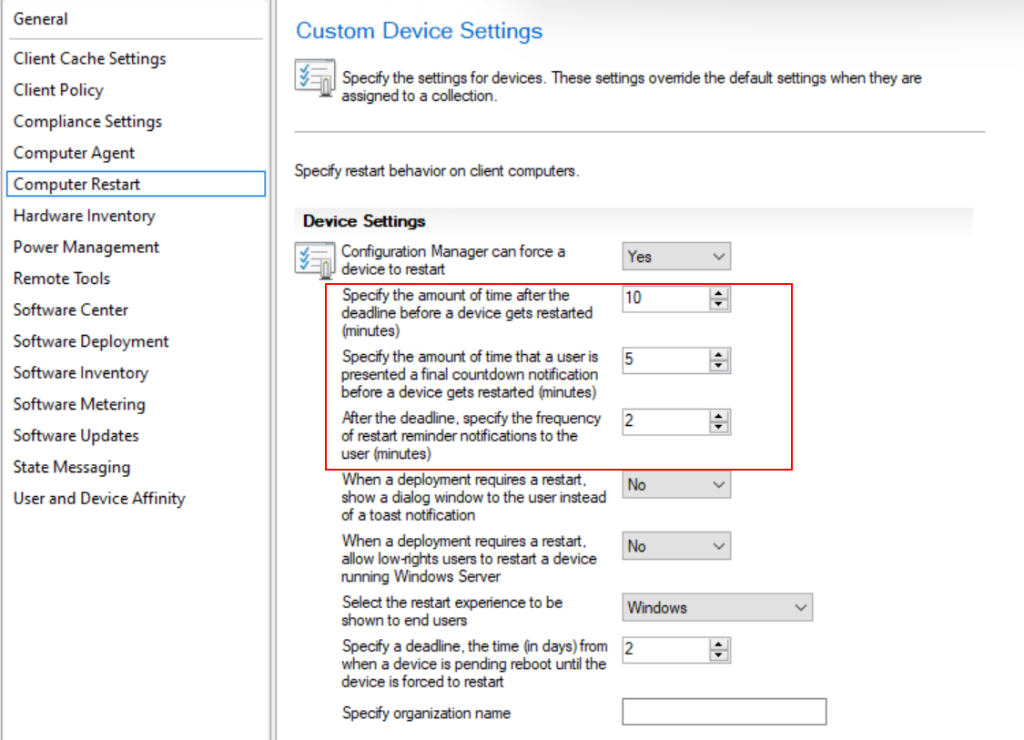
Computer Restart Tab, When we send any update to client computers they may needs restart to complete the installation of the updates for that client computer will be restart or send notification based on below configuration.
On Hardware Inventory Tab, Configuration manager have the capability to collect hardware inventory, In this lab environment scheduled as 1 hour. In the production configuration user may configure to 1 day to scan and report to config mgr. server.

Once we got to set classes: there are bunch of inventory collections will appear set as per the requirement. In this example i have selected most of the details to collect. Once all the selection done Click on OK.

On Power Management Tab,
Allow Power Management of devices: Yes
Allow Network wake-up: Enable

On Software Center Tab, In this tab we need to configure key components to take remote control, Click on Configure Settings.

Check on Remote control on client computer: This will allow administrators to take control for remote supports. check all the profiles and click on OK.

on Access level allowed: Full Control
Set Viewers: Select configuration manager Admin and also it is best practice to set a group which’s users can provide remote supports

Click on Browse and search for the mecm admin user.

Click on OK

Click on Ok, mcm administrator user have the permission to take control with full permission as shown in the below image

On same way i have added another group from active directory where my other users are existed. Now Both mcm user and MECM group members will be able to take control over the devices after configuring this permission.

Configuration is done. now click on OK

On Software center Tab, Here this is not mediatory to configure the details. But as per best practice configuring this good. Provide company name which will appear in software center agent. match the color and other details.


On software deployment Tab, it is required to configure this tab to collect the information of the software update from the client computers to compare with compliance percentage on All software Updates console. in this lab i have configure to collection the details in every hour but in your production environment admin can keep this to 8 hours or 1 day as per the requirement.

To get the installed software information or collect the software details already installed in the computer or servers this tab is important to configure. set the schedule as per your requirement as per general perception administrators usually keeps this as 8 hours which is good enough.


On Software Updates tab set the schedule and leave other blank. and click on OK.

Leave as it is and click on OK.

Client settings configuration is done but administrator can come back anytime and make changes as per their requirement which will be reflected as the policy defines its timeframe.
Here i have configured Device Client Settings as per the requirement and now its time to Deploy the Policy to the computer clients.
In the console there are Priority and Deployment Options. assign priority with lower value which take high priority and deployment tell that on how many collection this device client settings are deployed. here currently 0 deployemnt.
Right click on newly created Settings and click on Deploy.

Select Device Collections: and Select your collection where you want to deploy this Settings. In this instance will be selecting All System because Client Device setting is created for all the devices.
After selecting the Computer Collection -> OK

After few minutes verify if the Setting is applied on client or not. Go to Devices -> Search for any device which is member of computer collection where Device Client settings are applies -> Select the computer -> Client Settings.
There should be your Device client settings name which shows that setting is applied to client computers.

That’s it
In this article you have learned, to create client device settings, all its required configuration, and how to apply the setting to computer along with its status if they are applied or not.
Did you enjoyed this article ? You may also like to lean more about how to create Computer Collection, Where i have explained to create computer collection in many ways.