In the previous article, I have explained Install and Configuration Manager 2503 Hotfix Rollup , where i have included step by step installation of latest patch released by Microsoft till this posting date. In this article i will explain how to distribute content from neighbors computers in stead of MECM server. This configuration is good for large organizations where lots are computer are to be patched, upgraded.
Microsoft Configuration Manager provides feature helps client to fetch updates from neighbor computers and allow download it. All those computers which already received content and downloaded will acts as distribution point and rest of the computers can download updates from there rather than MECM Distribution Point.
In the current scenario, All the office computers are using MECM server Distribution Point to download updates. which is making server overload and functional issue as well as other operations along with slow down the network which can make direct impact on daily operations. By default configuration manager do not enables this feature but administrator can do this for faster deployment and performances. In the modern working environment managing updates can be tough for administrator in the case if all the client computers are downloading updates from a single point of distribution.
peer Cache: This solution works in a collection, where computers automatically shares contents to other computers within the same collection and all the setting can be managed by MECM server. This method is core ideal for those networks where it has low bandwidth or many computers require same content simultaneously.
To Configure this Open Configuration Management Console -> Administration -> Overview -> Site Configuration -> Servers and Site System Roles. Choose distribution Point, right click on it and go to it’s properties

Distribution Point Properties, Just check mark on “Enable and configure BranchCache for this distribution Point” and click on OK.

There are one more setting where changes need to accomplish this, that is Device client setting. where it its required to configure the same settings to be enabled.
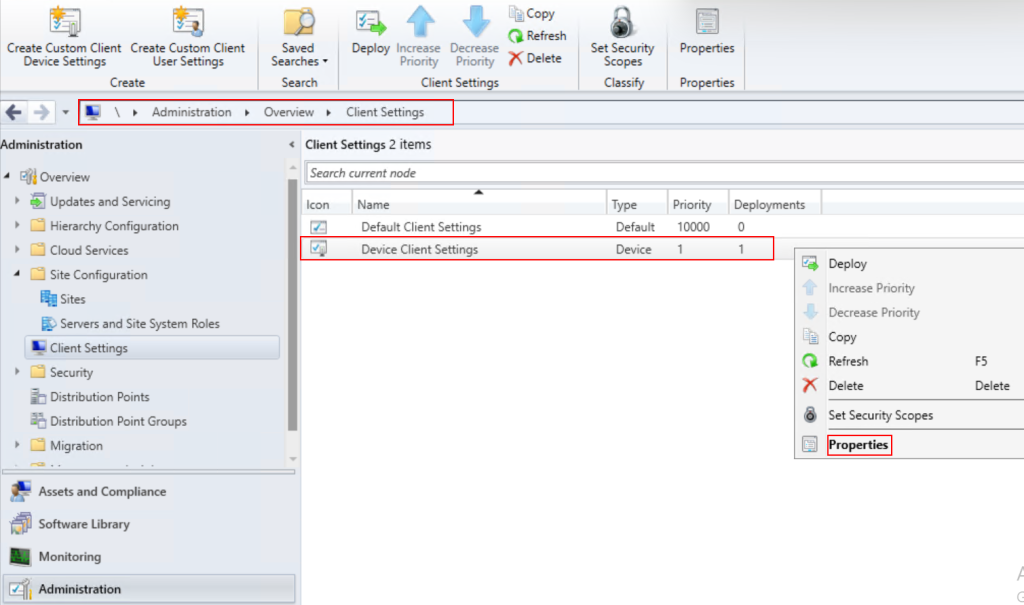
Go to Administration -> Overview -> Client Settings -> Choose your Device Client settings create and deployed to the computer and right click on it go to Properties.
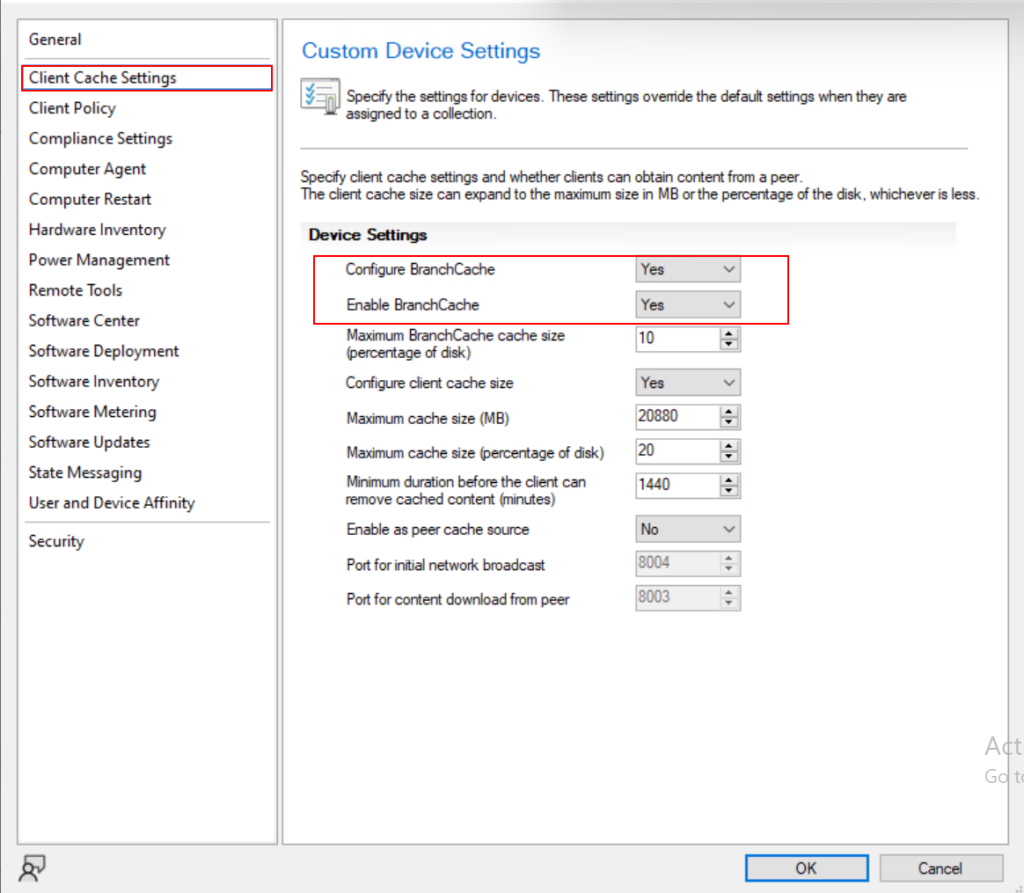
Under the “Client Cache Settings” Configure two things which are marked with red color.
Configure BranchCache =Yes
Enable BranchCache = Yes and click on OK.
required configuration in your MECM server is done and now it may takes few minutes to hour to get reflected in clients depending your client sync configuration interval. Once machine policy reflected to the to clients this can be verify using below PowerShell command.
# On client computer
netsh branchcache show status all
Check under BranchCache service Status, Service Mode should be Distributed Caching.

After Completing the above task, administrator can deploy the updates to computer but keep in mind that computer collection should be with large computers. where computers would downloads from it collection member computers rather than MECM server DP.
by enabling this feature organization and administrator both get advantages of many things like:
- Low dependency on main distribution point which MECM server.
- congestion reduction on the network.
- fast acceleration on installation of application and software deployments.
This is the most effective way to optimize software distribution, timely deployment and save bandwidth across the client computers where configuration of peer to peer content sharing is quite simple.
That’s it
In this article, I have explained how to enable peer to peer content sharing in MECM server including step by step guide. In the next article you will be understanding all the step how to troubleshoot synchronization issue between MECM and WSUS which is one of most common problem in MECM Where server stops downloading metadata from Microsoft after few months of installation and configuration of configuration Manager.